
Widgets
There are several directories in the downloaded template bundle. Let's now examine what's inside each folder.
Screenshots - displays template screenshots. Do not use these for creating templates
Theme - carries Files for a WordPress theme
"bpo-services-pro" -This Theme folder has The important files for theme regarding the theme.
The file "license.txt" consists of important information regarding the license
The installation process can be executed in two methods.
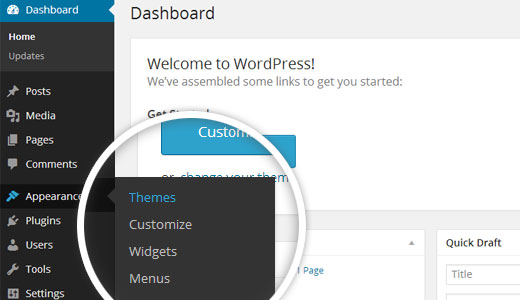
Logging into your dashboard is the first step in installing a new theme on a WordPress website.
1. Select The Appearance → Then Themes
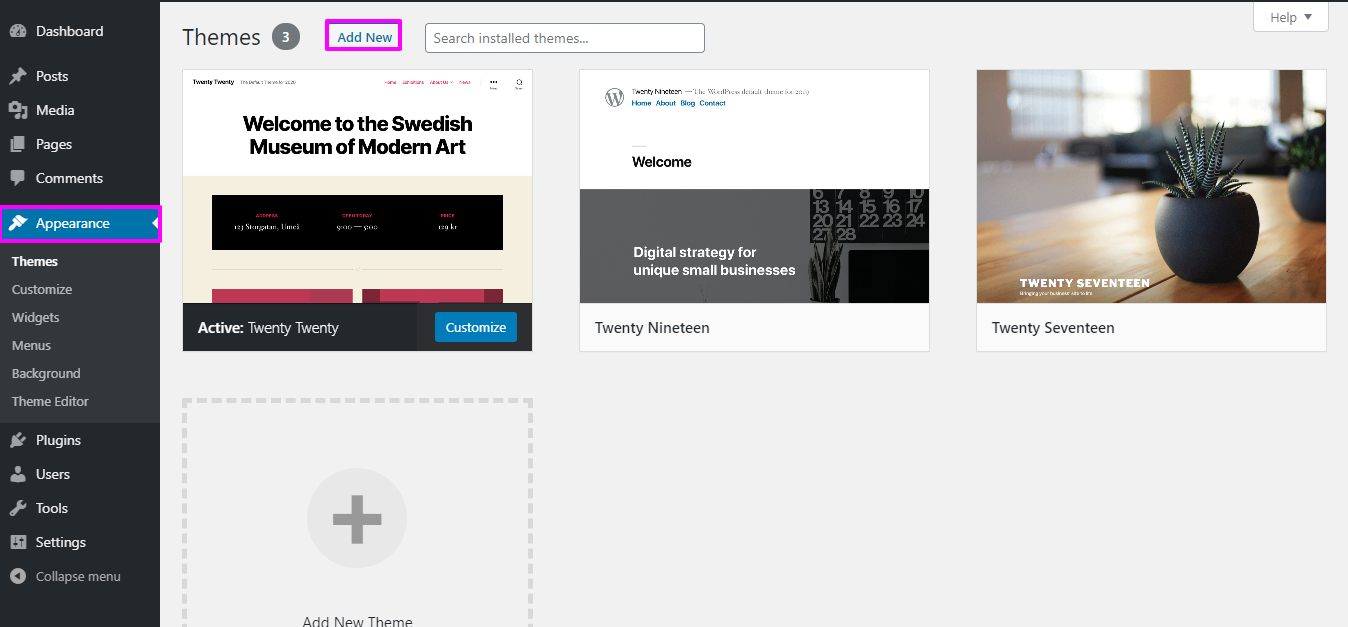
2. Tap Click On Add new
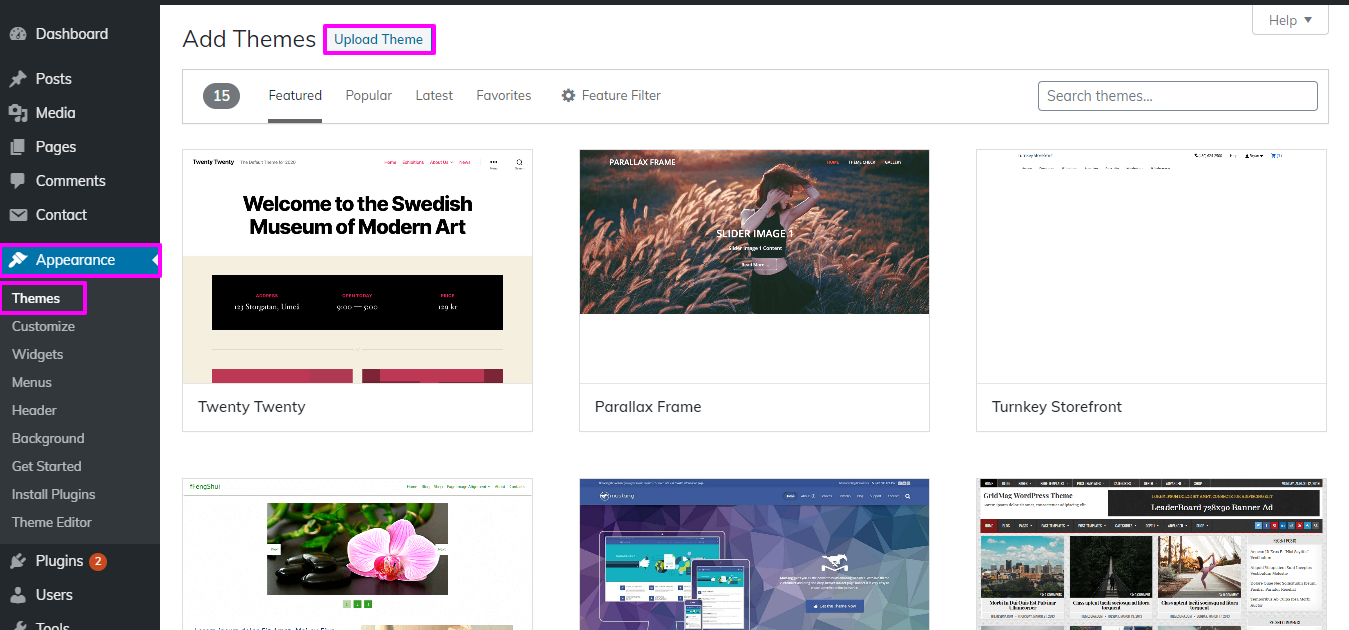
3. On the "Upload Theme" button, click.
4. Select "Browse" to install the theme file and select it from your device the bpo-services-pro theme theme on your WordPress website. Click "Install Now" to start the installation procedure after you've chosen the file.
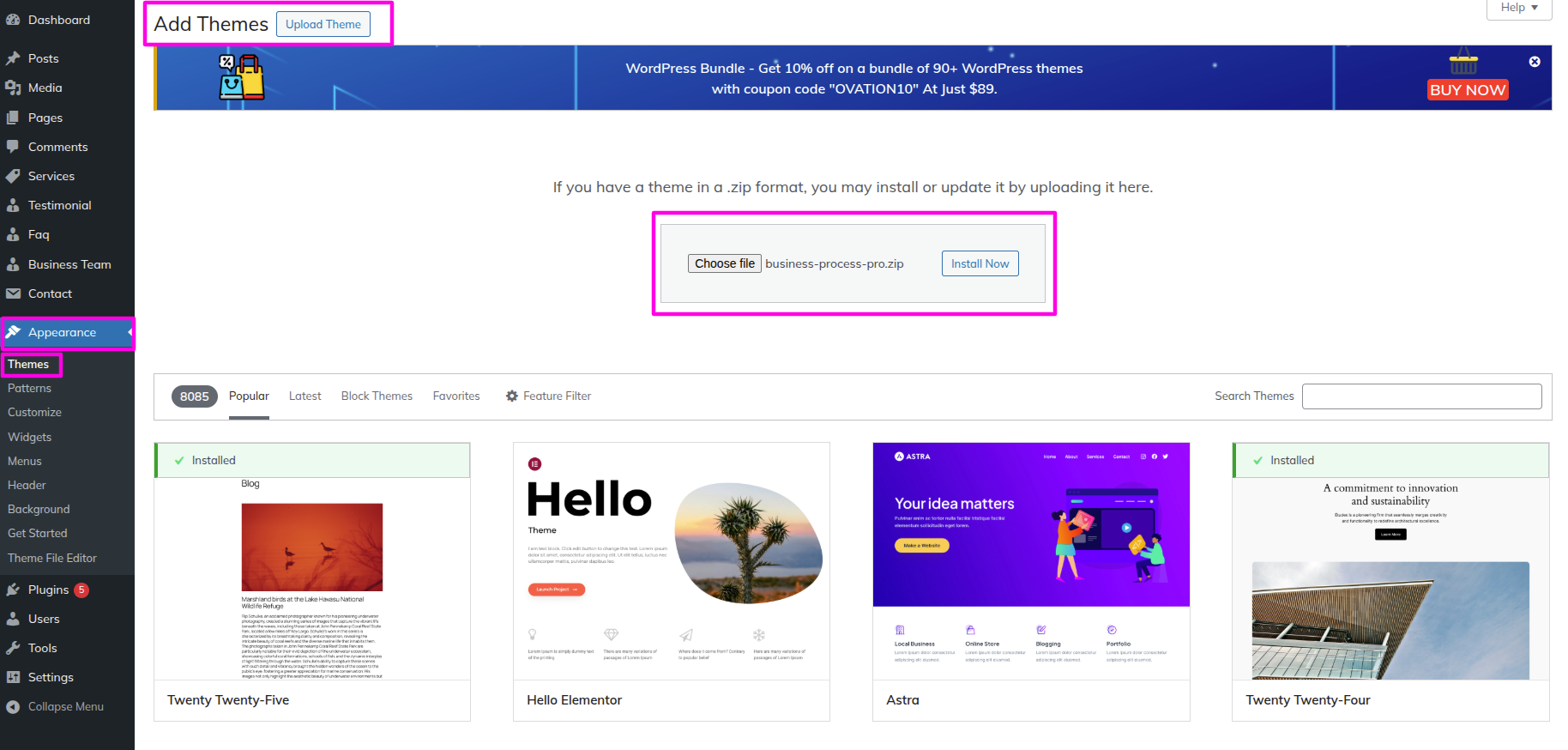
Congratulations on completing the WordPress theme installation!
Another option for installing a theme is to upload it via FTP (File Transfer Protocol).you first need to log in your website via FTP and Select to the themes folder inside wp-content folder. From there, you can upload the theme you downloaded by unzipping it and uploading it to server.
Afterward, log in your WordPress site and Select to The Appearance -- Select Themes And activate .
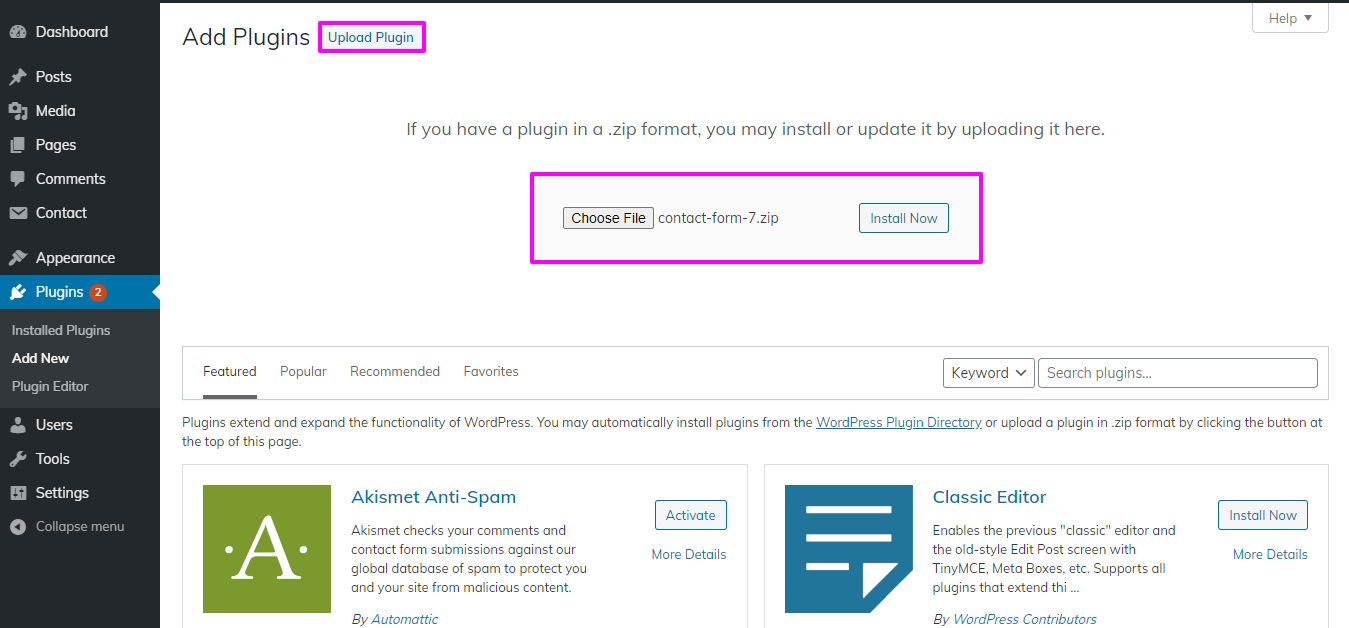
To manually add a WordPress plugin using a.zip archive, follow the steps listed below.
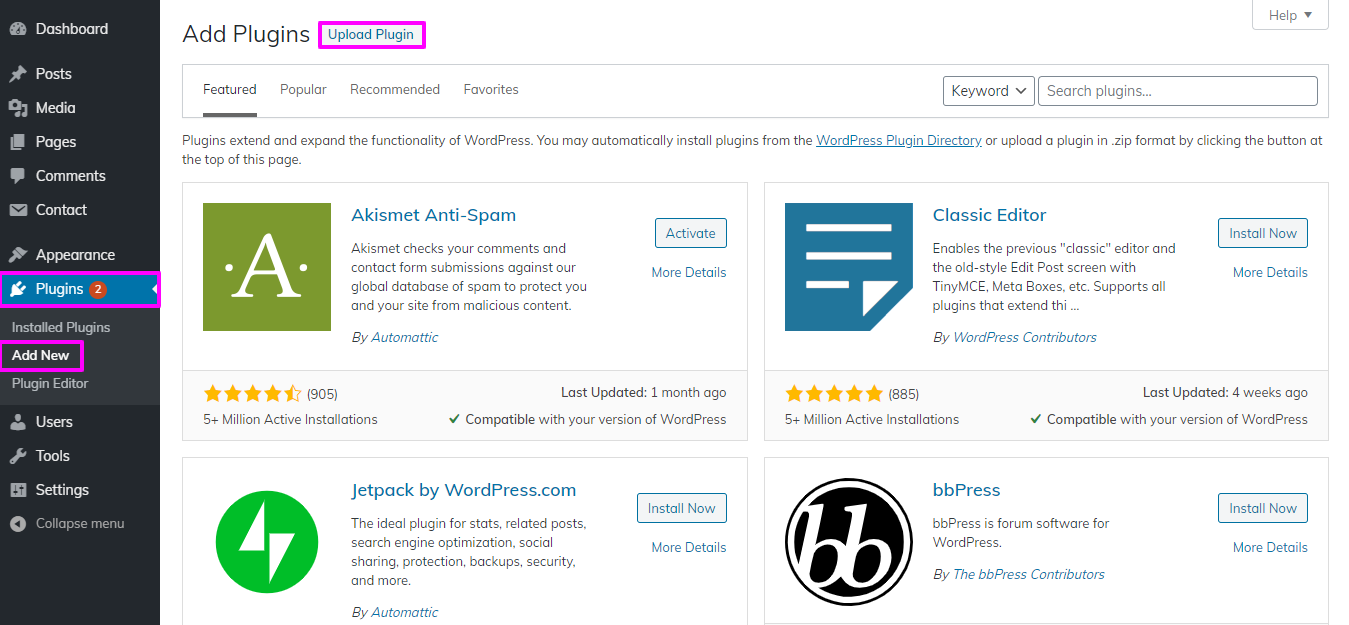
click install now button and activate
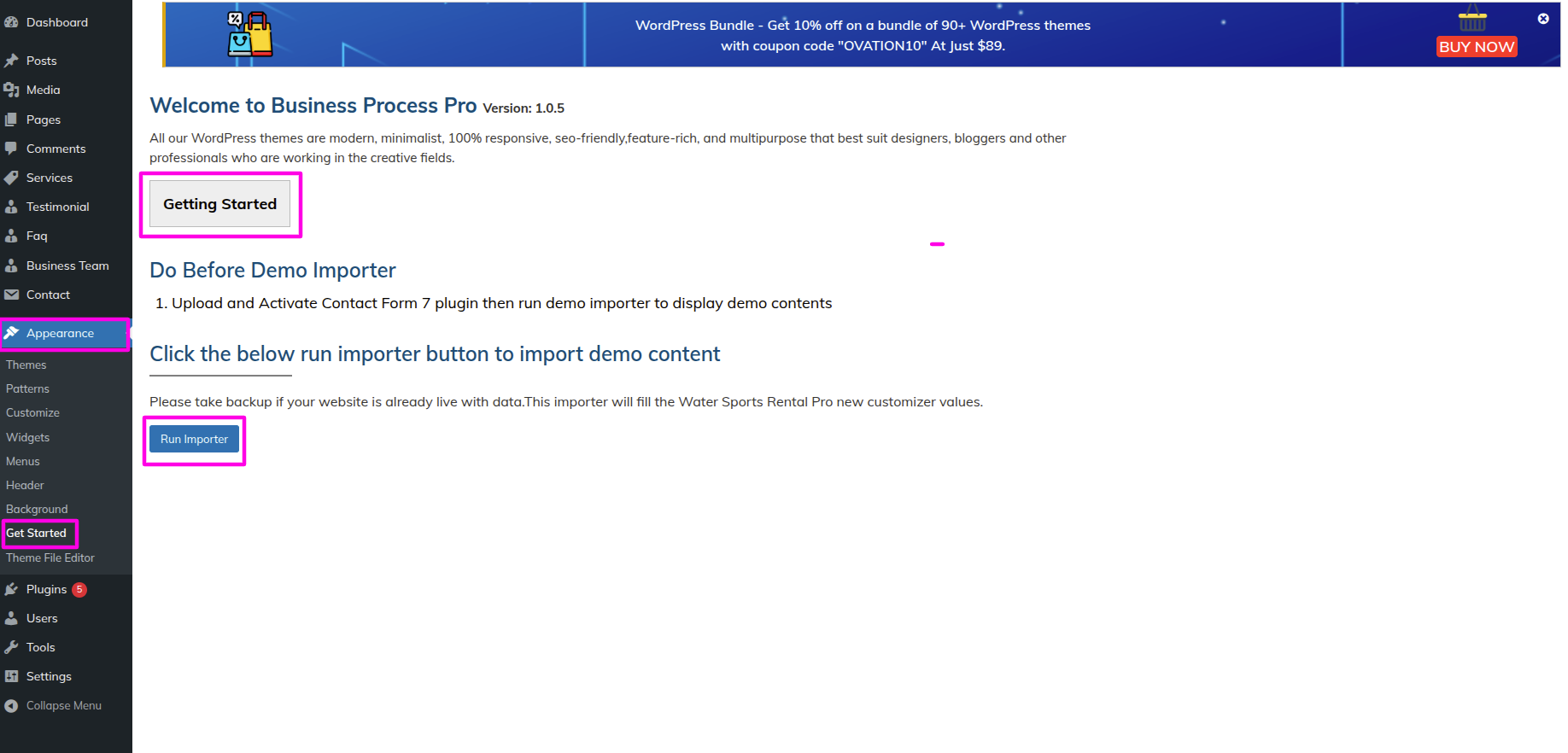
Import demonstration content with one click to get your theme Set-up. This content will lead you through creating your website.
SelectDashboard → Go To The Appearance → Tap Get started
Tap"Run Importer".
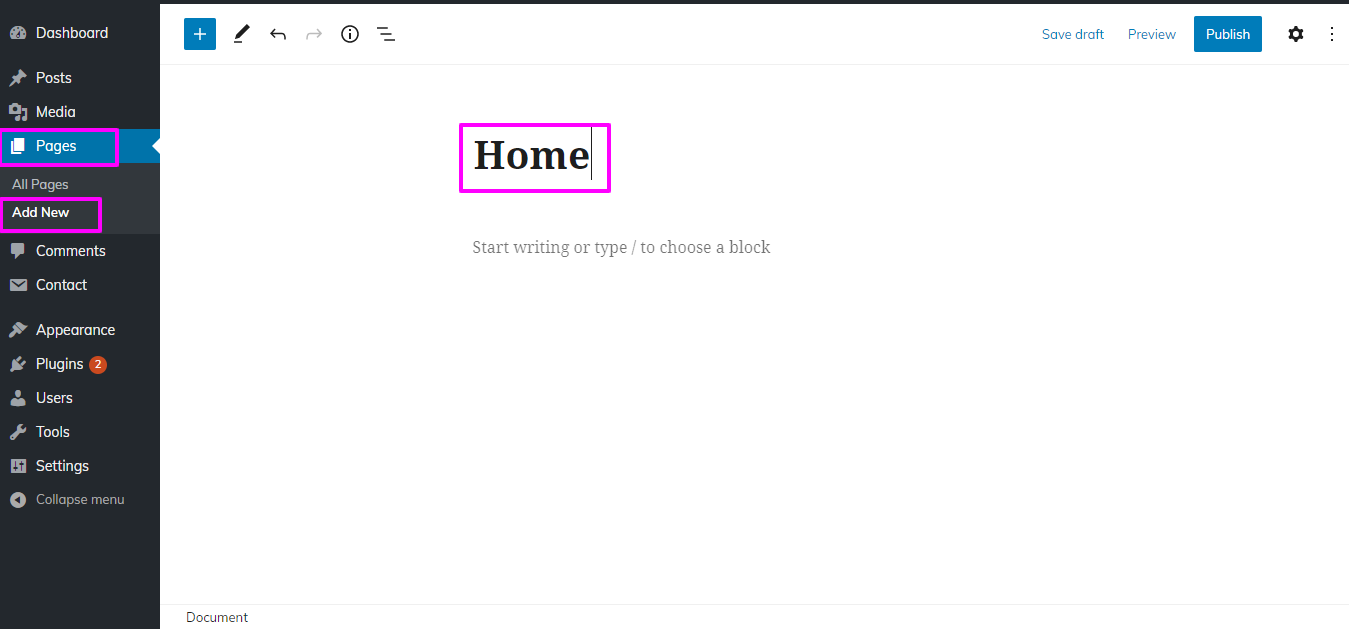
1) Now To set up home Page First Create a Page From Admin Area
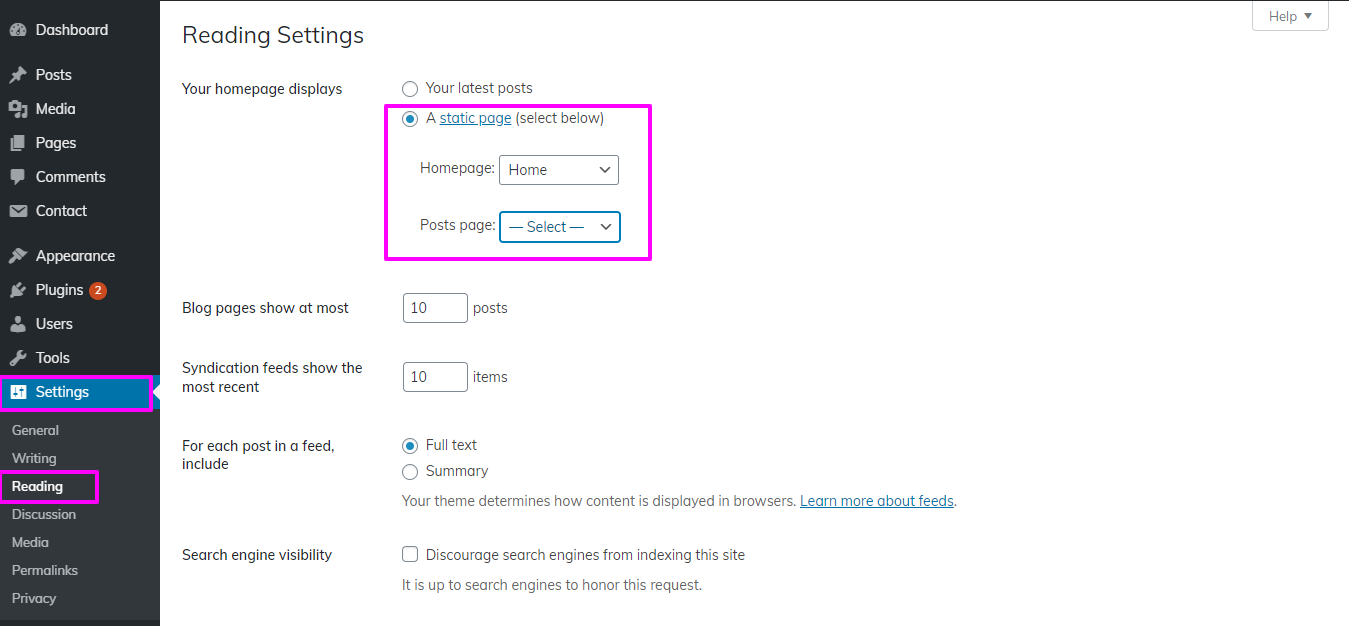
You have the option of calling your page the parent site name or the main page. By choosing Settings and then Reading, you can switch the template from static to the Home page..
2) Set the page: Select Setting → Reading → Set the post page display static page to the Home page.
You will notice the Home Page looks same as scrrenshot
How to Reorder and Organize Section
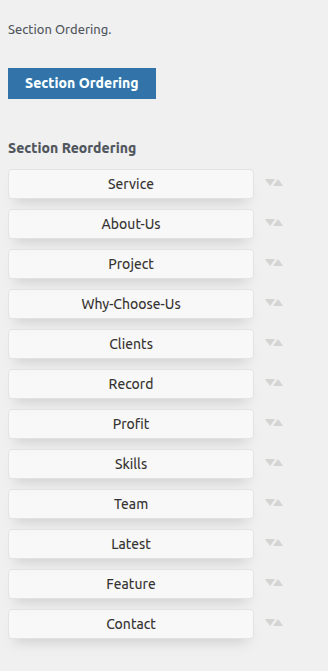
Section reordering means to arranage the section as per our requirement. first you need to choose section and drag section on top or bottom where you need it. when you will drap any section your front view will change according to your choice.
To ensure that begin with Section Ordering.
Select The Appearance → Select Theme Settings → Tap Section Ordering
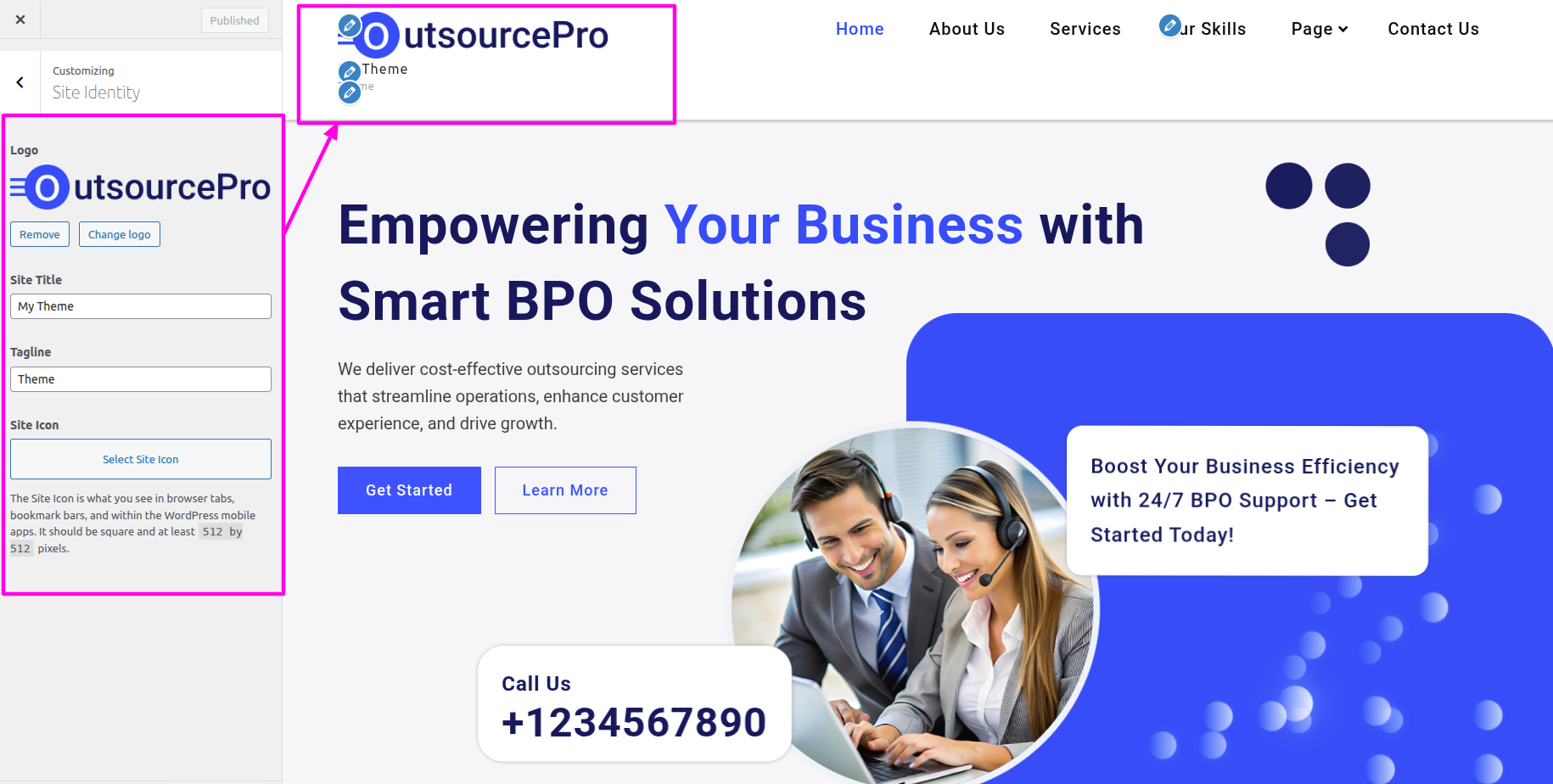
To be able to begin with Site Identity,
SelectThe Appearance → Select The Customize → Site Identity
To be able to begin with header,
Select Pages → Click On Add new
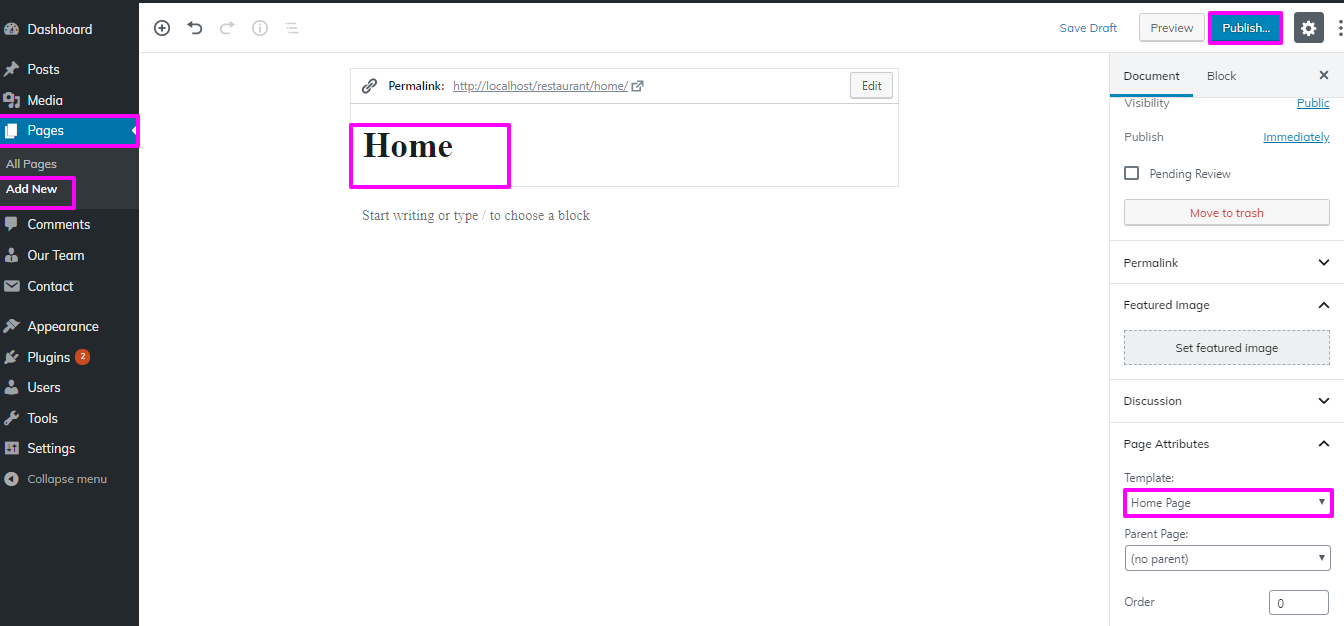
The menu will require more pages.
Select The Appearance → menu → Click On Add new
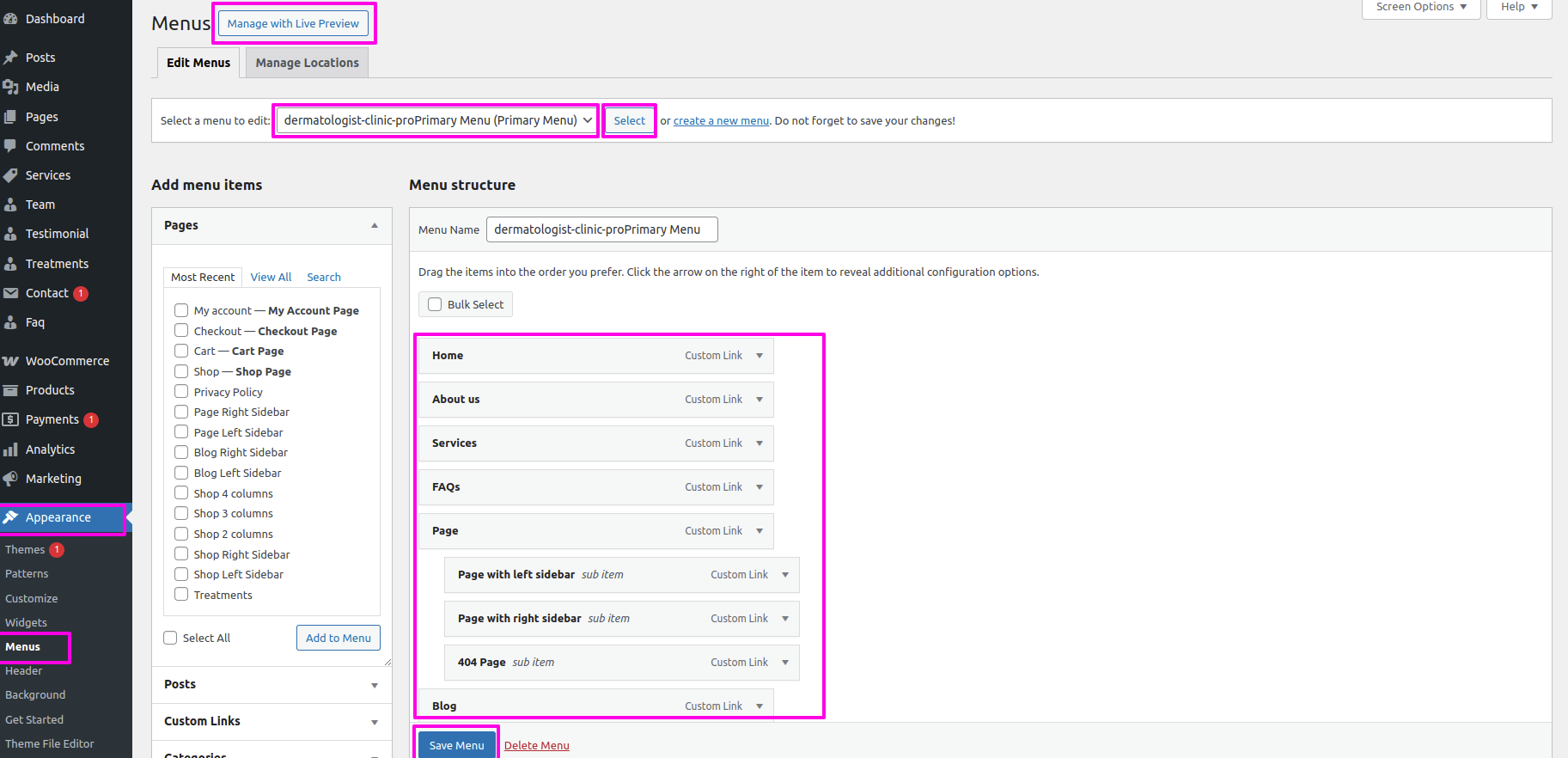
If you wish to add more pages, follow the same procedures again.
SelectThe Appearance → Select The Customize → Business Settings → Header Settings
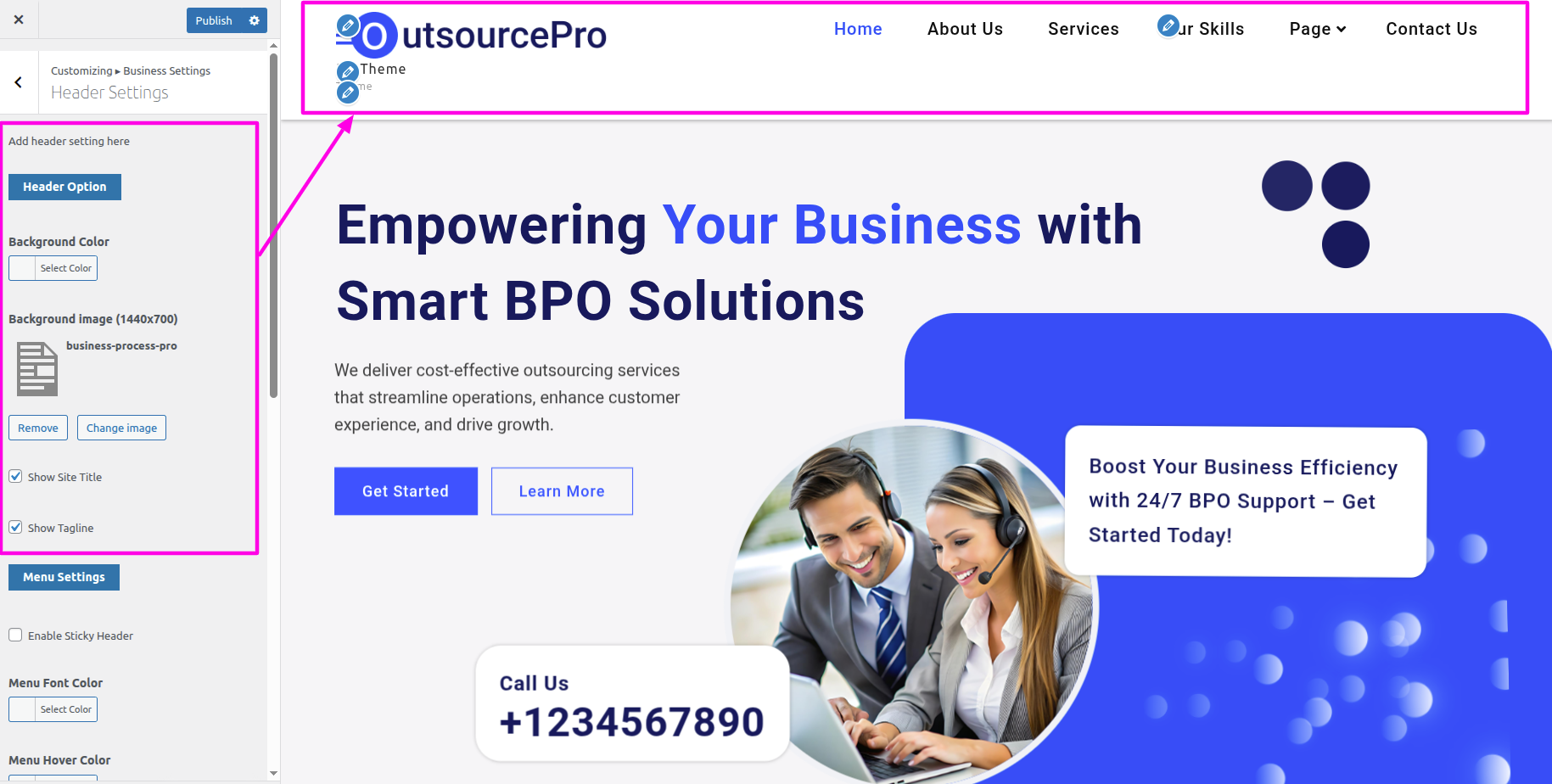
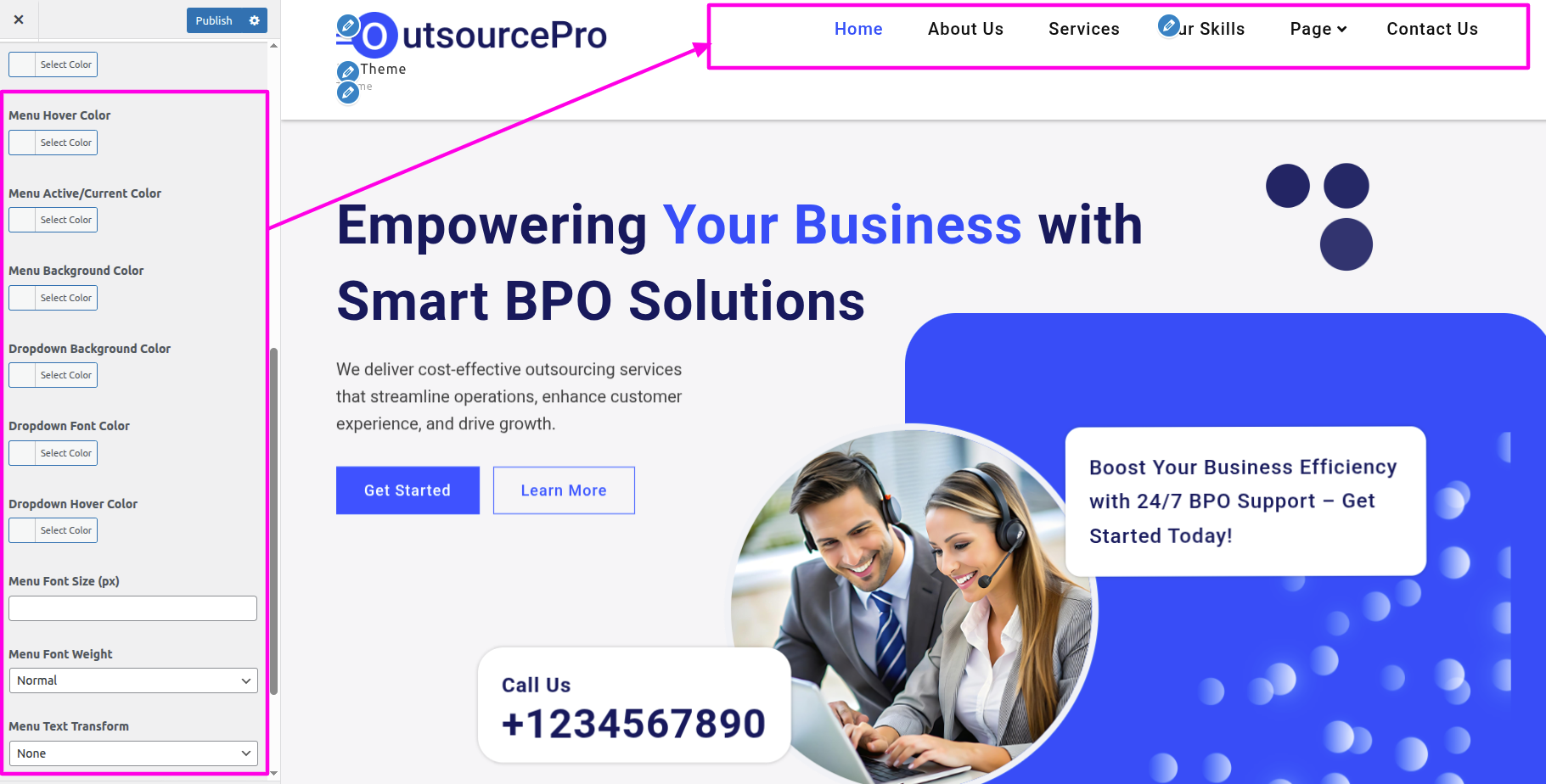
You can include the menu section in this manner.

To begin setting up the banner section, go to the customizer settings for the home banner.
Select The Appearance → Customize → Business Settings → Banner Settings
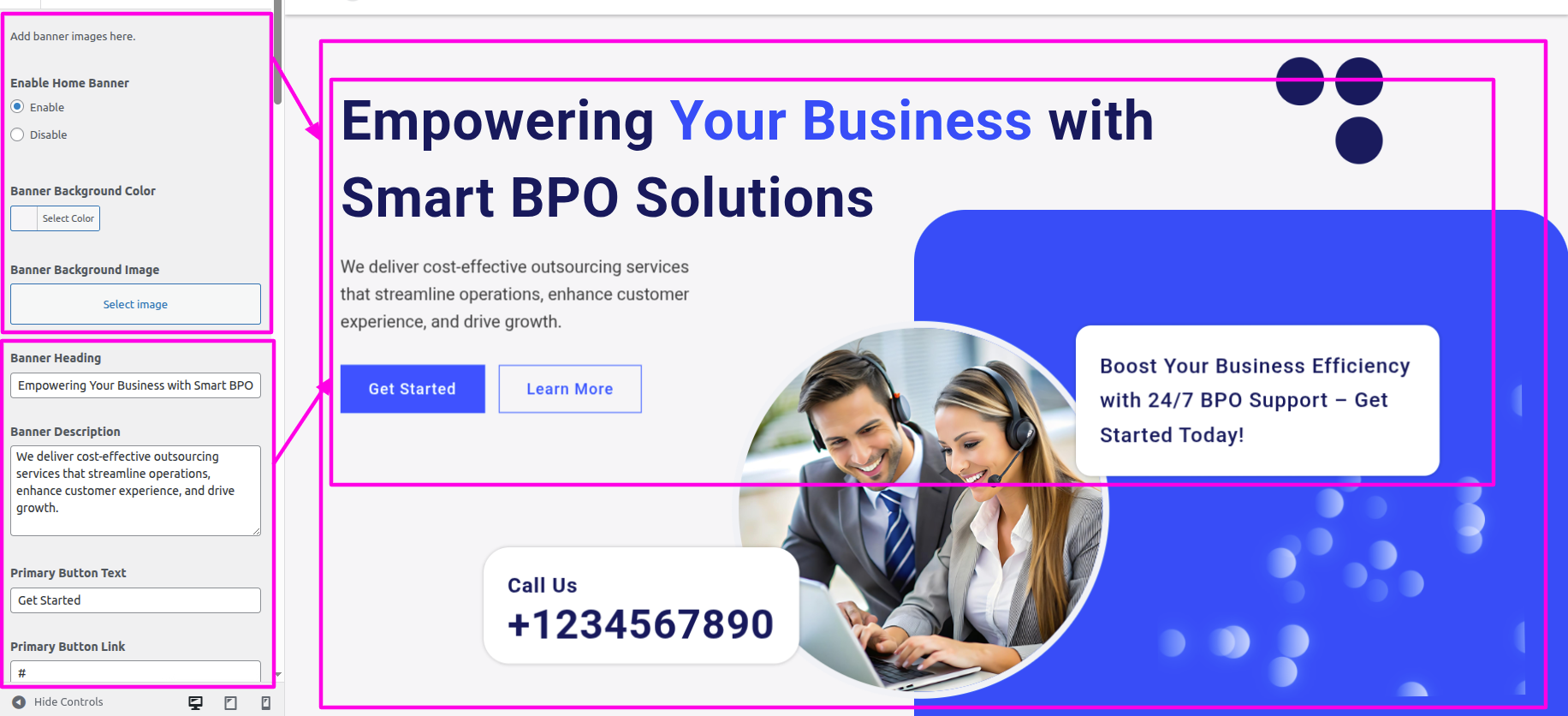
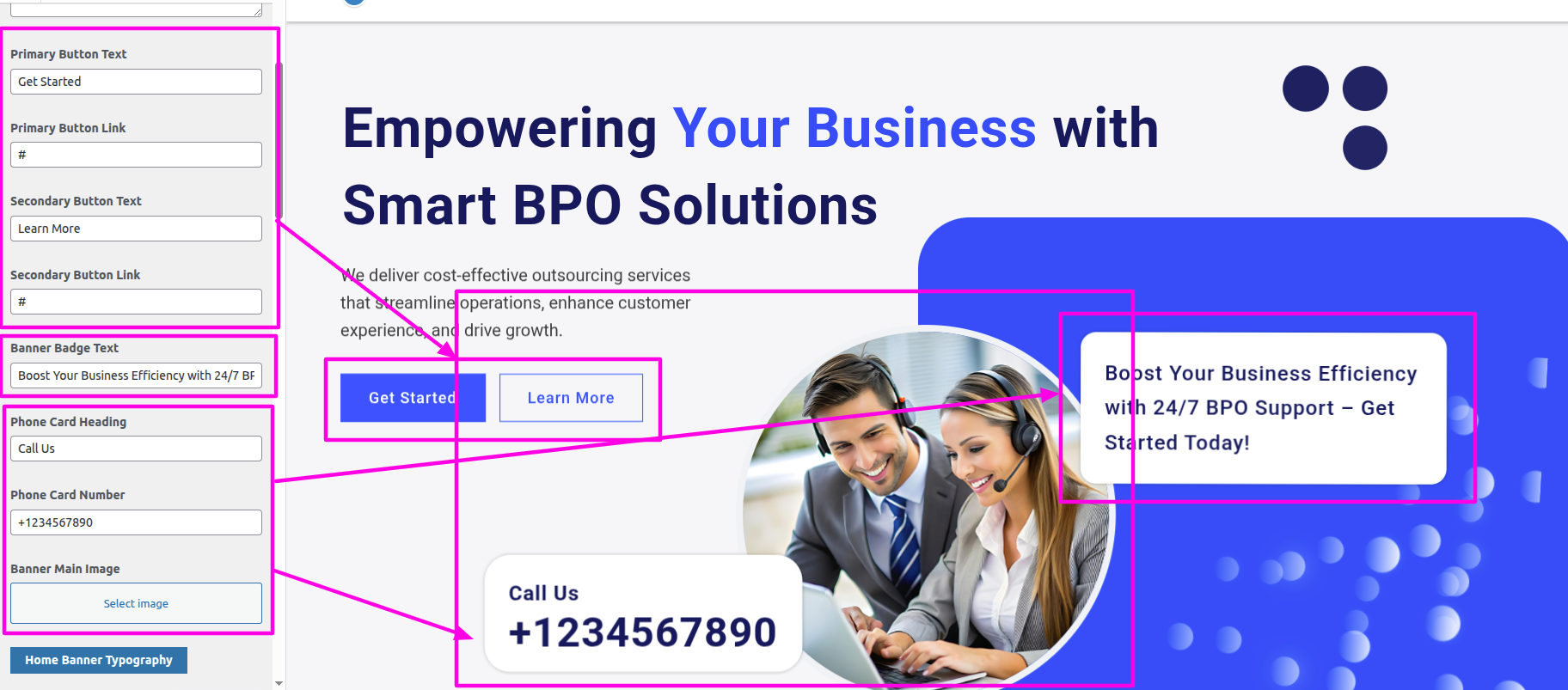
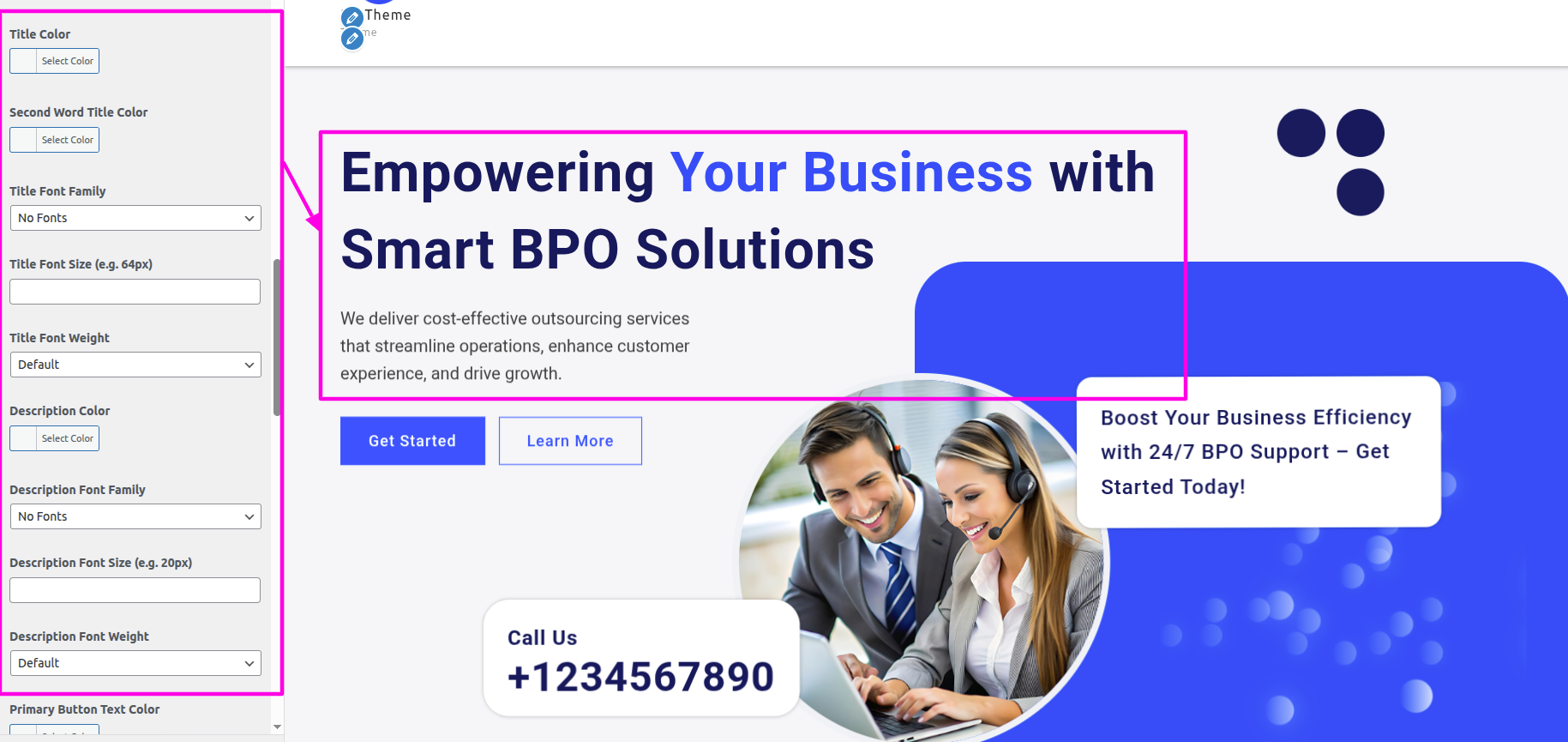
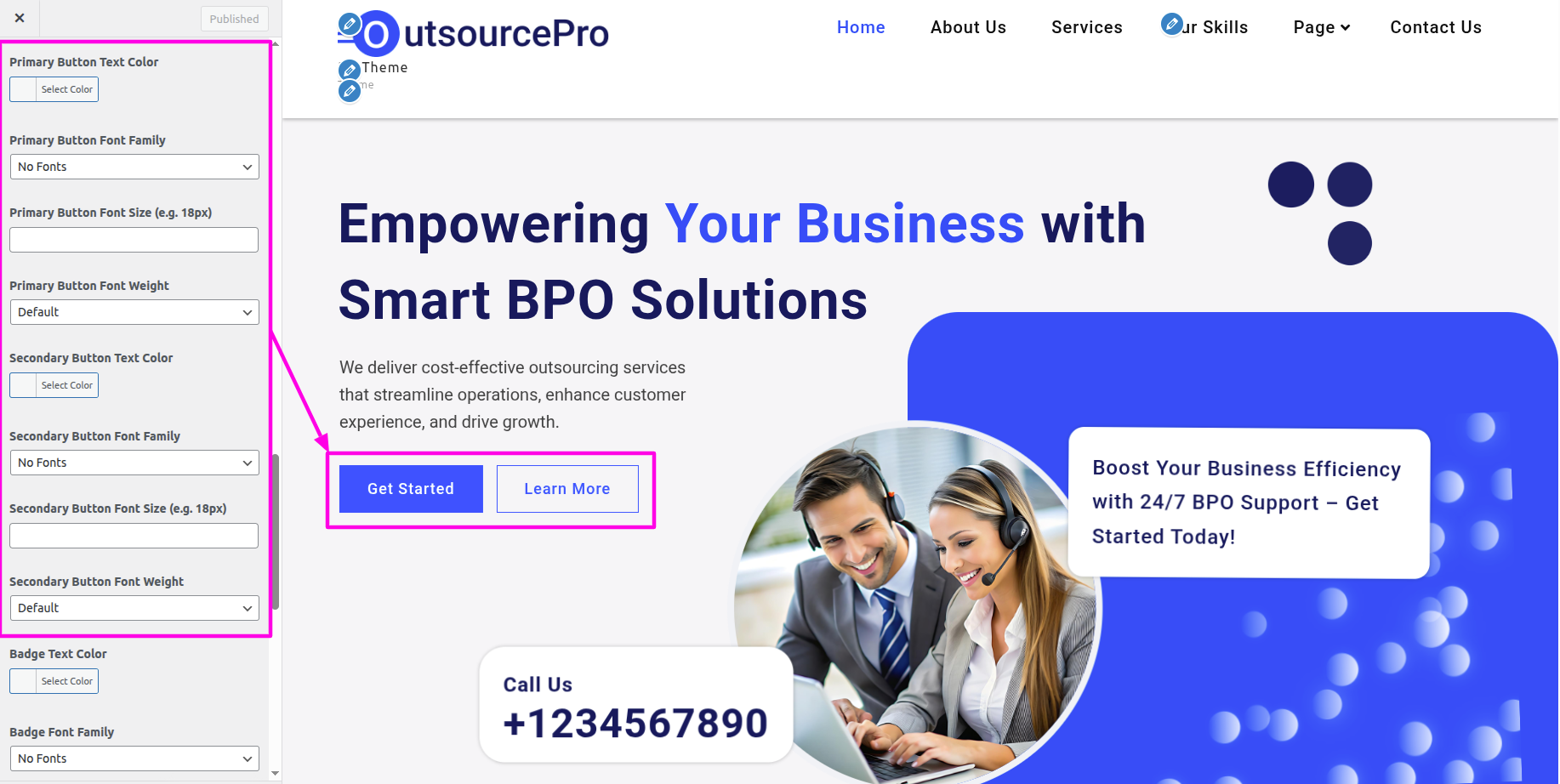
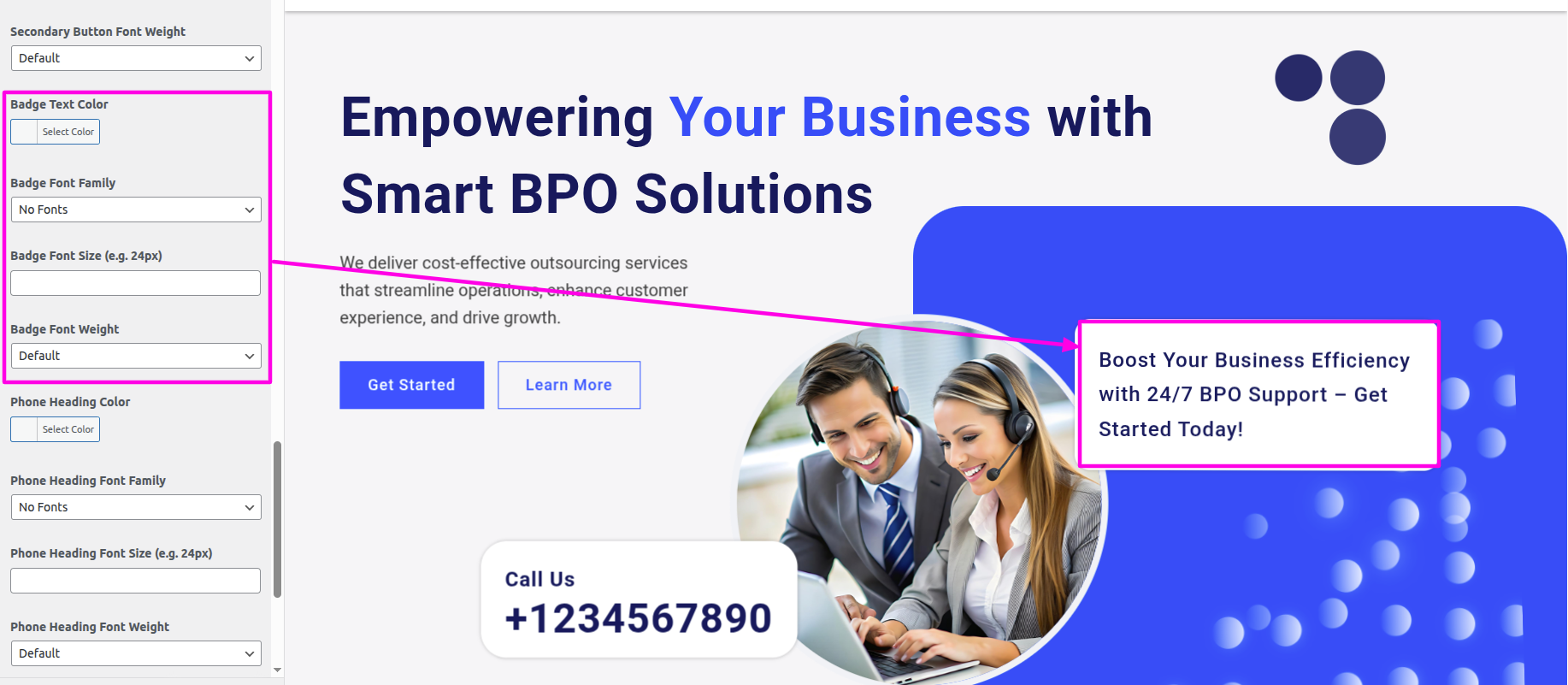
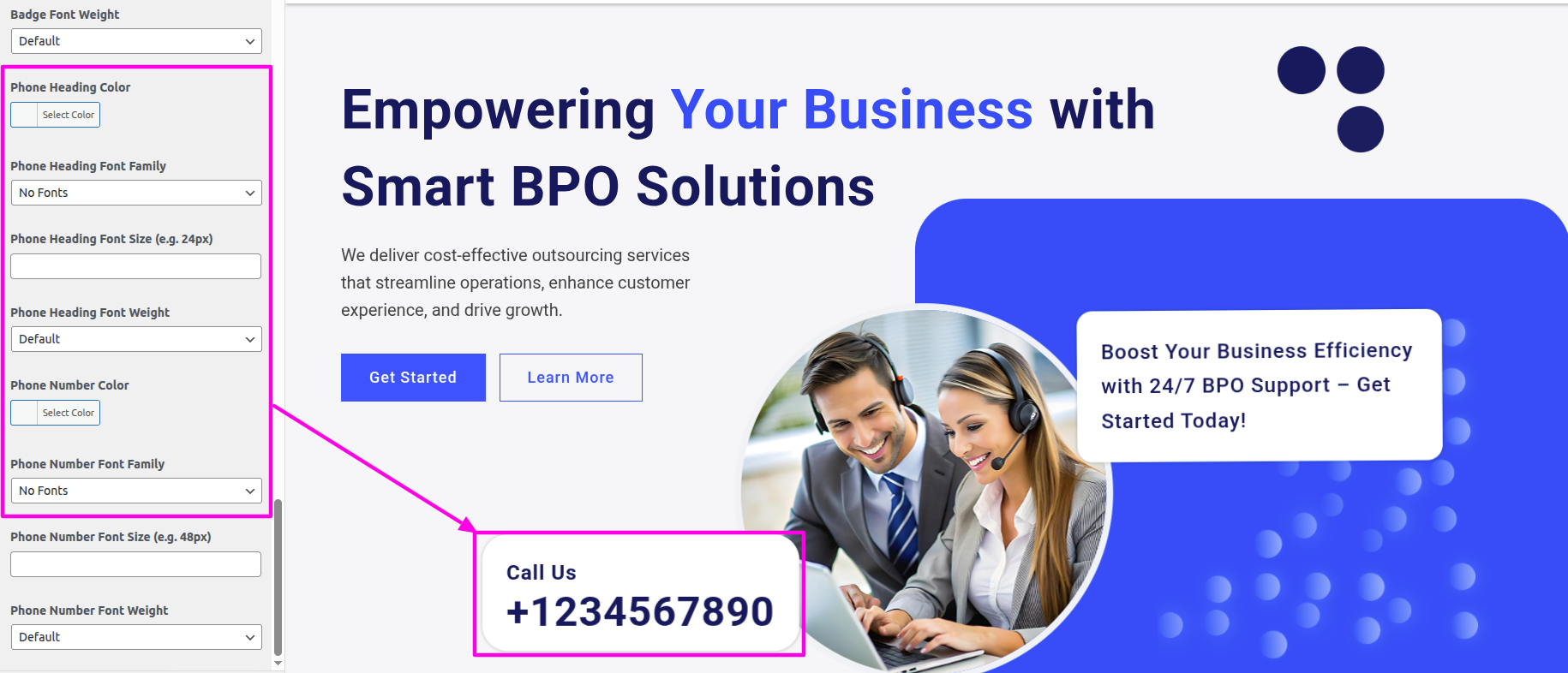
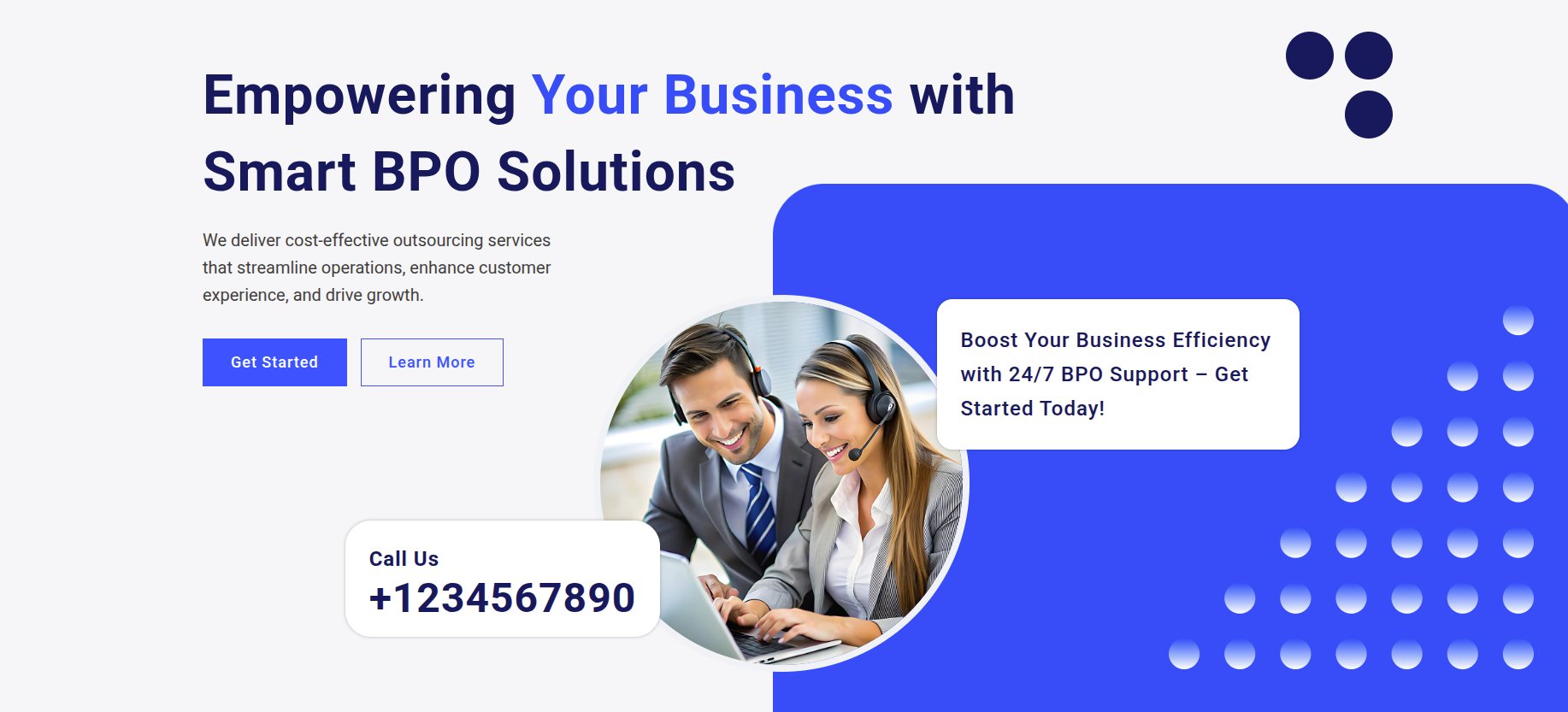
You can include the menu section in this manner.
This section is based on the Bpo Services Pro Posttype plugin, so first make sure the post type plugin is installed and activated.
Select Dashboard → Appearance → Install Plugins → Install and Activate Bpo Services Pro Posttype
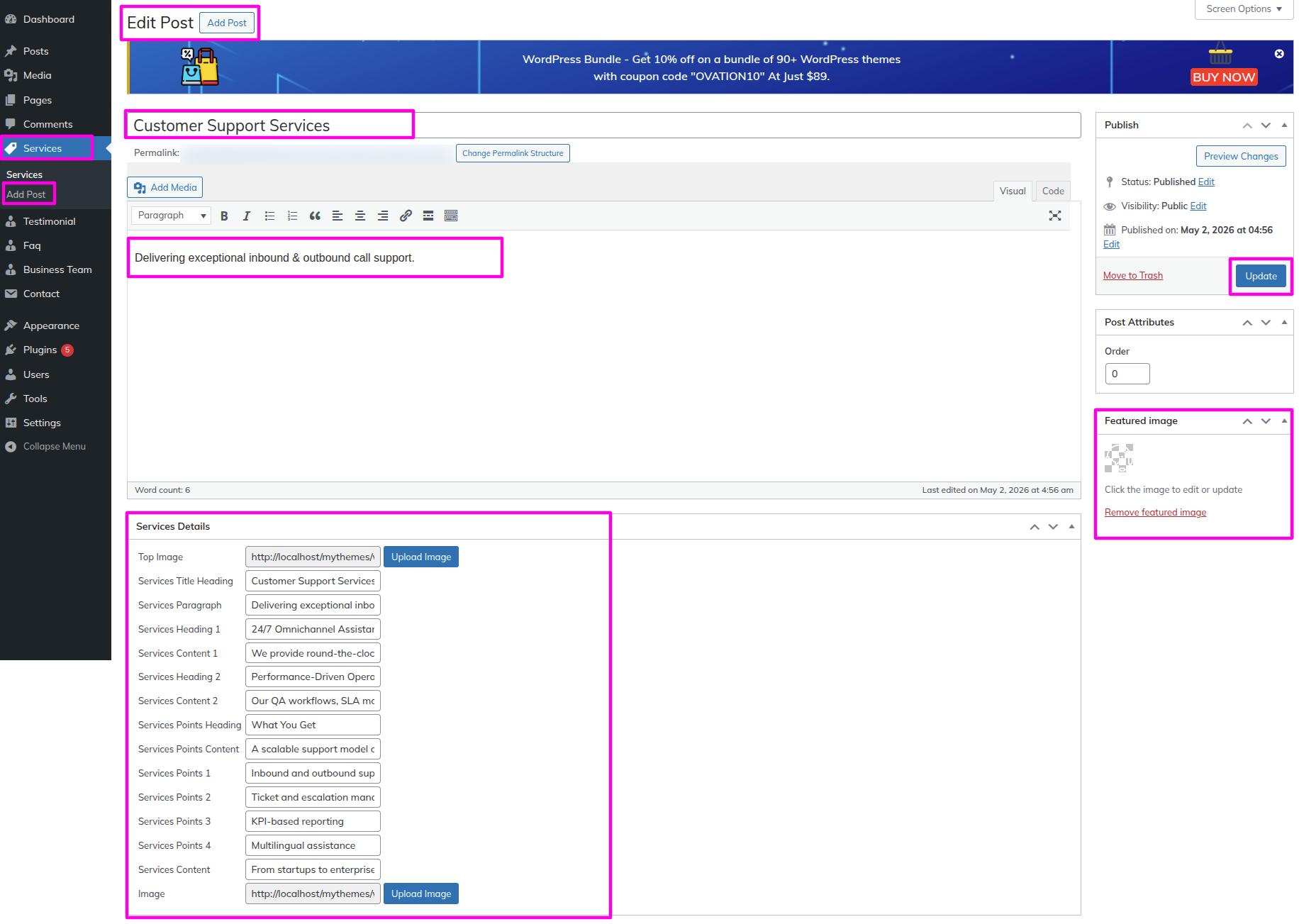
After activating the plugin, the Services post type will appear in the dashboard.
Select The Appearance → Customize → Business Settings → Banner Settings
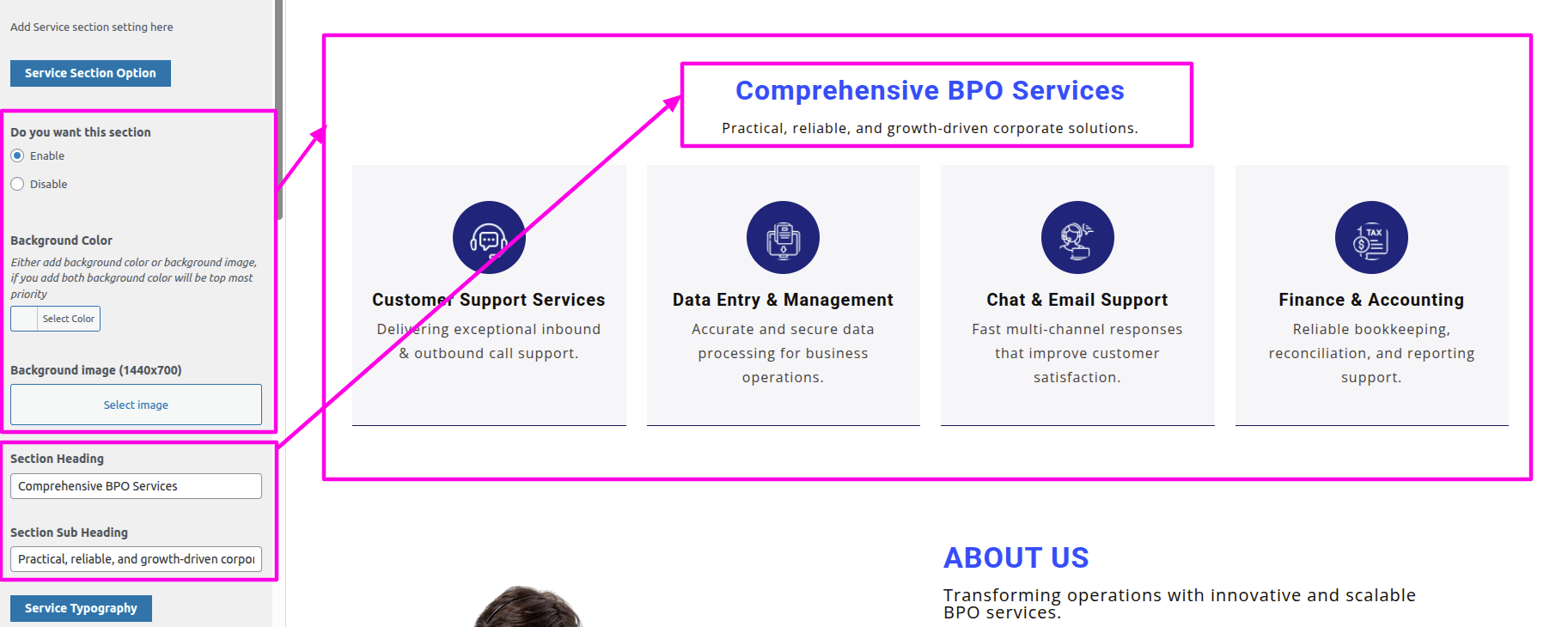
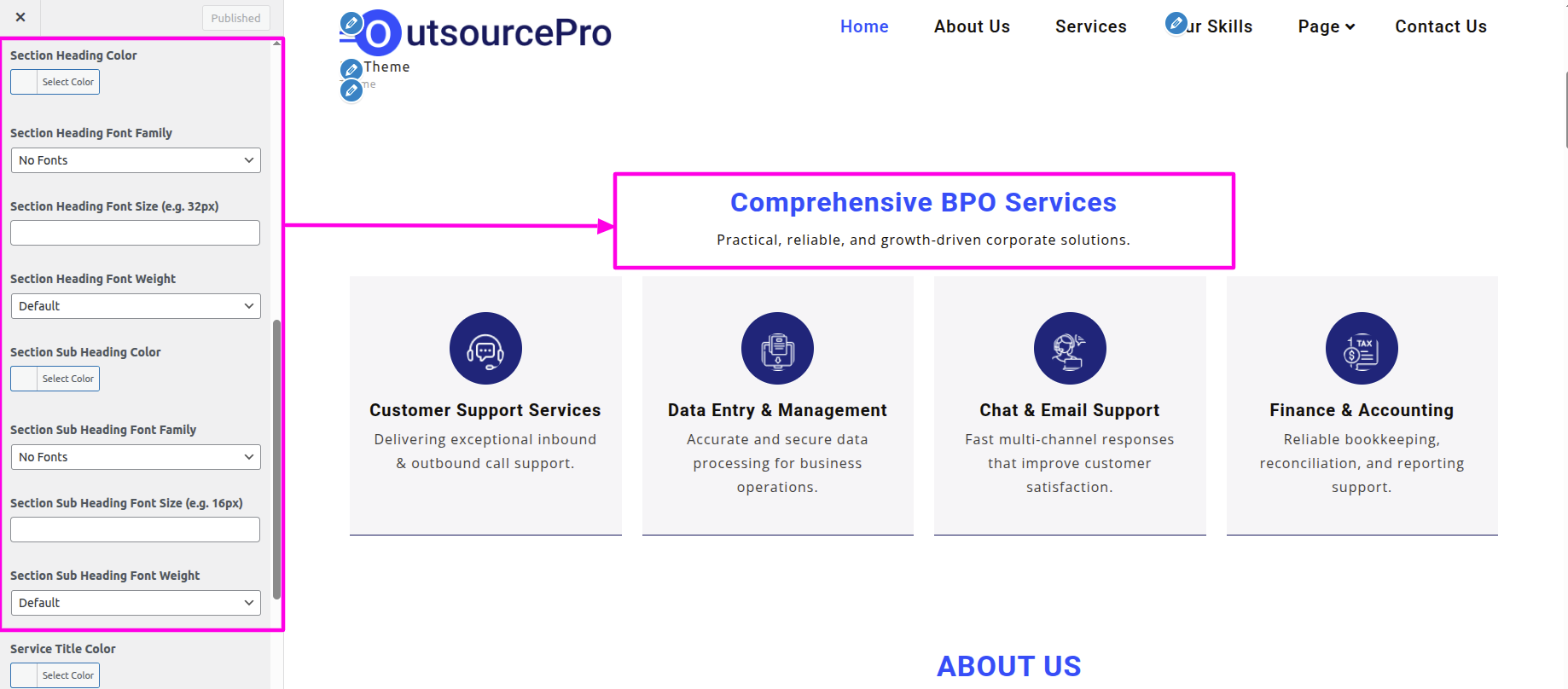
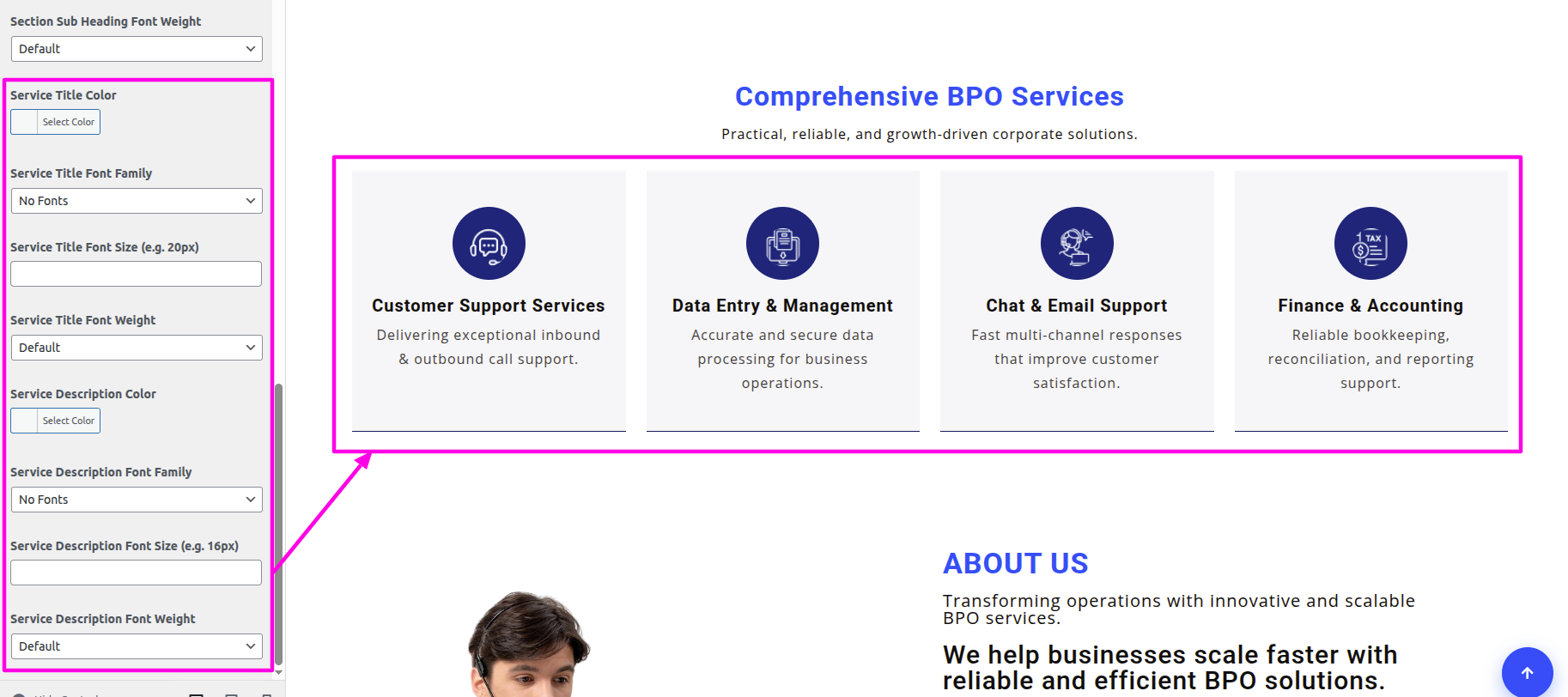
You can include the menu section in this manner.
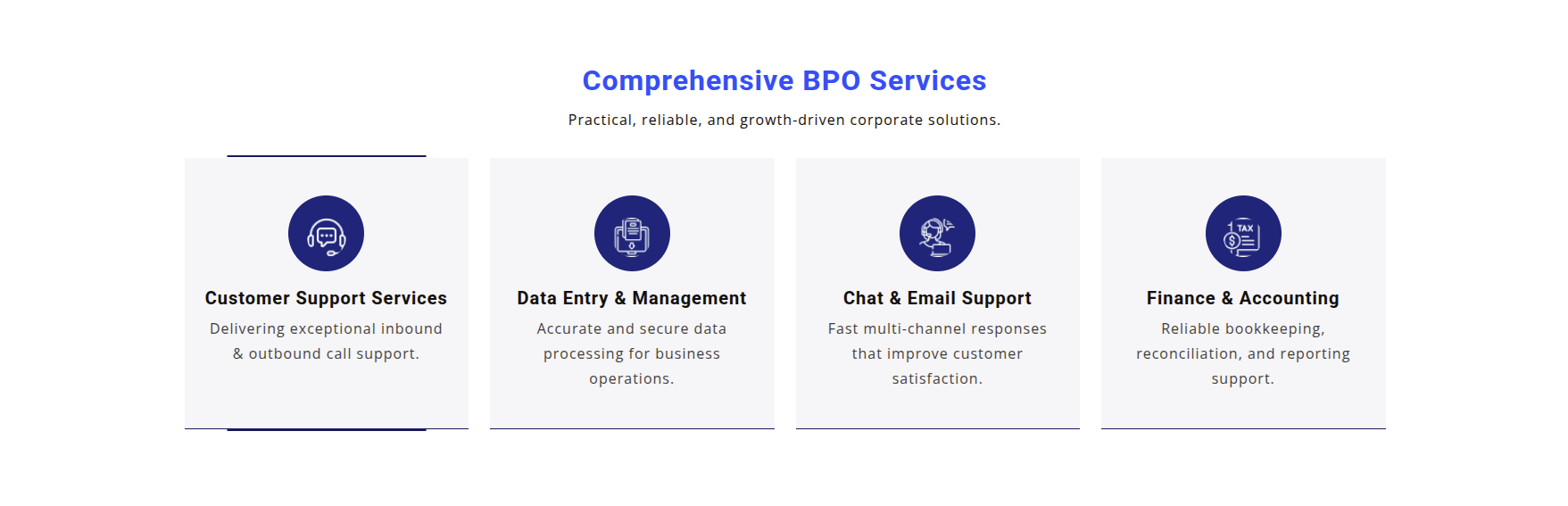
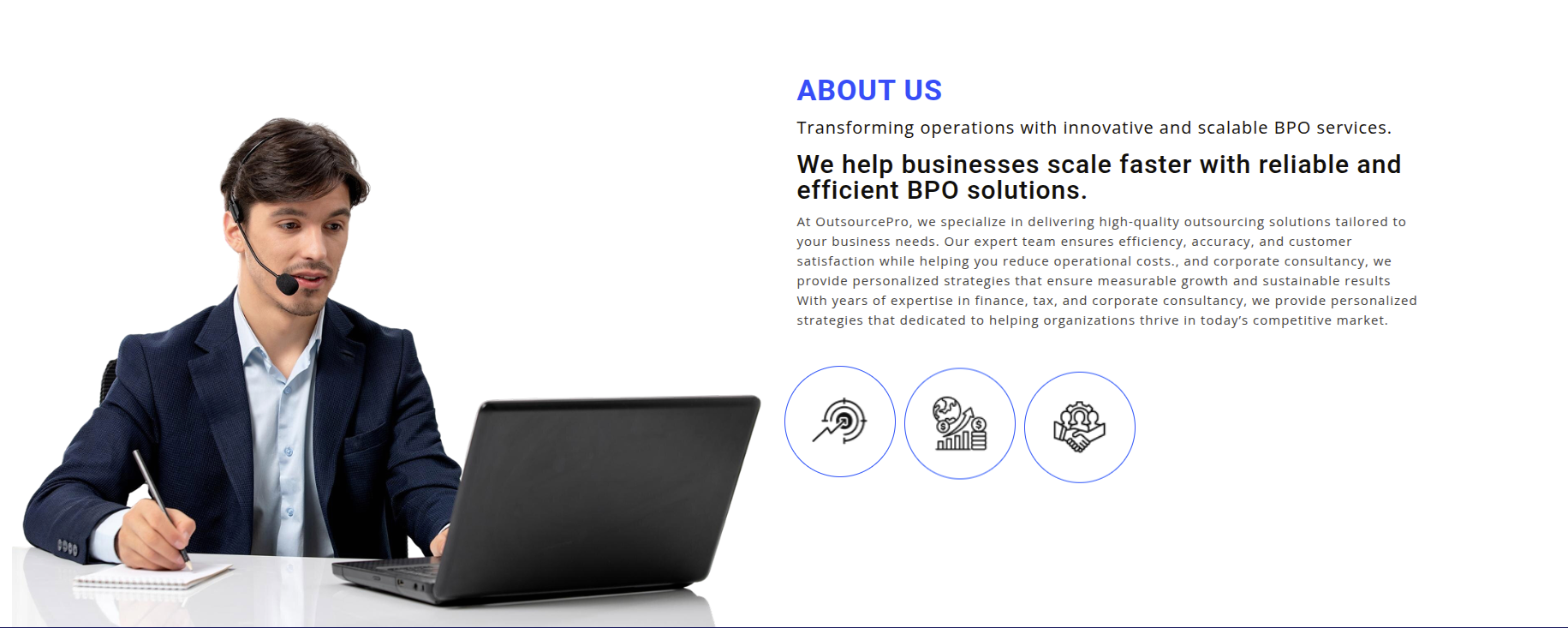
To begin setting up the About Us section, go to the customizer settings for the About Us.
Select The Appearance → Customize → Business Settings → About Us Settings
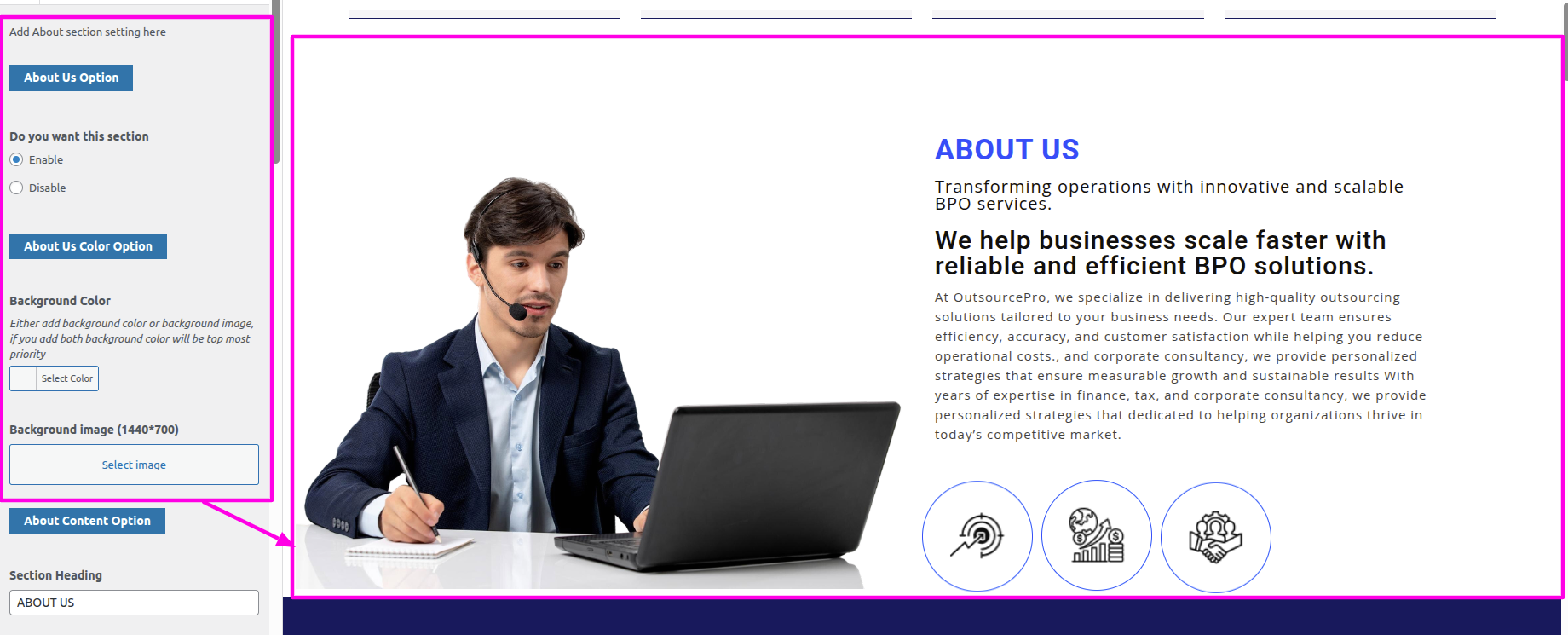
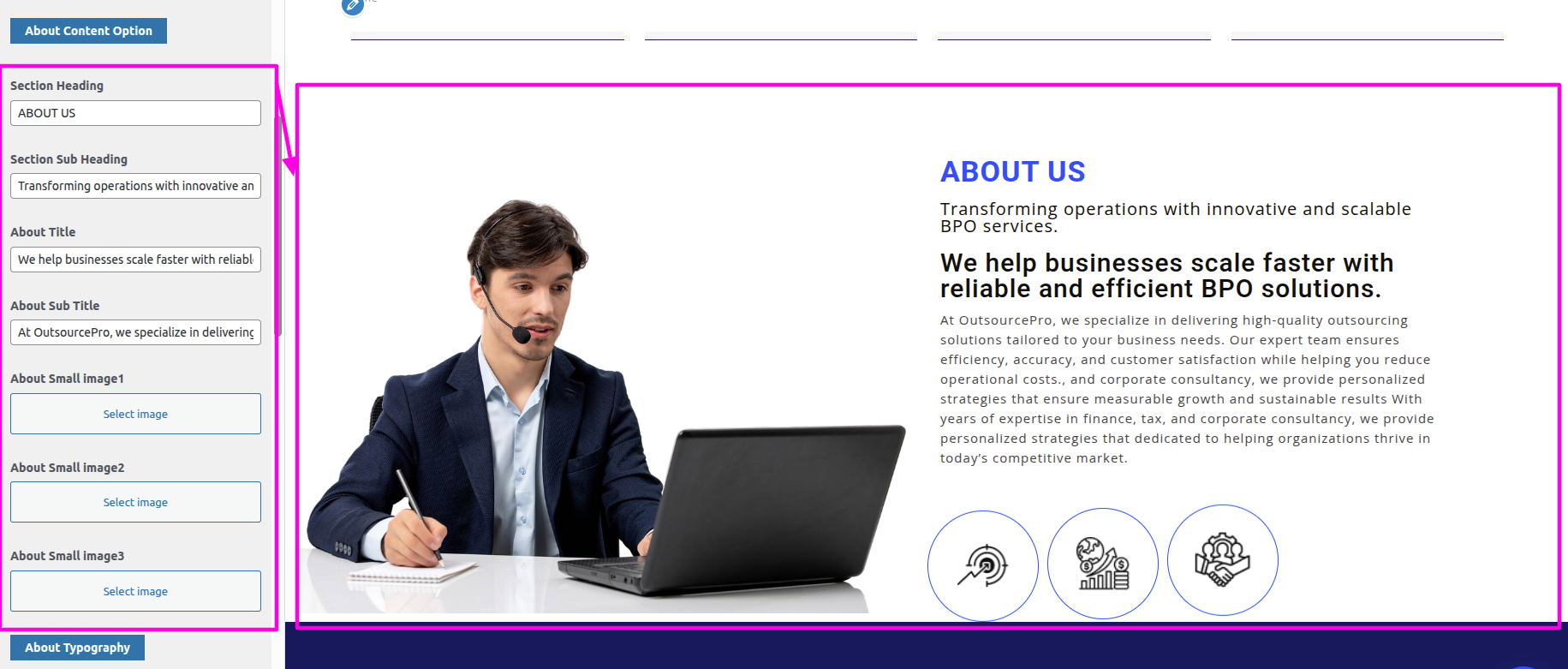
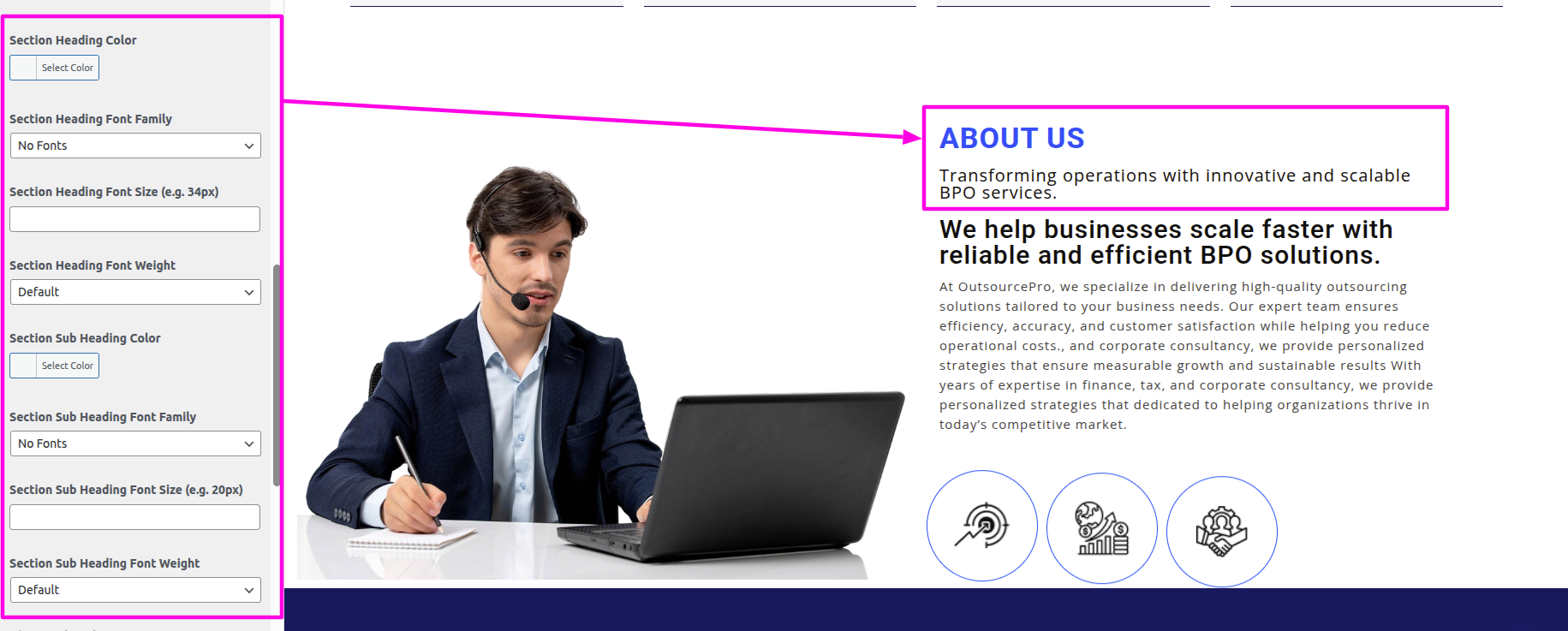
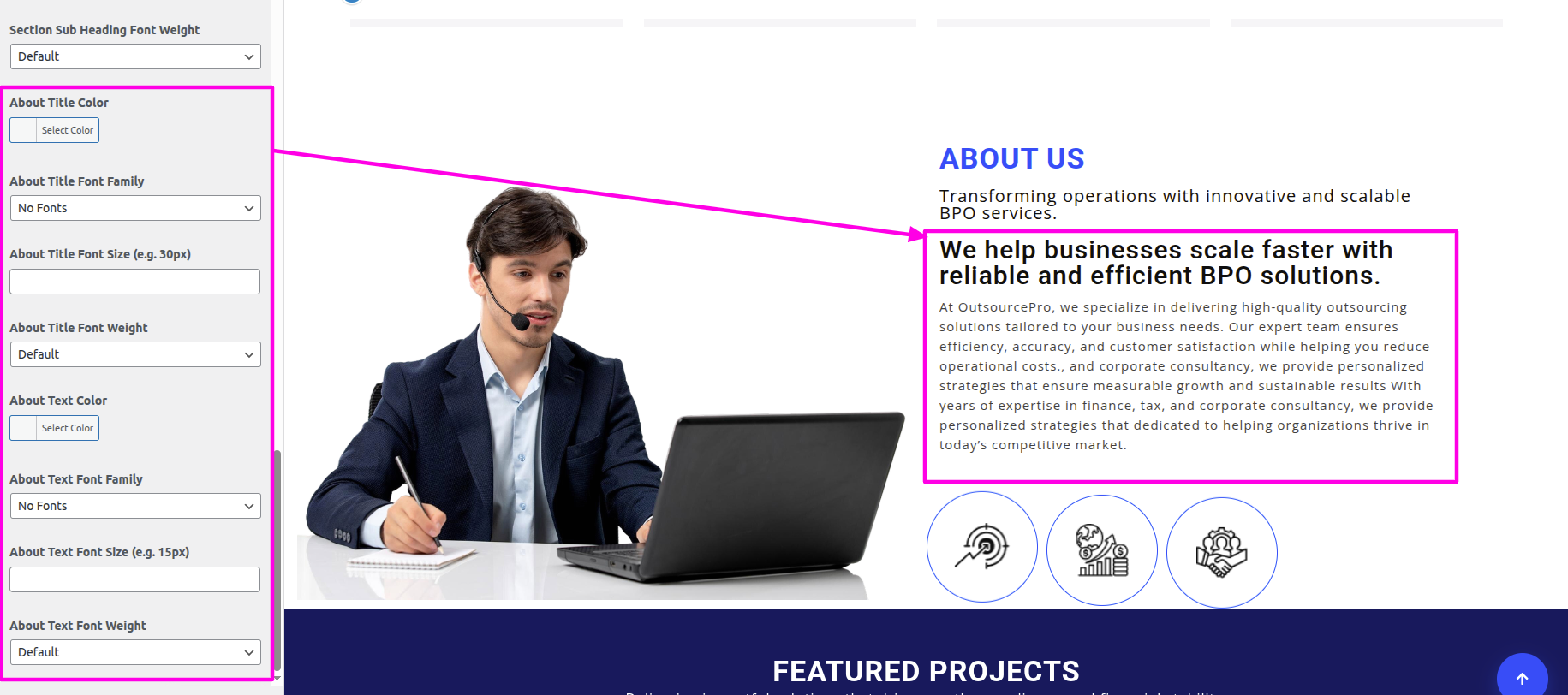
You can include the menu section in this manner.
To begin setting up the Featured Projects section, go to the customizer settings for the Featured Projects.
Select The Appearance → Customize → Business Settings → Featured Projects Settings
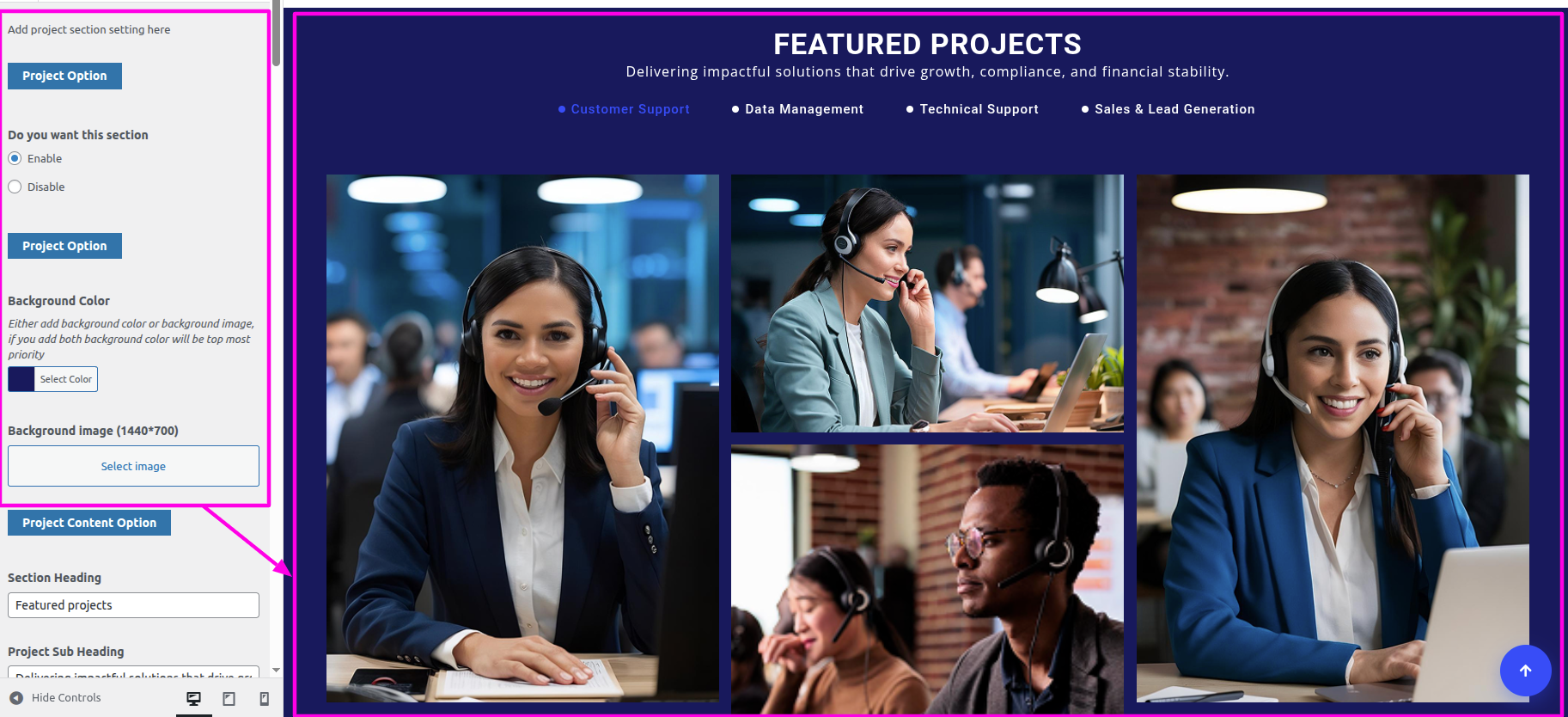
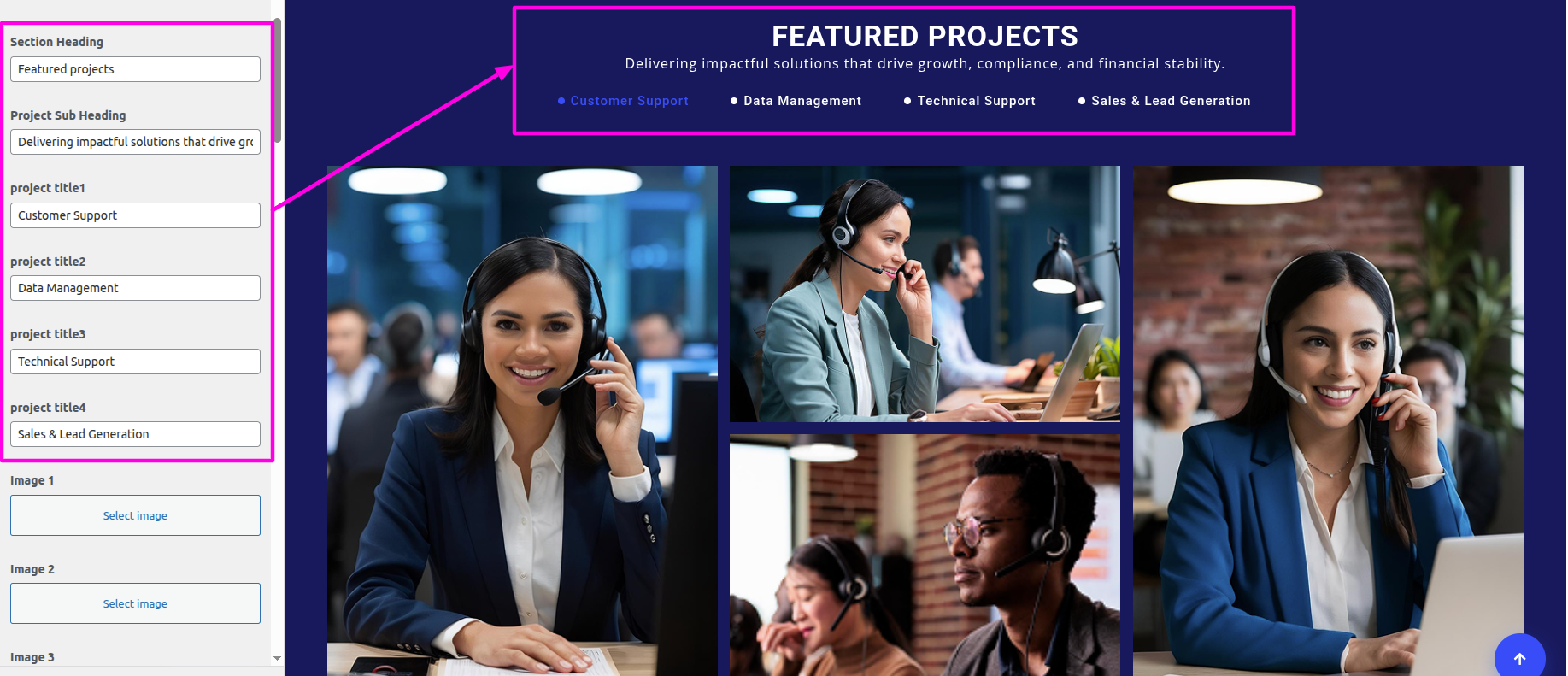
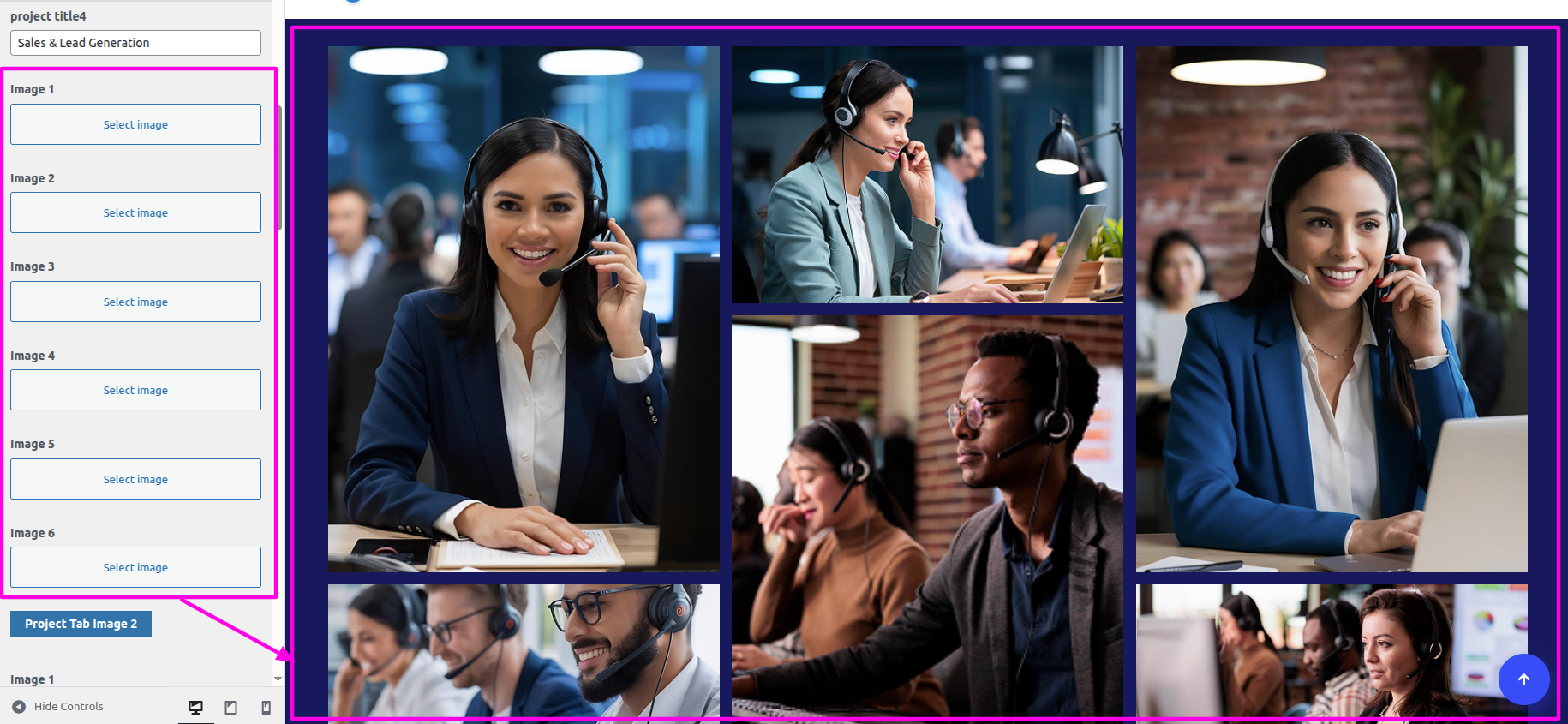
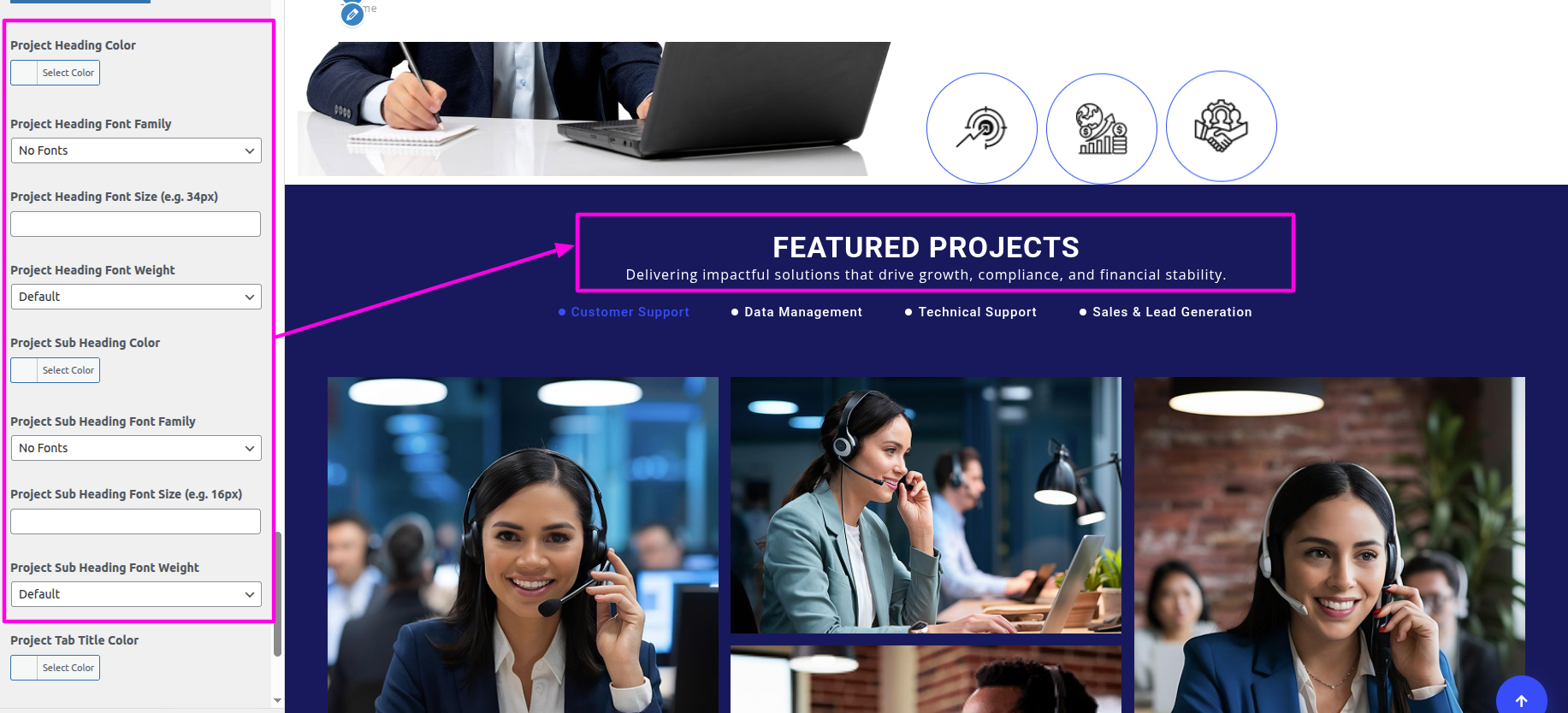
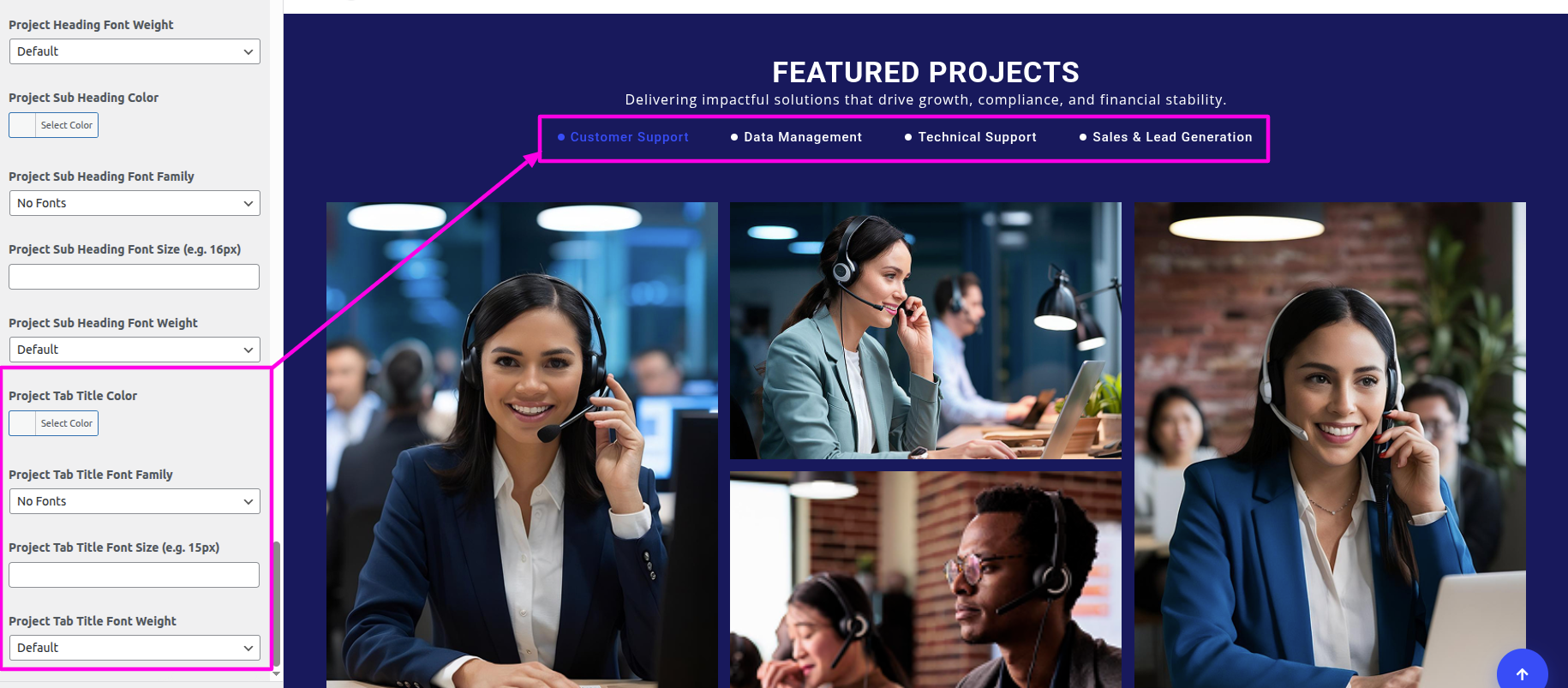
You can include the menu section in this manner.
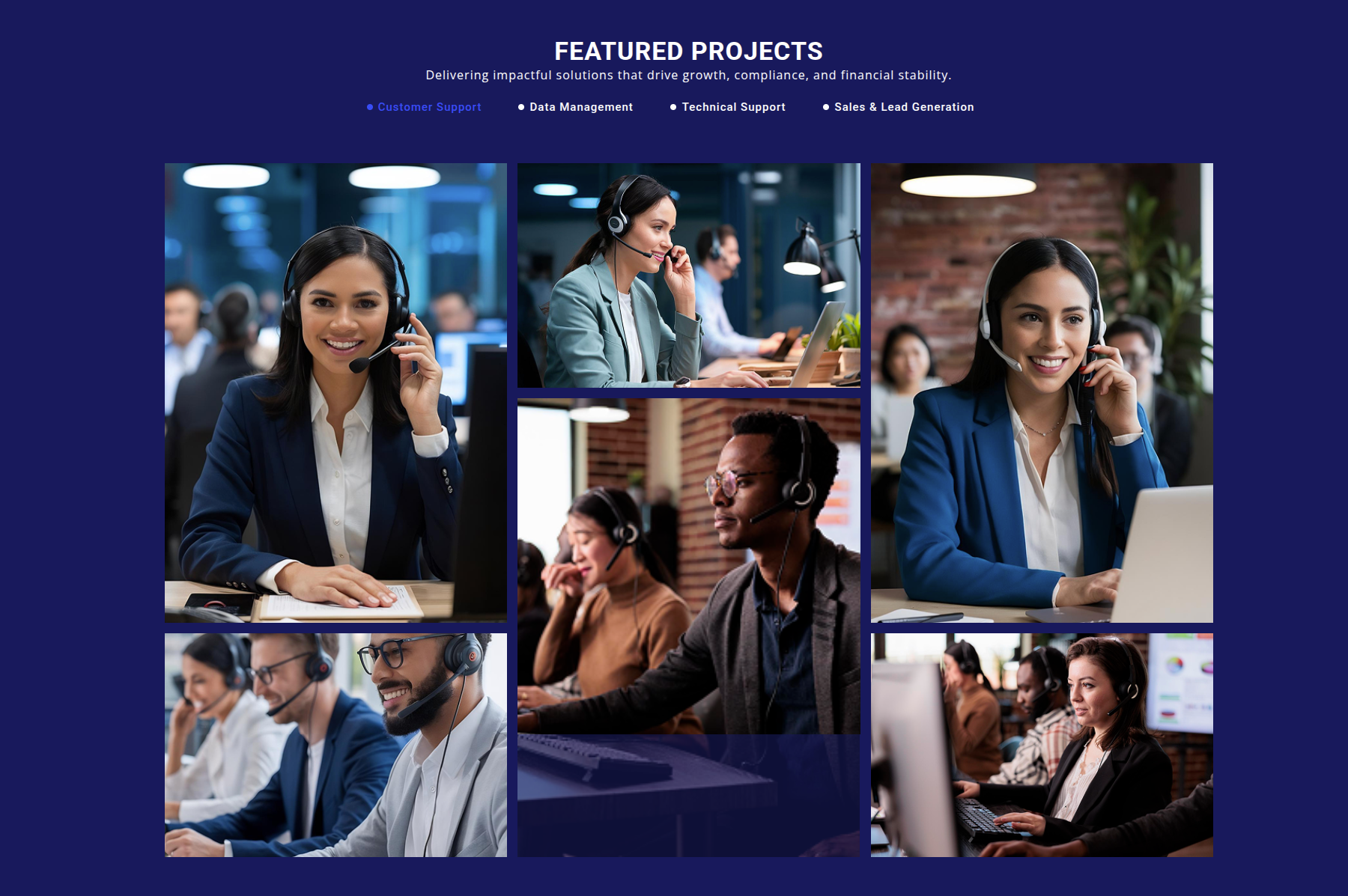
To begin setting up the Why Choose Us section, go to the customizer settings for the Why Choose Us.
Select The Appearance → Customize → Business Settings → Why Choose Us Settings
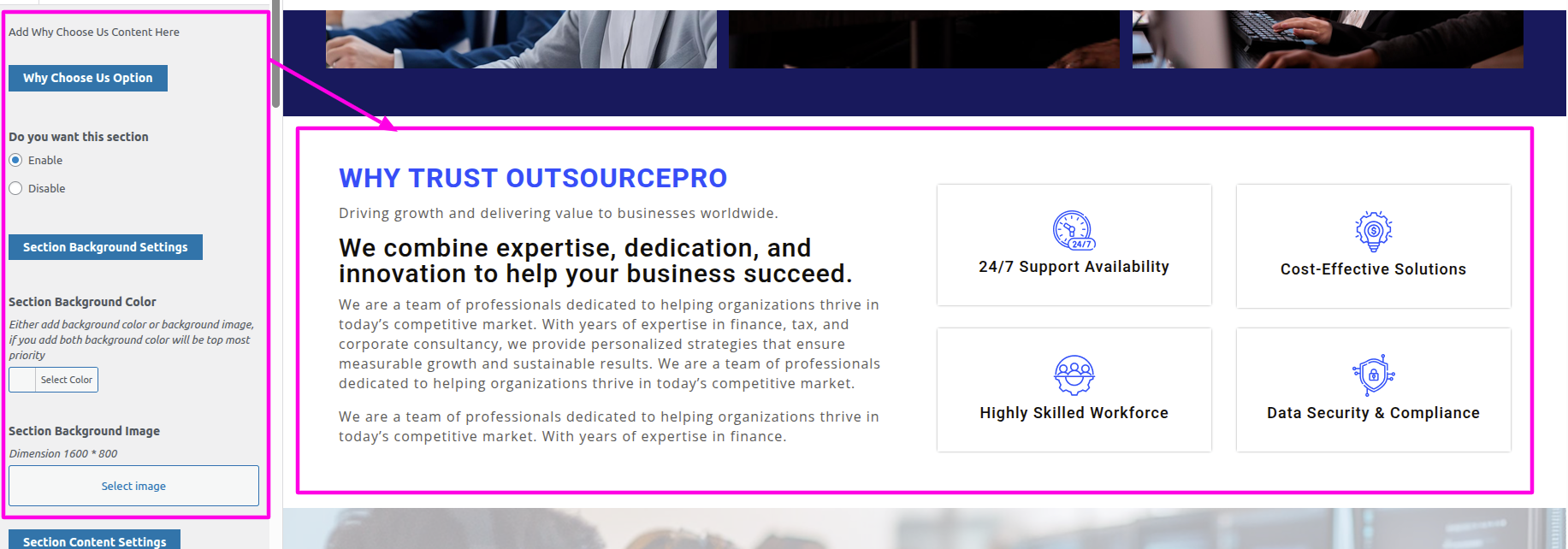
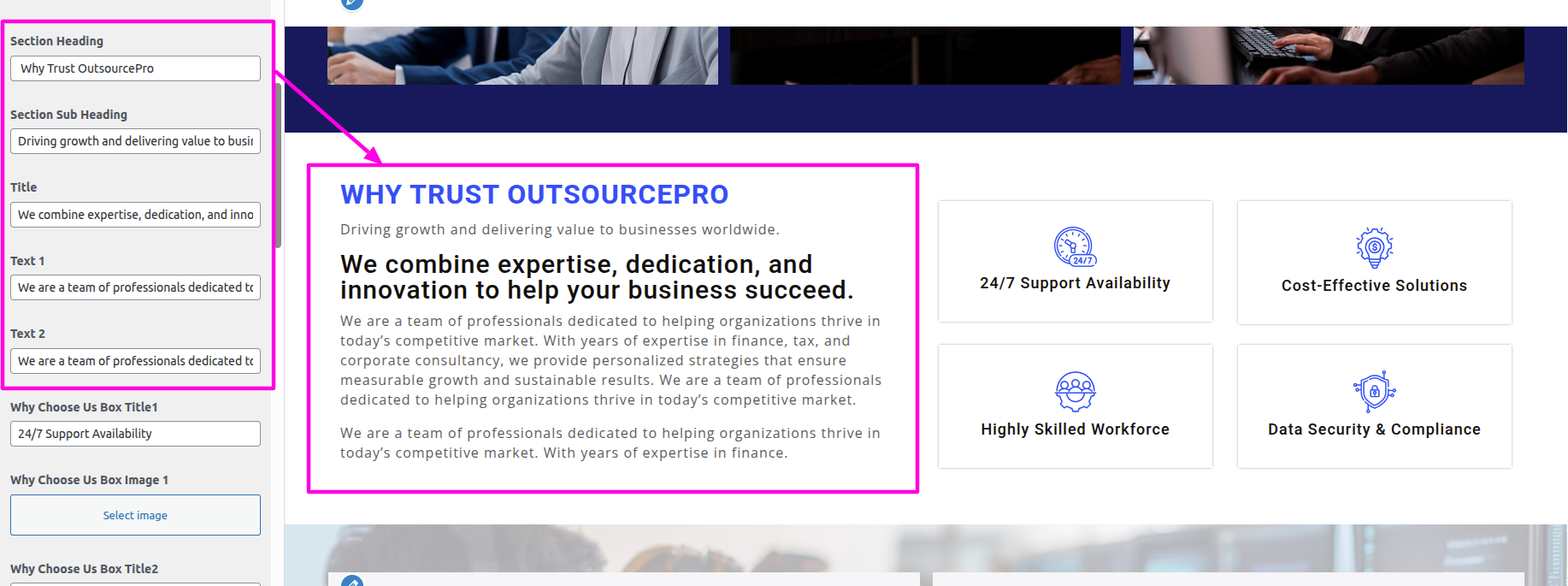
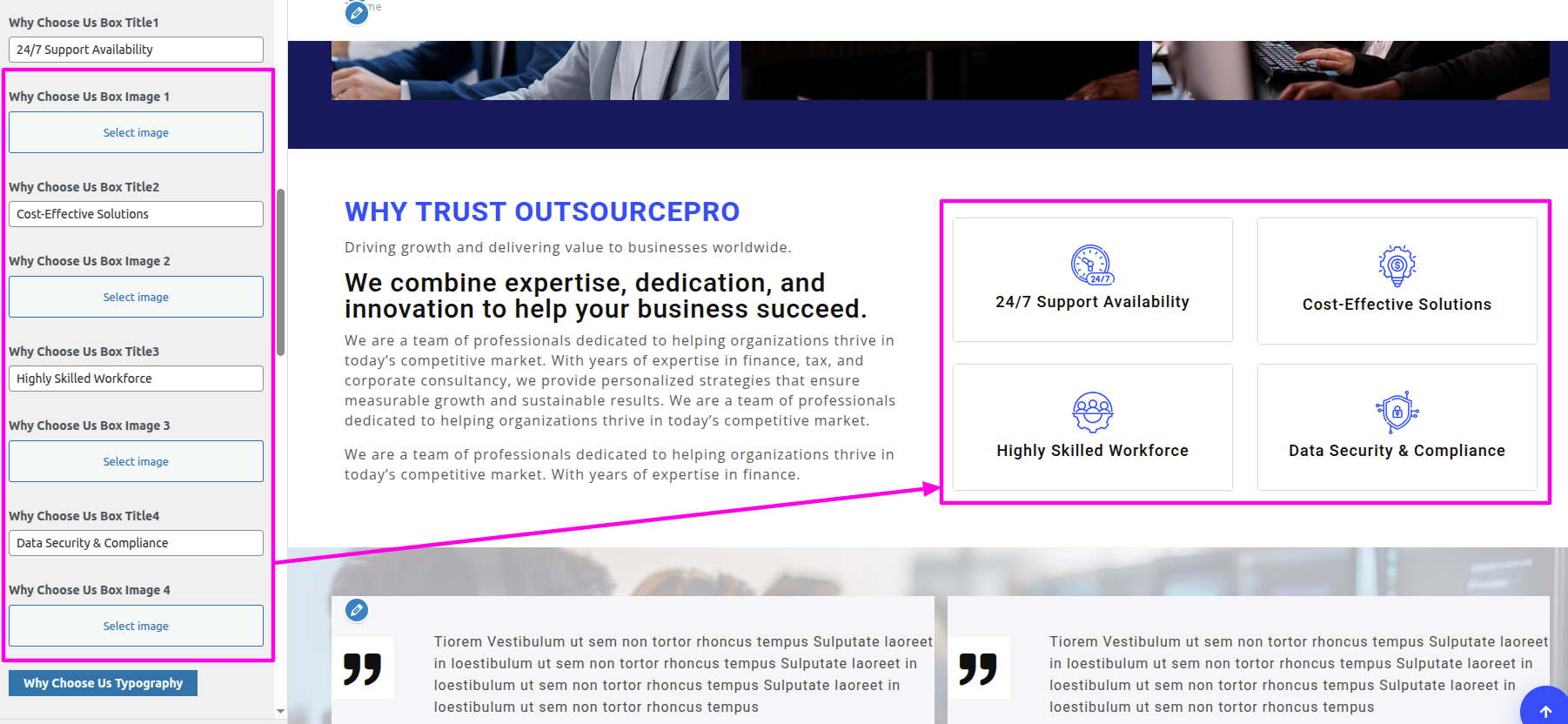
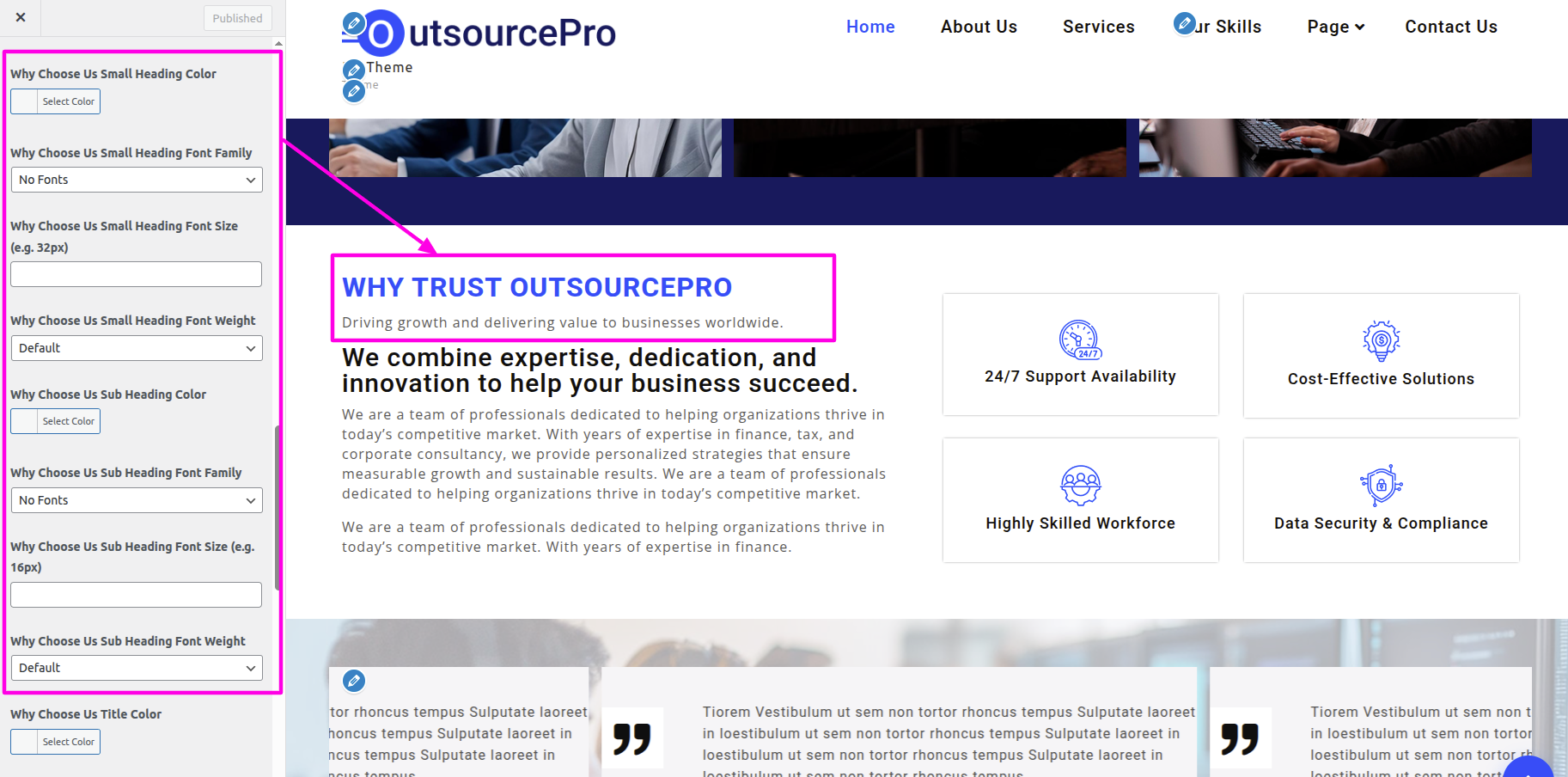
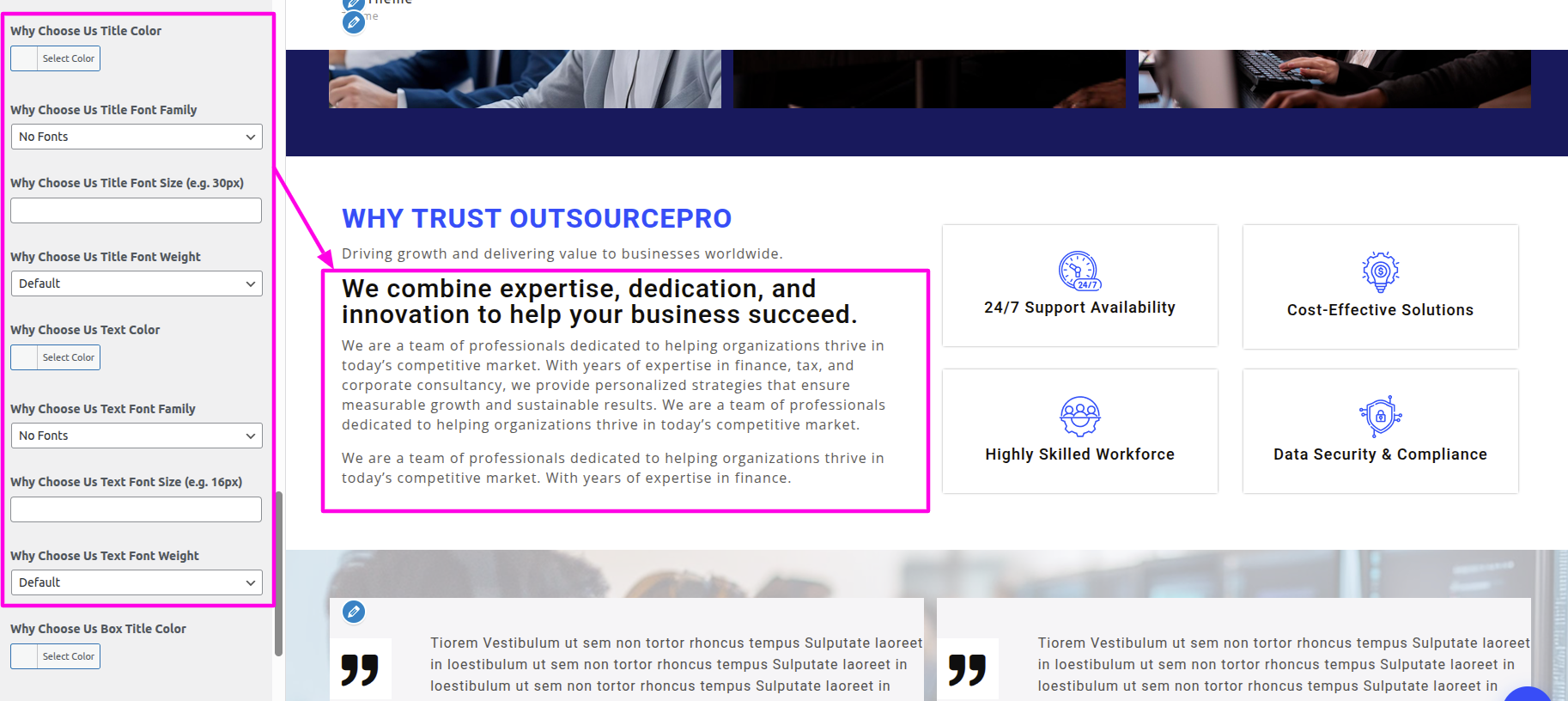
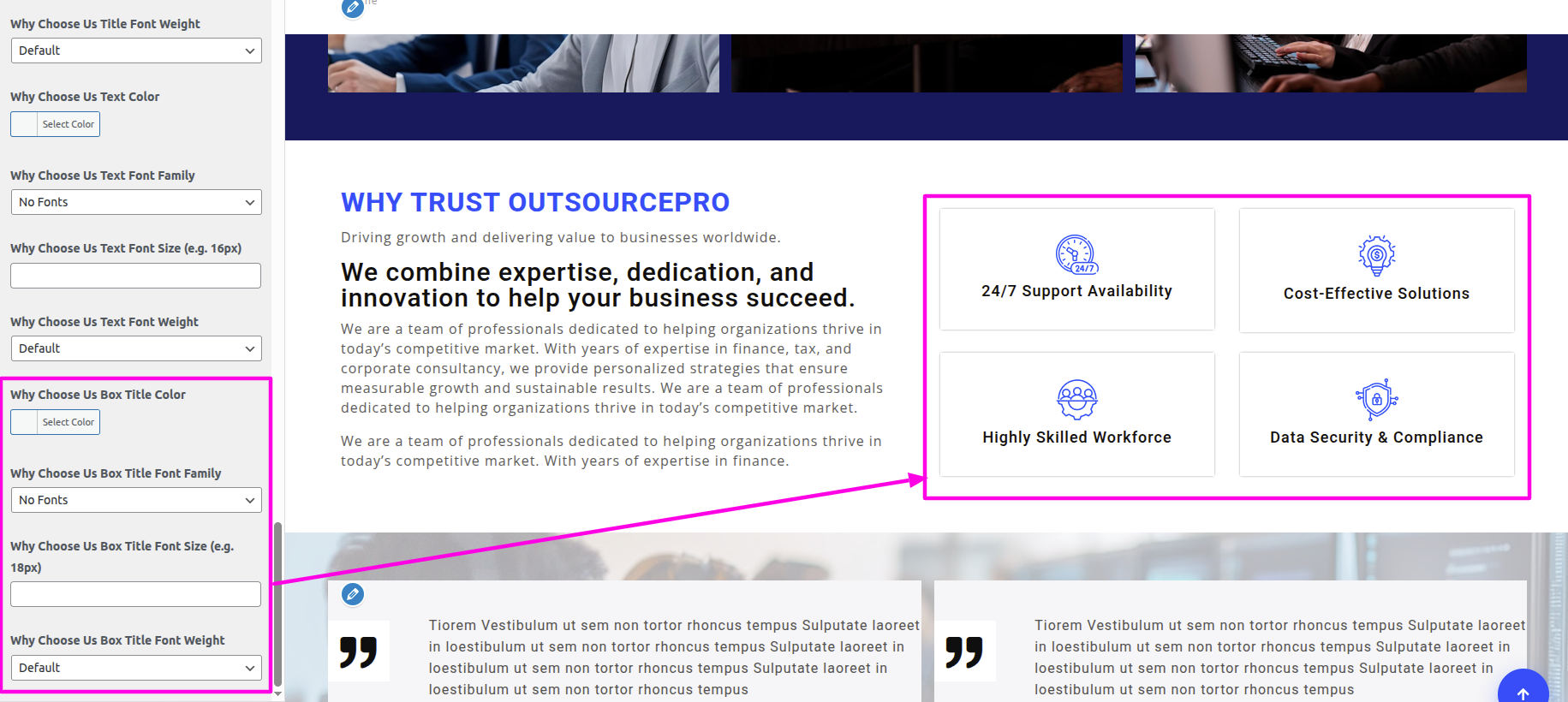
You can include the menu section in this manner.
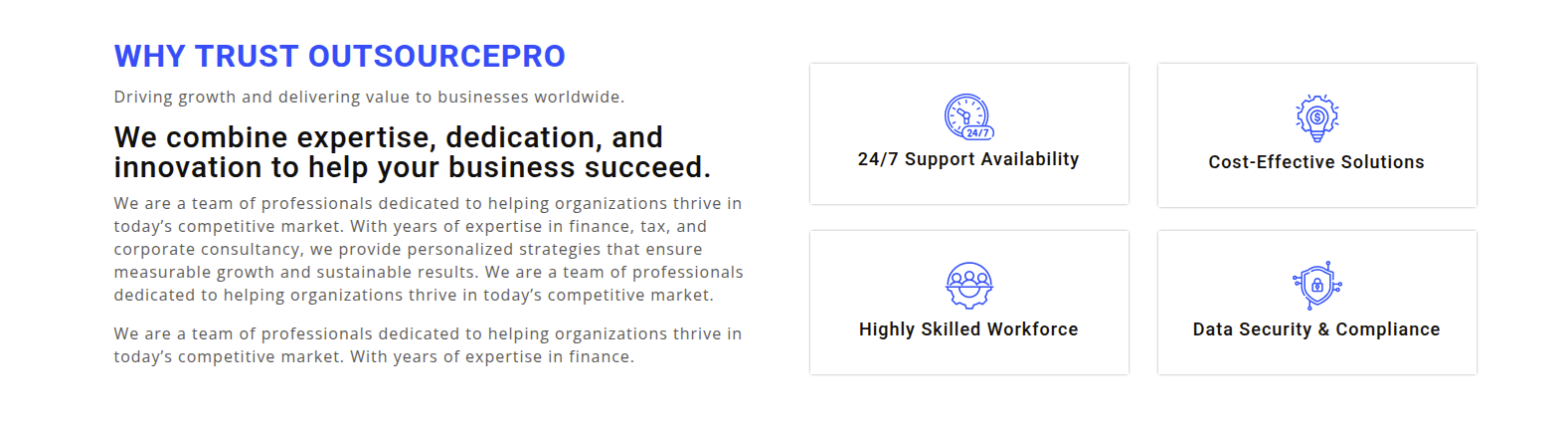
This section is based on the Bpo Services Pro Posttype plugin, so first make sure the post type plugin is installed and activated.
Select Dashboard → Appearance → Install Plugins → Install and Activate Bpo Services Pro Posttype
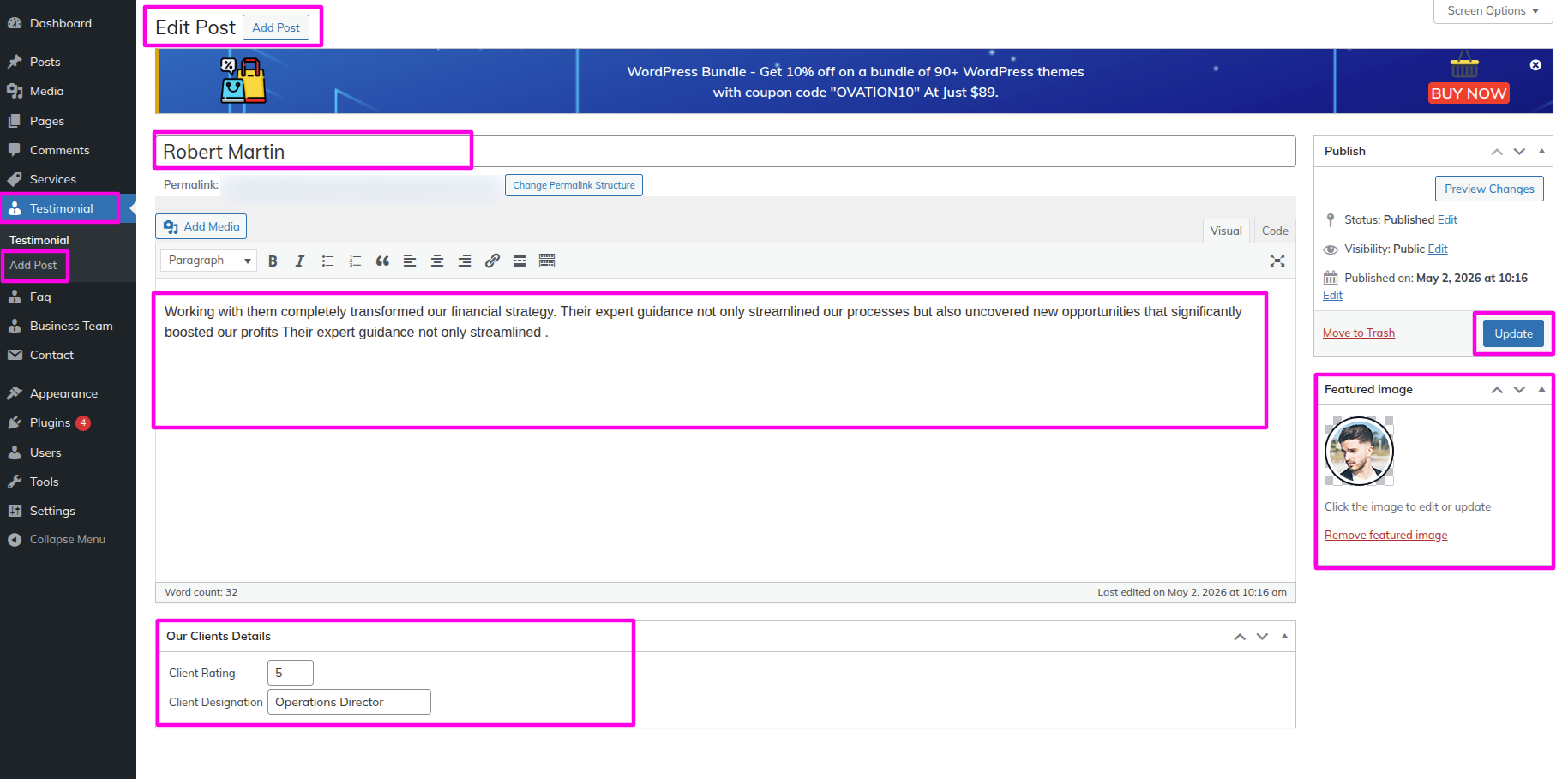
After activating the plugin, the Testimonials post type will appear in the dashboard.
Select The Appearance → Customize → Business Settings → Testimonial Settings
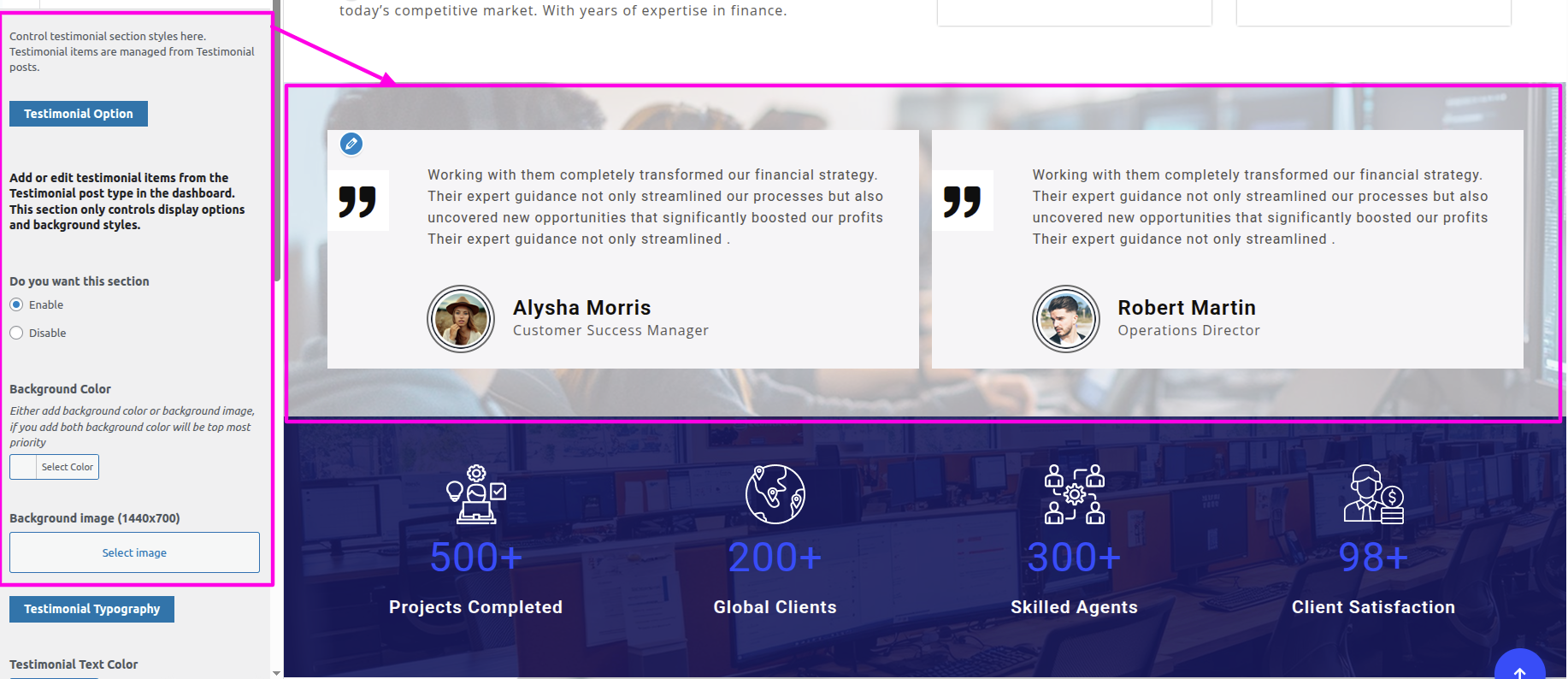
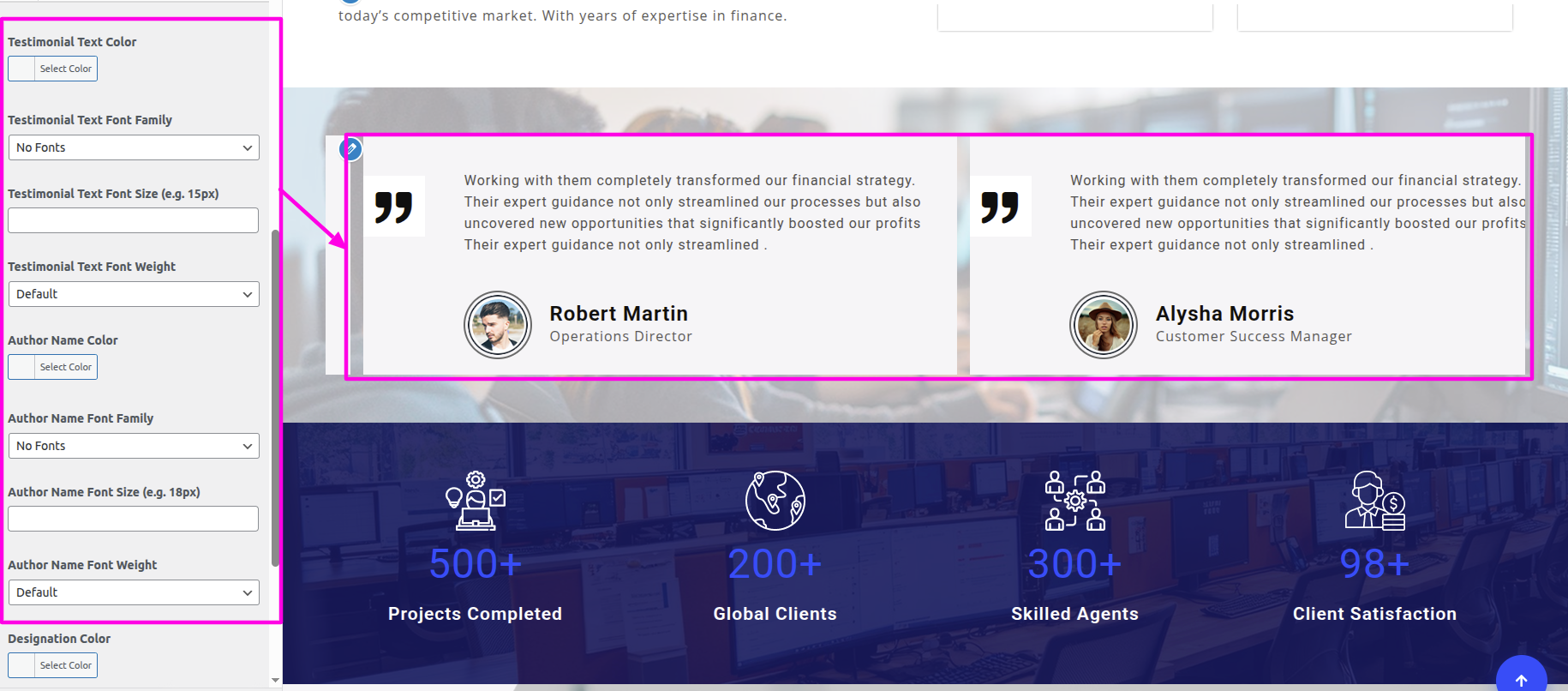
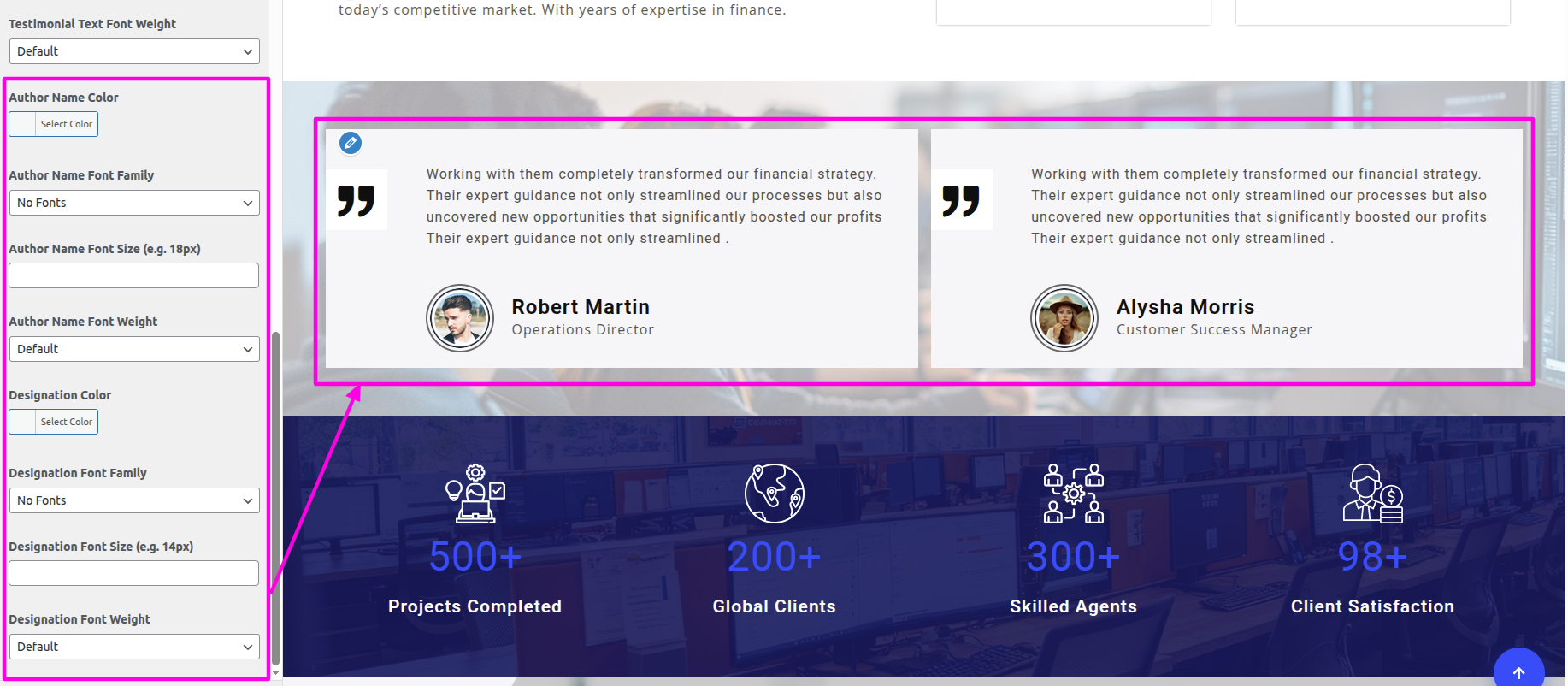
You can include the menu section in this manner.
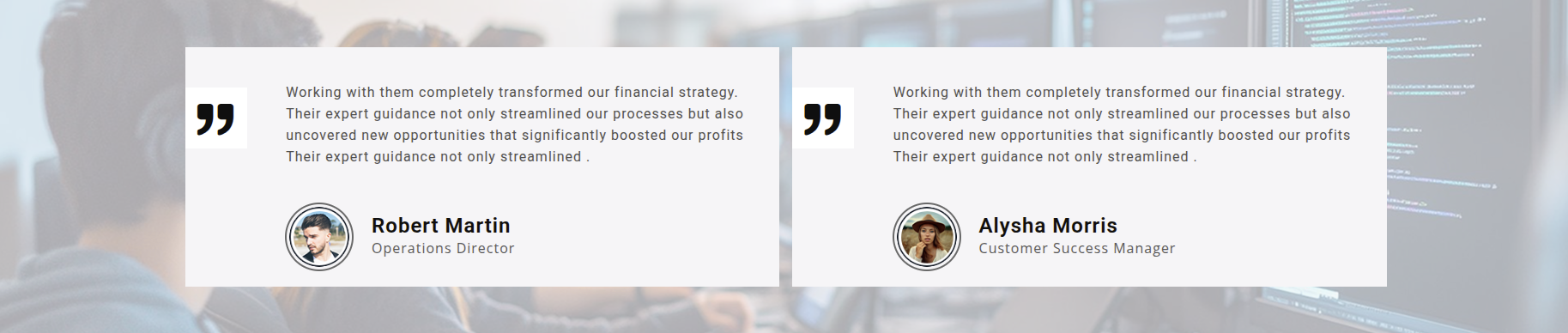
To begin setting up the Records section, go to the customizer settings for the Records.
Select The Appearance → Customize → Business Settings → Records Settings
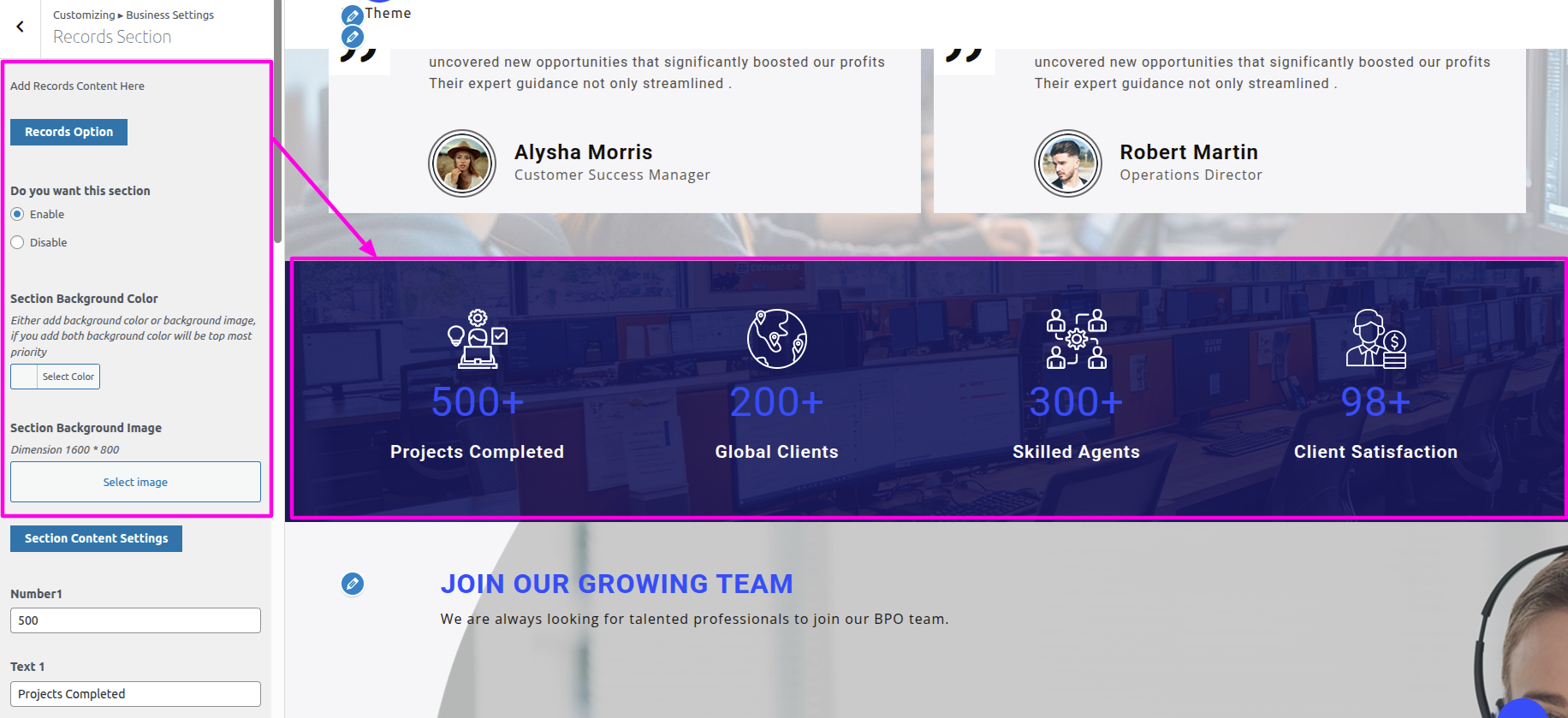
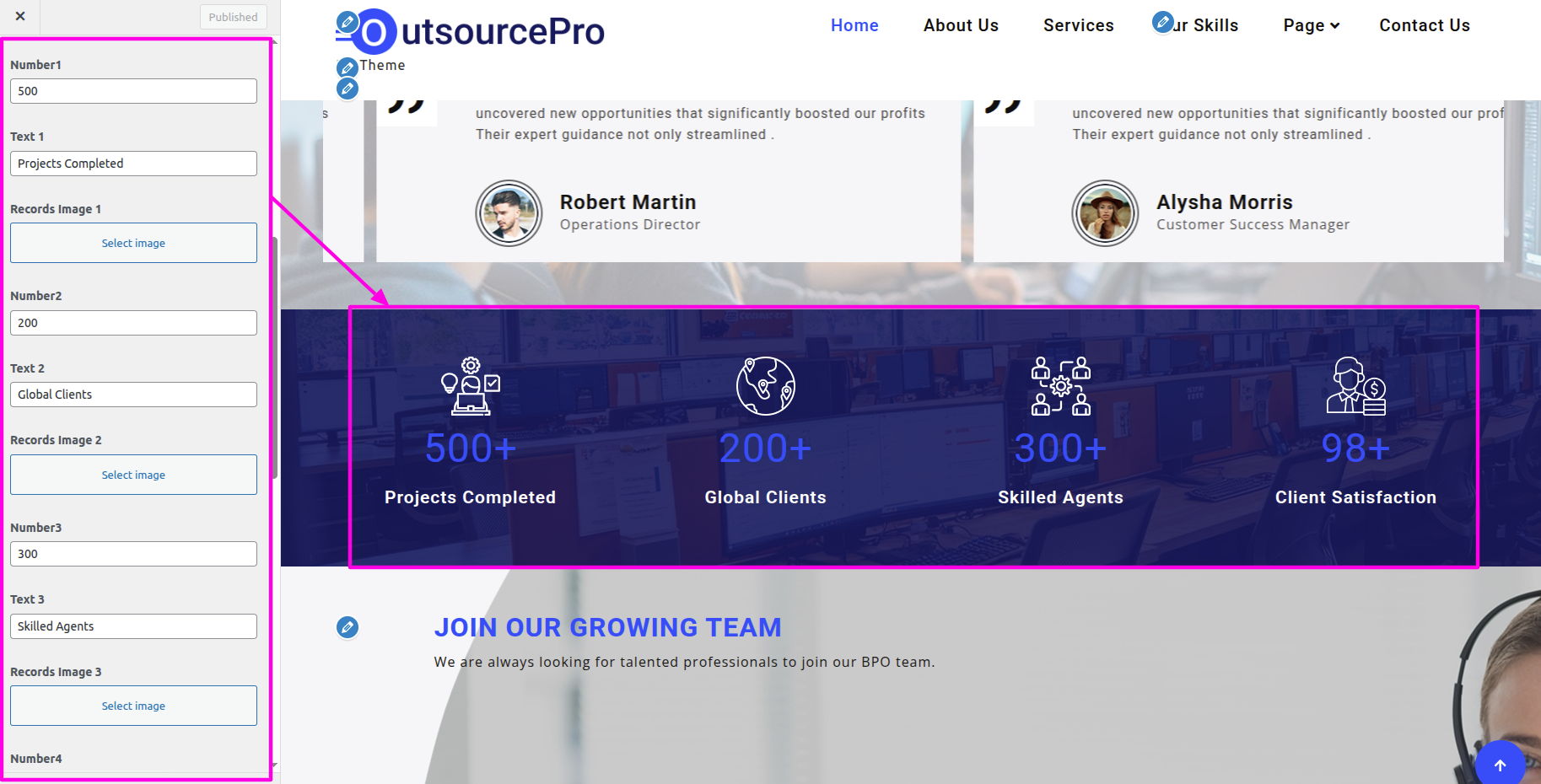
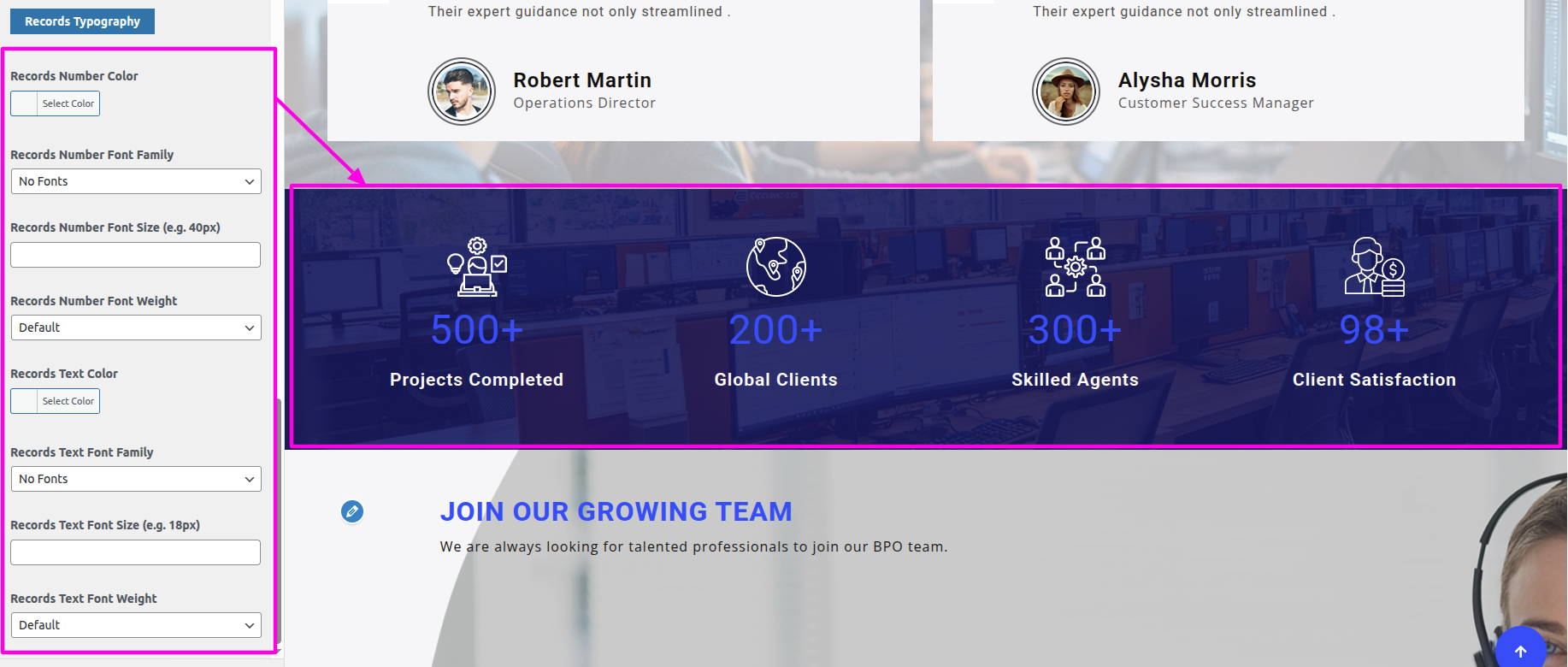
You can include the menu section in this manner.

To begin setting up the Profit Us section, go to the customizer settings for the Profit Us.
Select The Appearance → Customize → Business Settings → Profit Us Settings
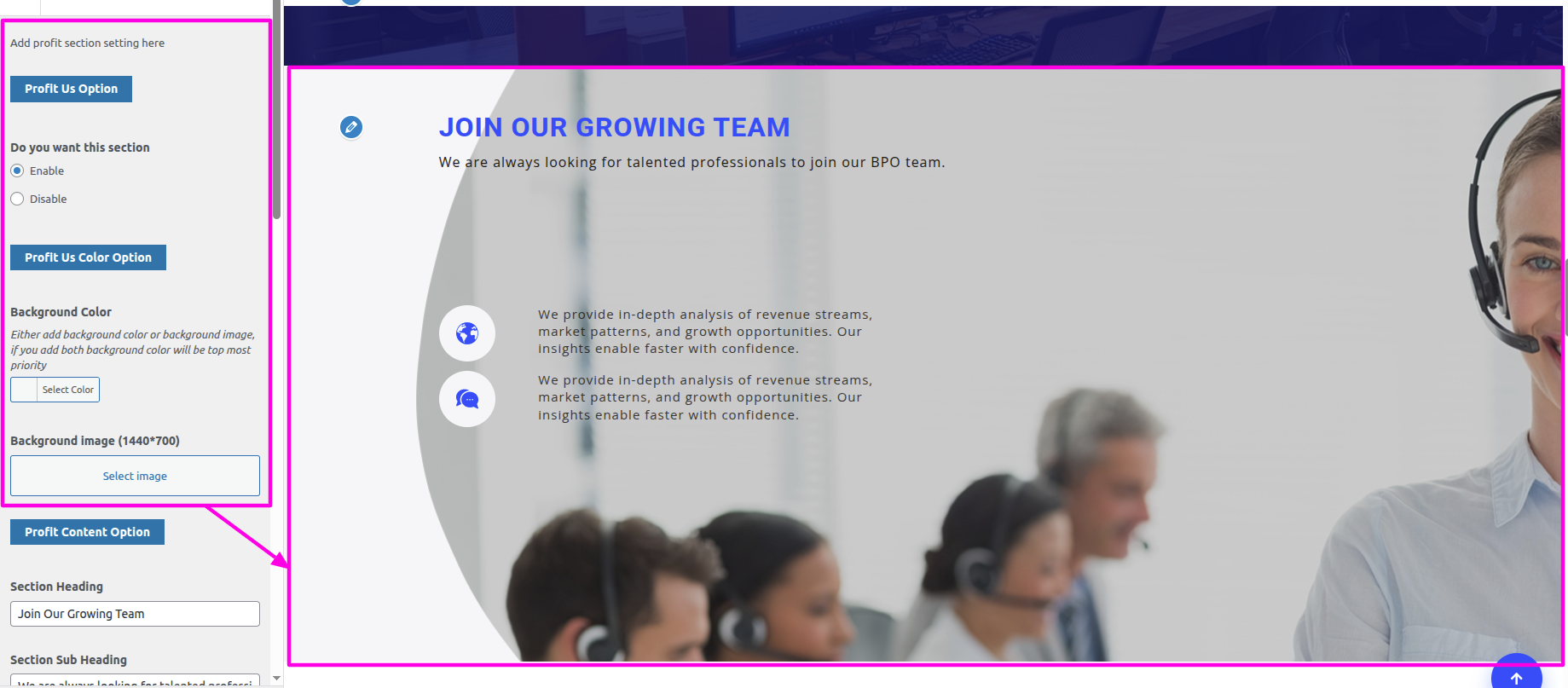
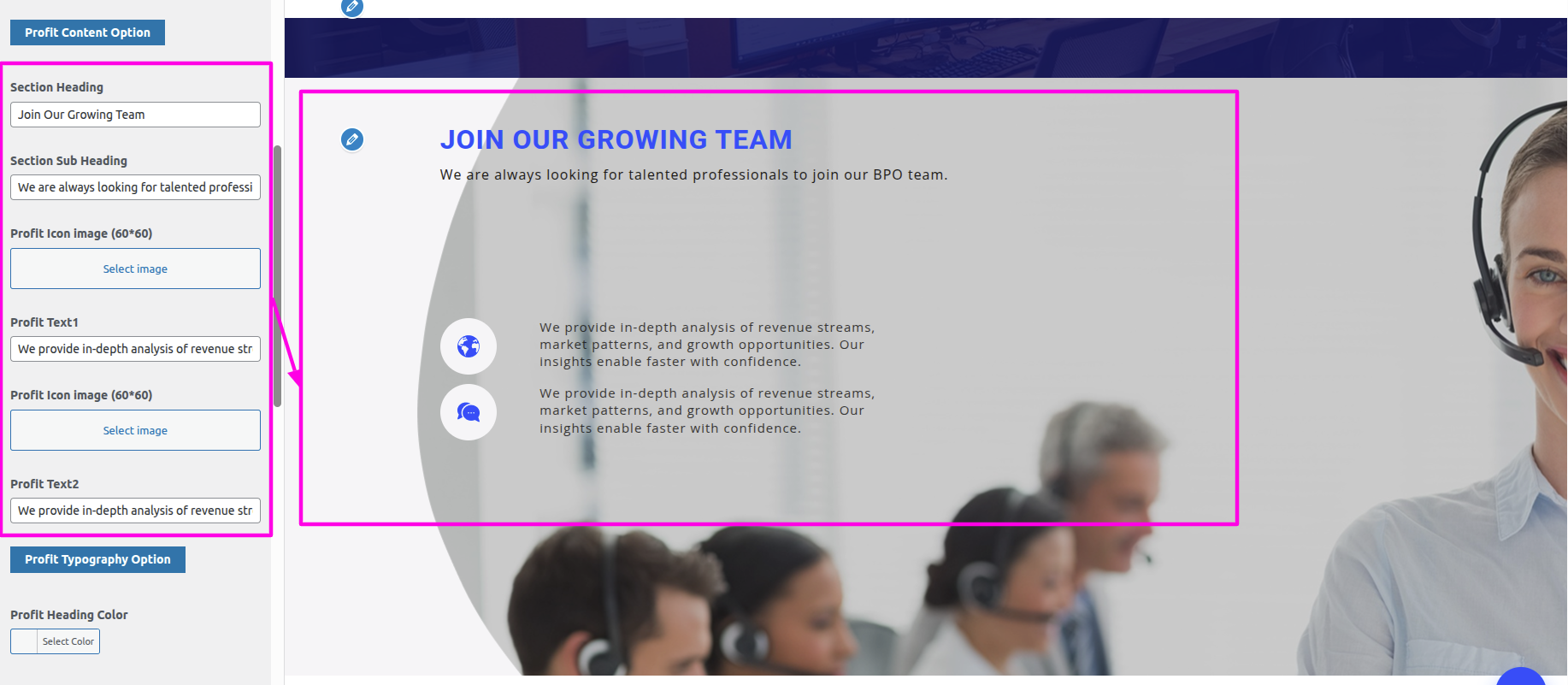
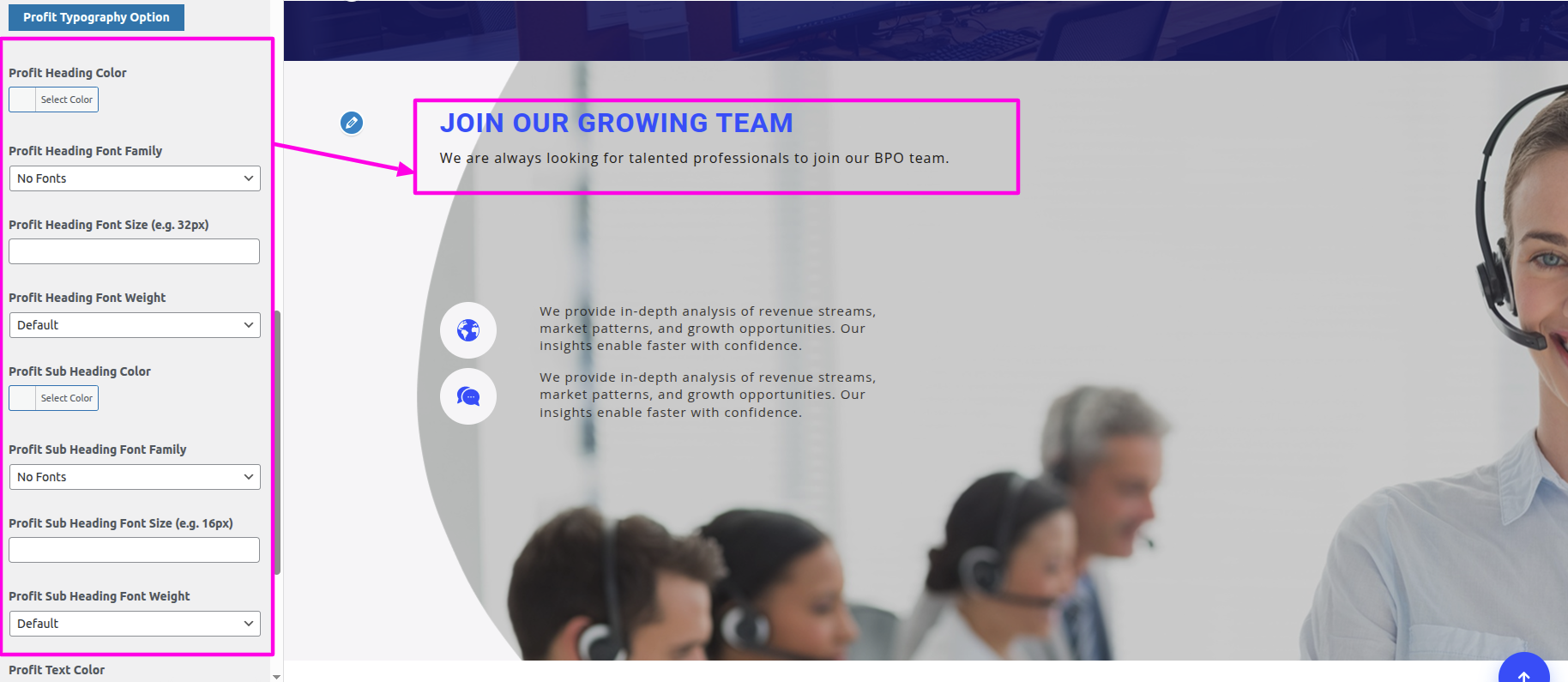
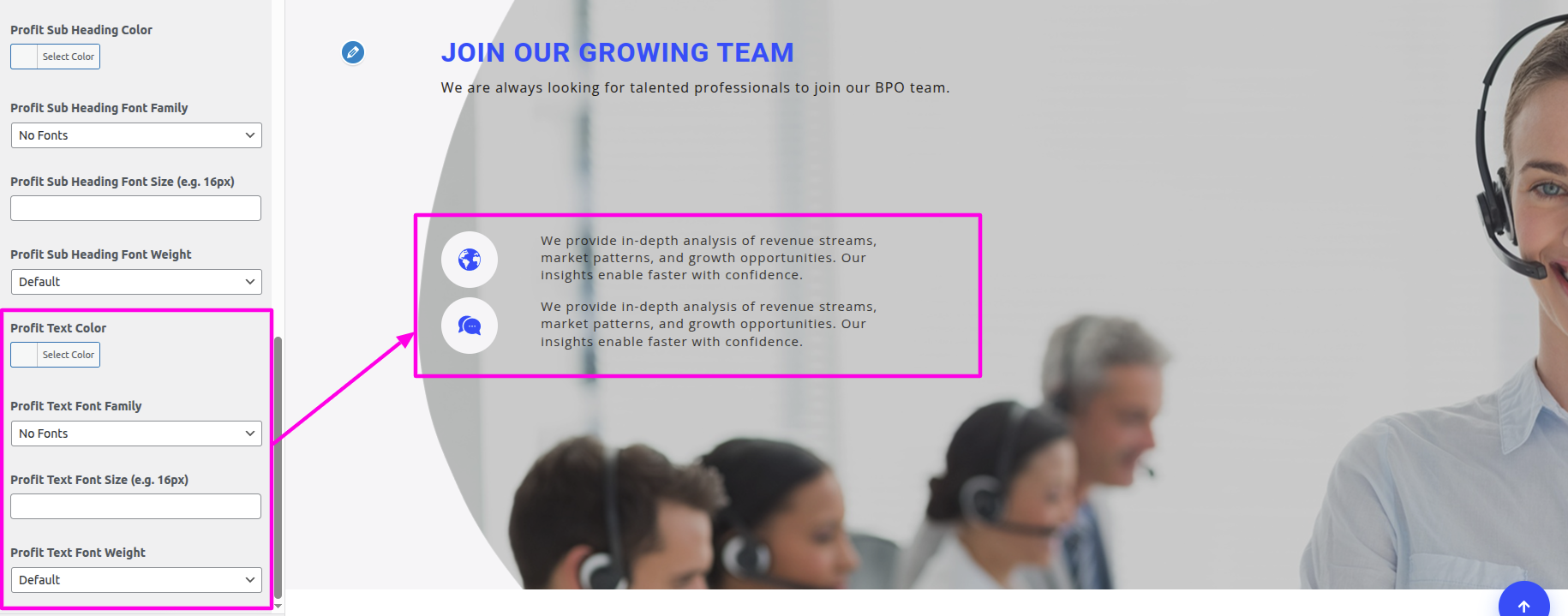
You can include the menu section in this manner.

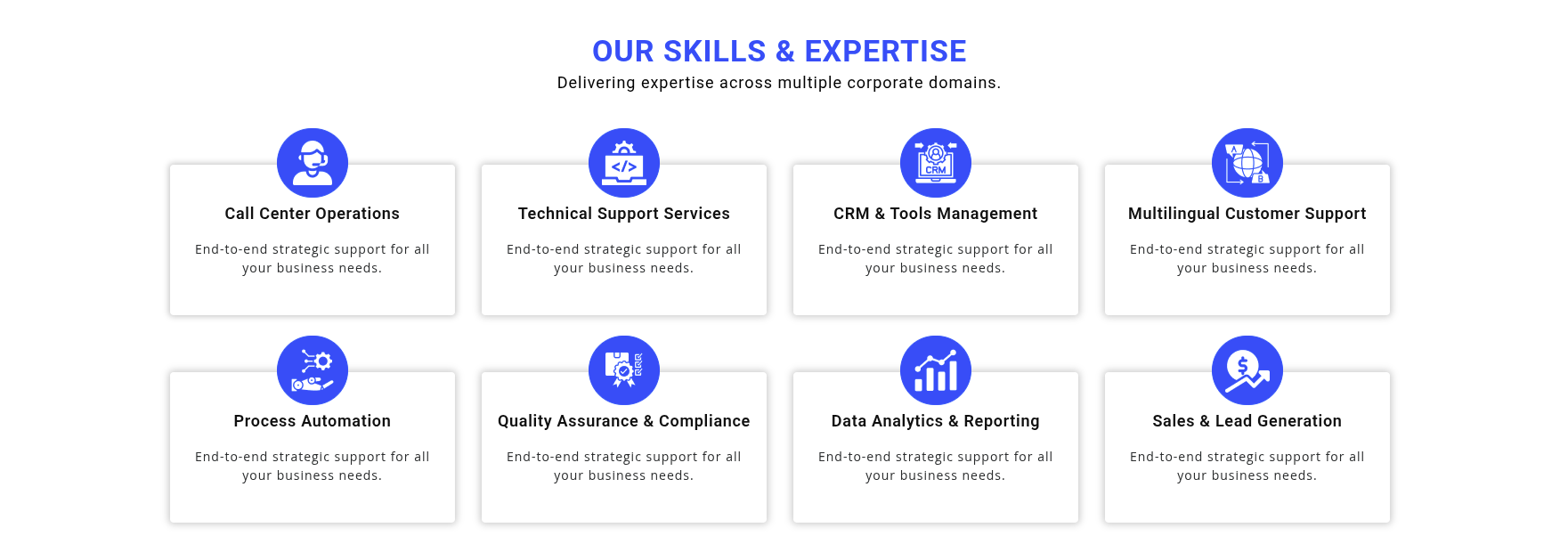
To begin setting up the Our Skills section, go to the customizer settings for the Our Skills.
Select The Appearance → Customize → Business Settings → Our Skills Settings
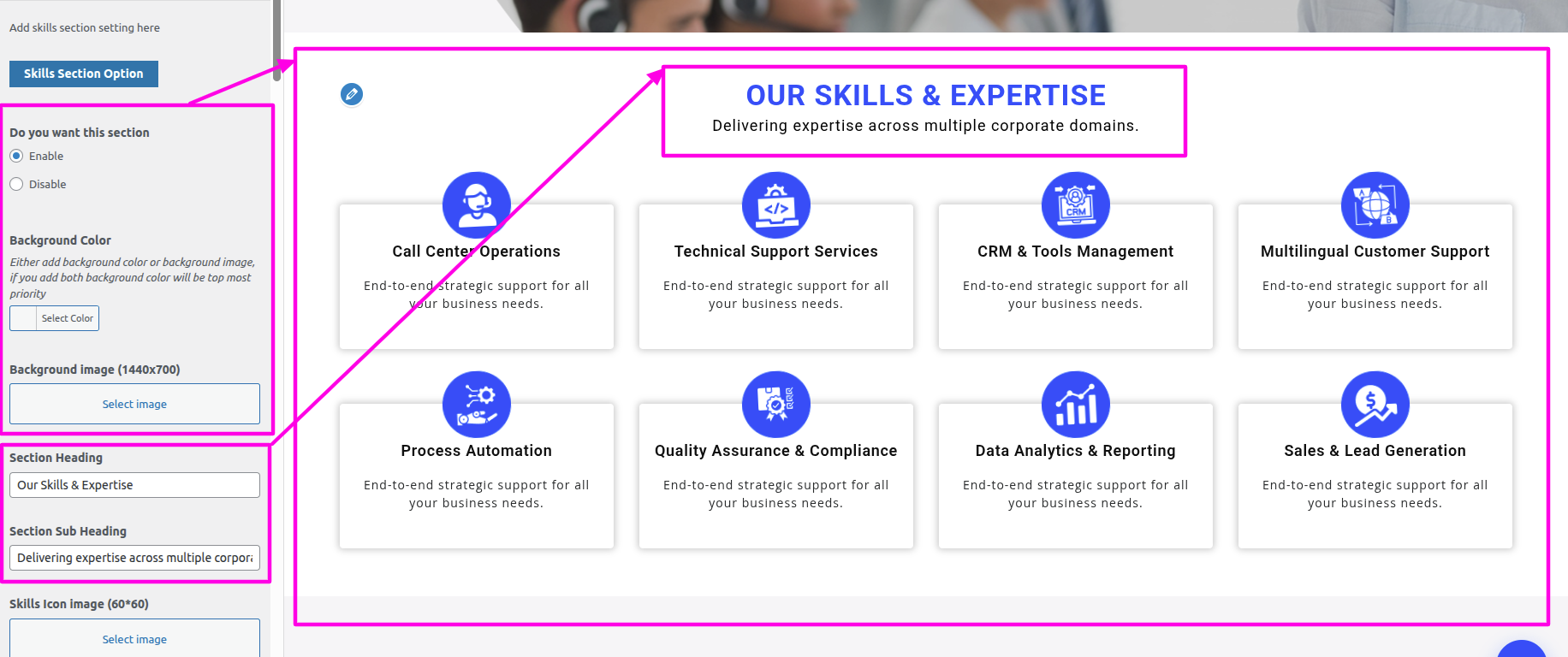
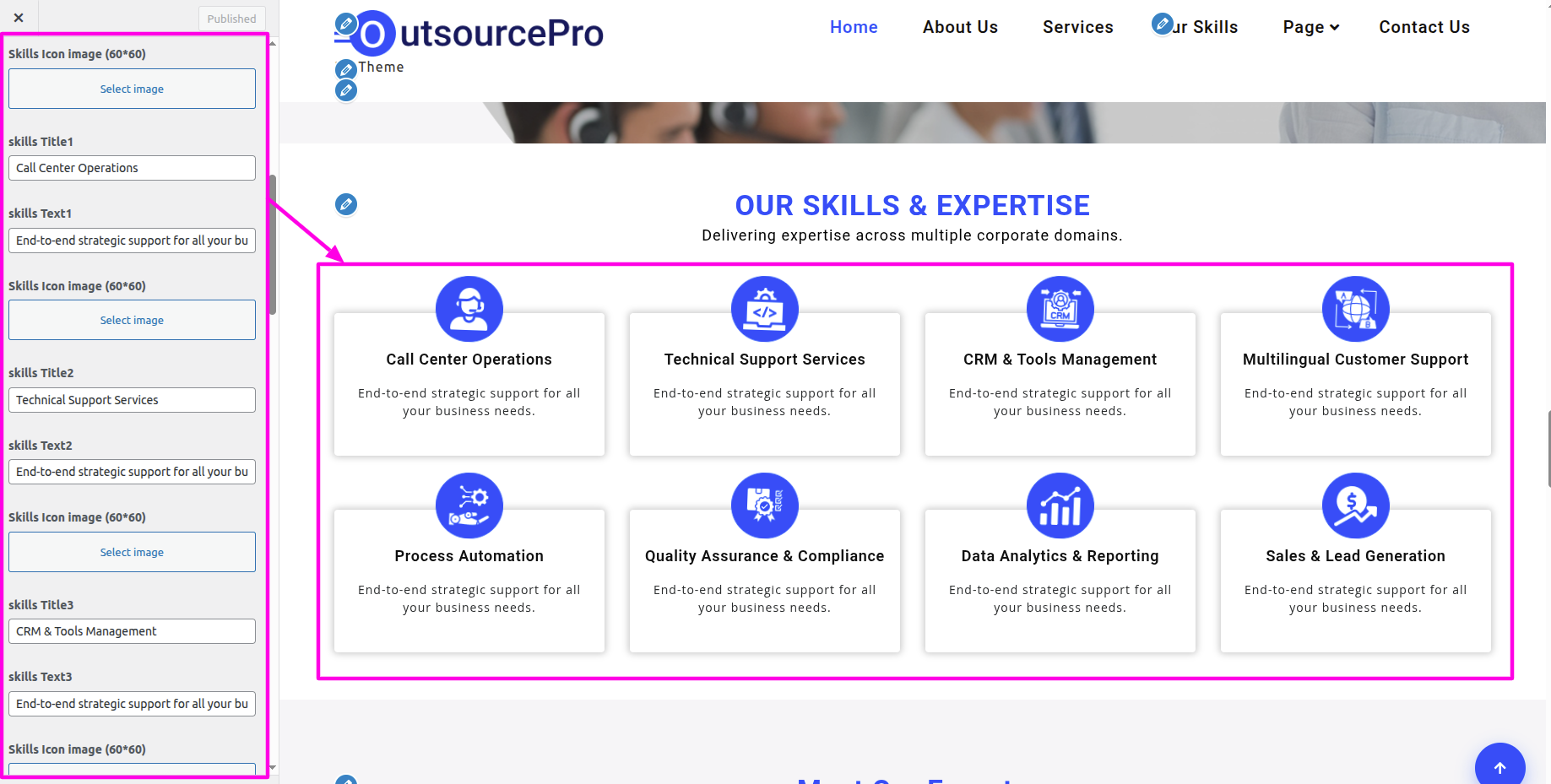
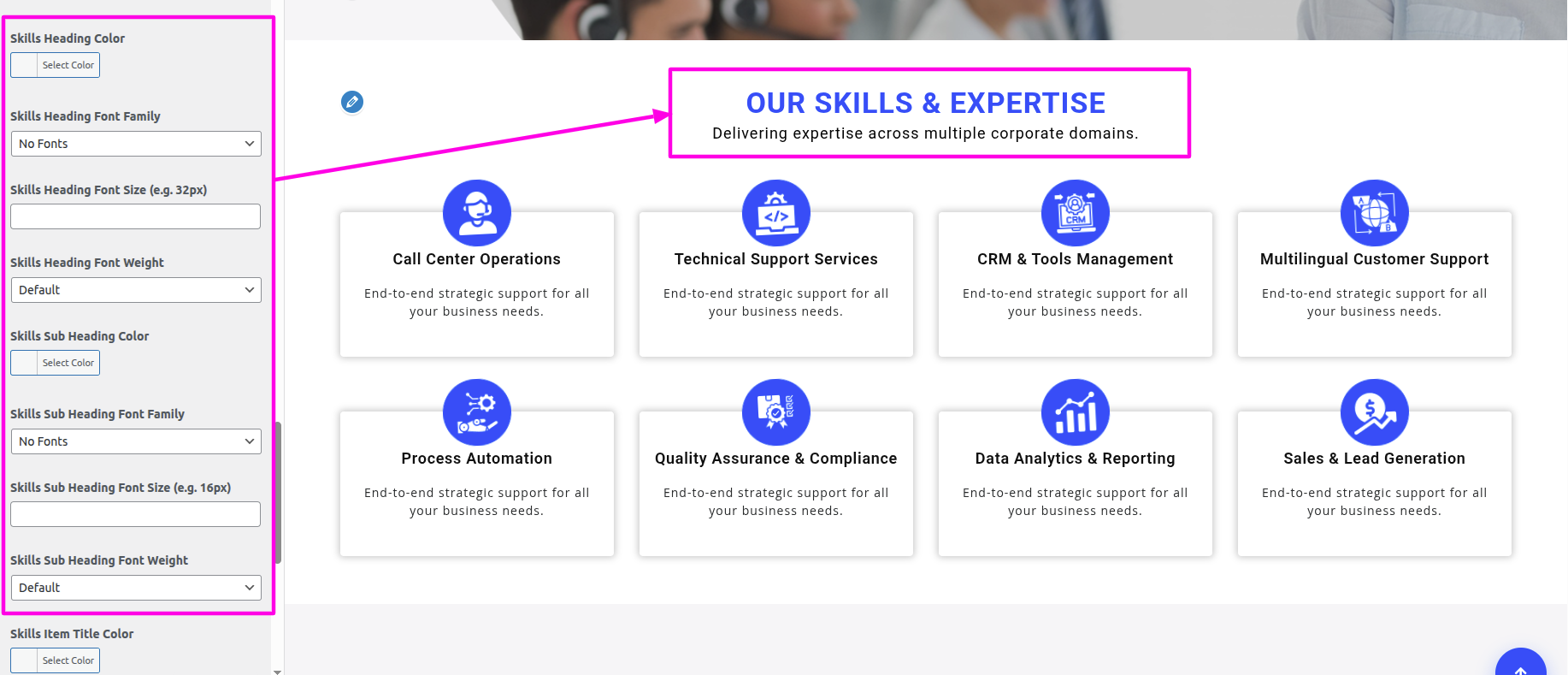
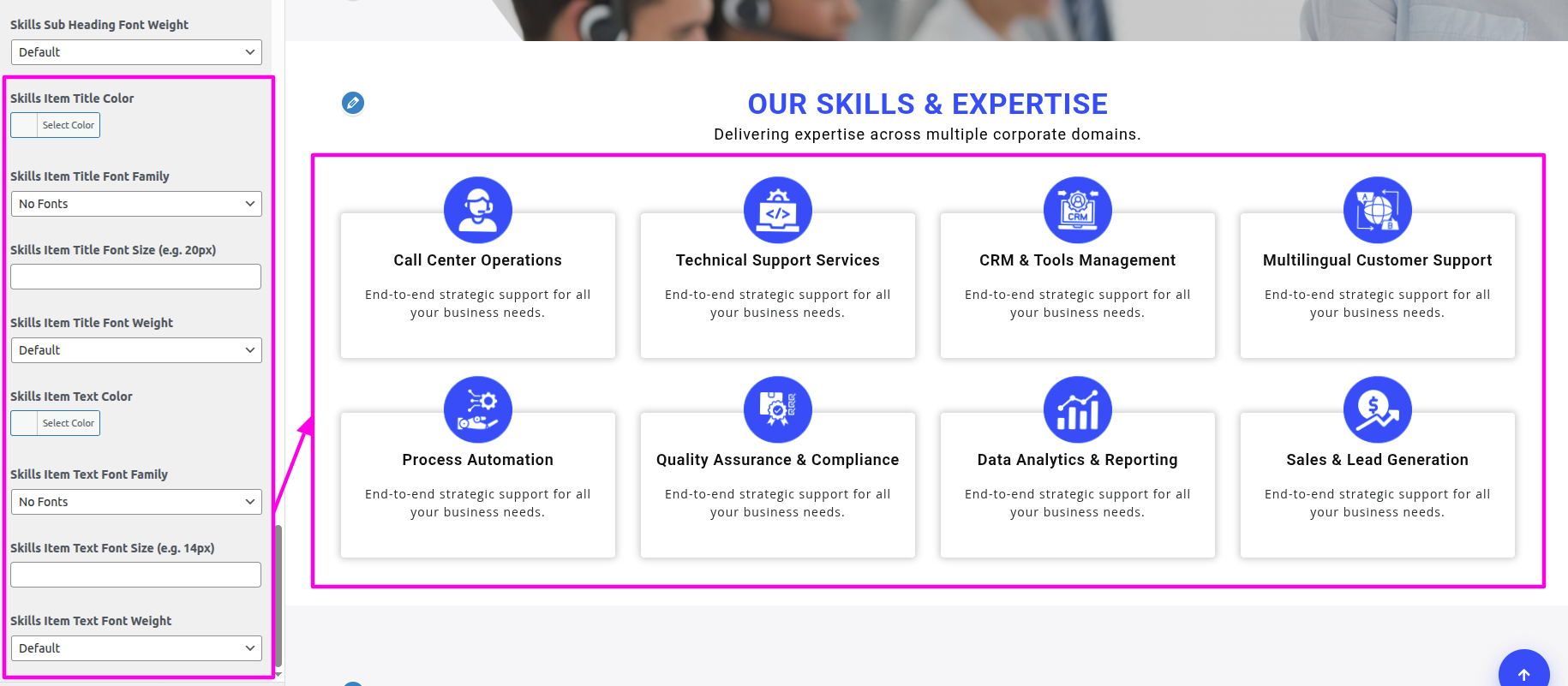
You can include the menu section in this manner.
This section is based on the Bpo Services Pro Posttype plugin, so first make sure the post type plugin is installed and activated.
Select Dashboard → Appearance → Install Plugins → Install and Activate Bpo Services Pro Posttype
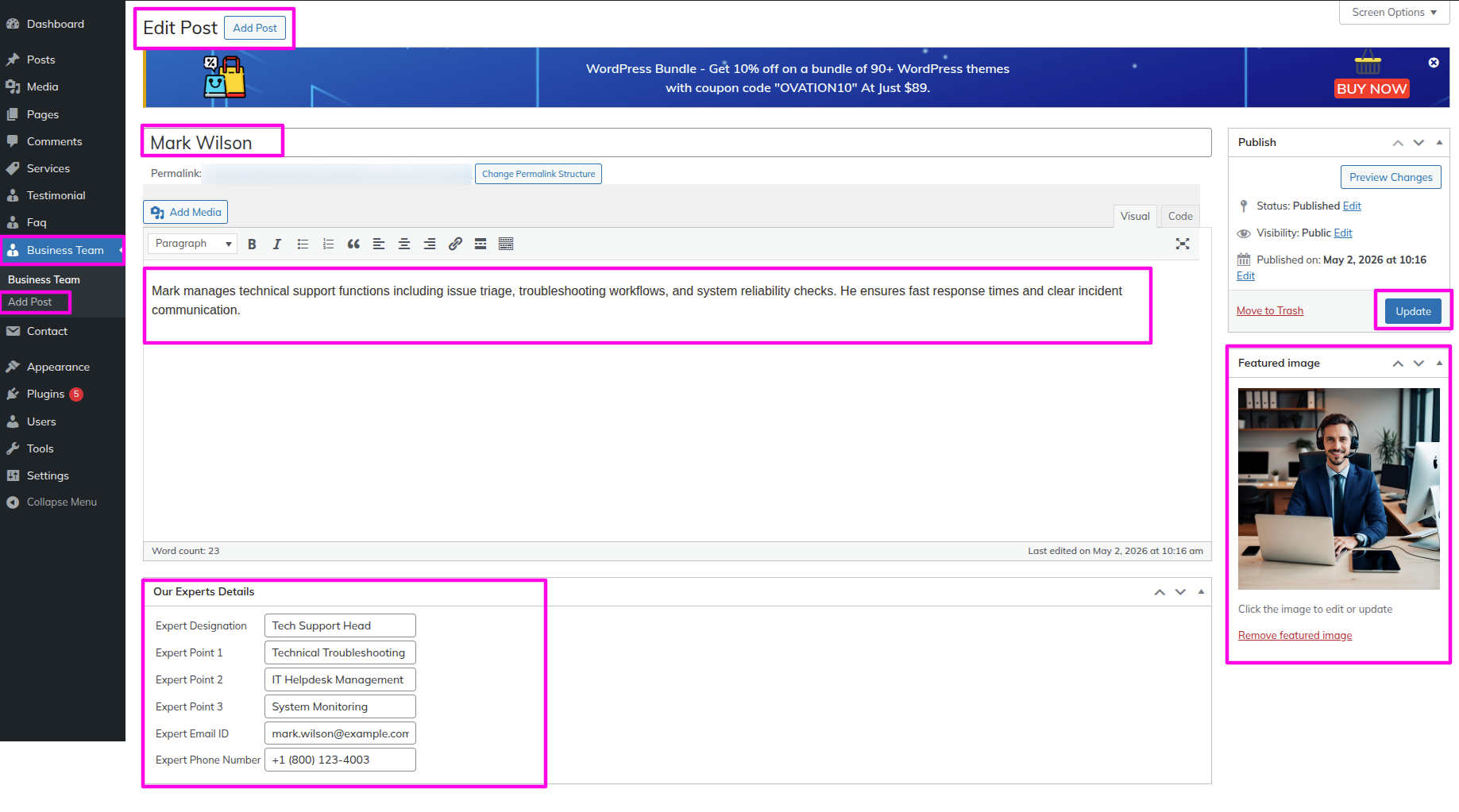
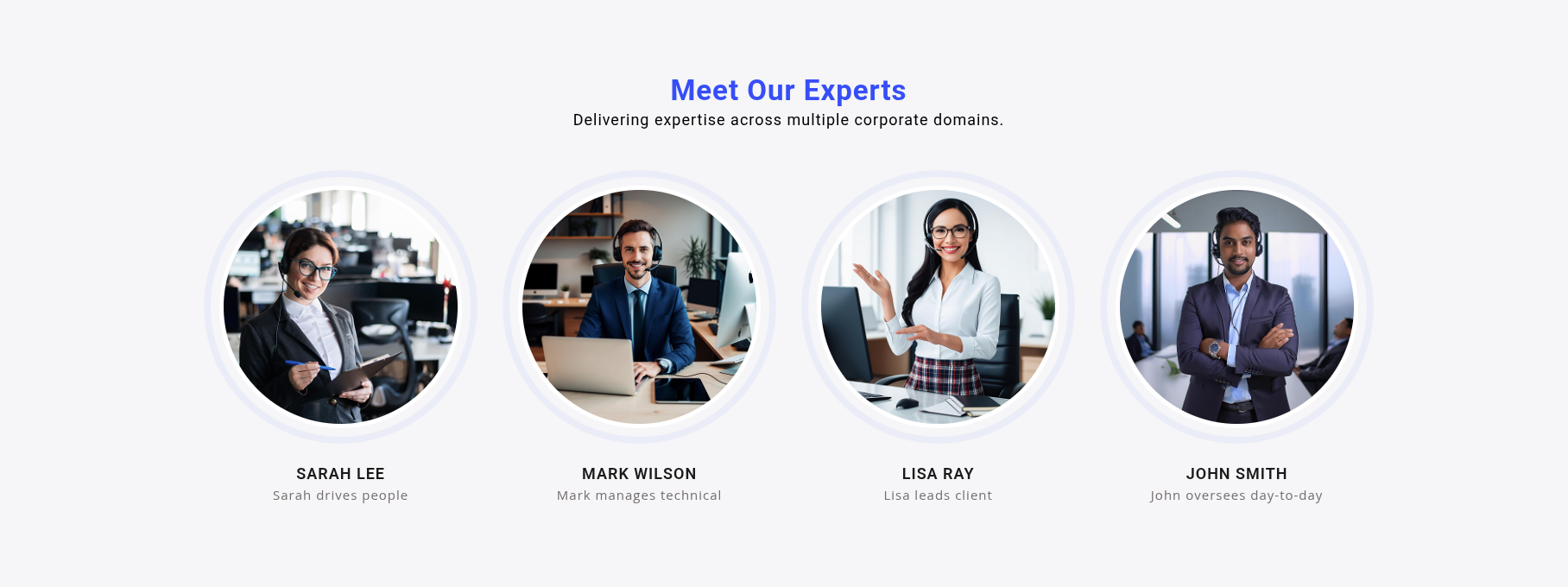
After activating the plugin, the Business Team post type will appear in the dashboard.
Select The Appearance → Customize → Business Settings → Team Settings
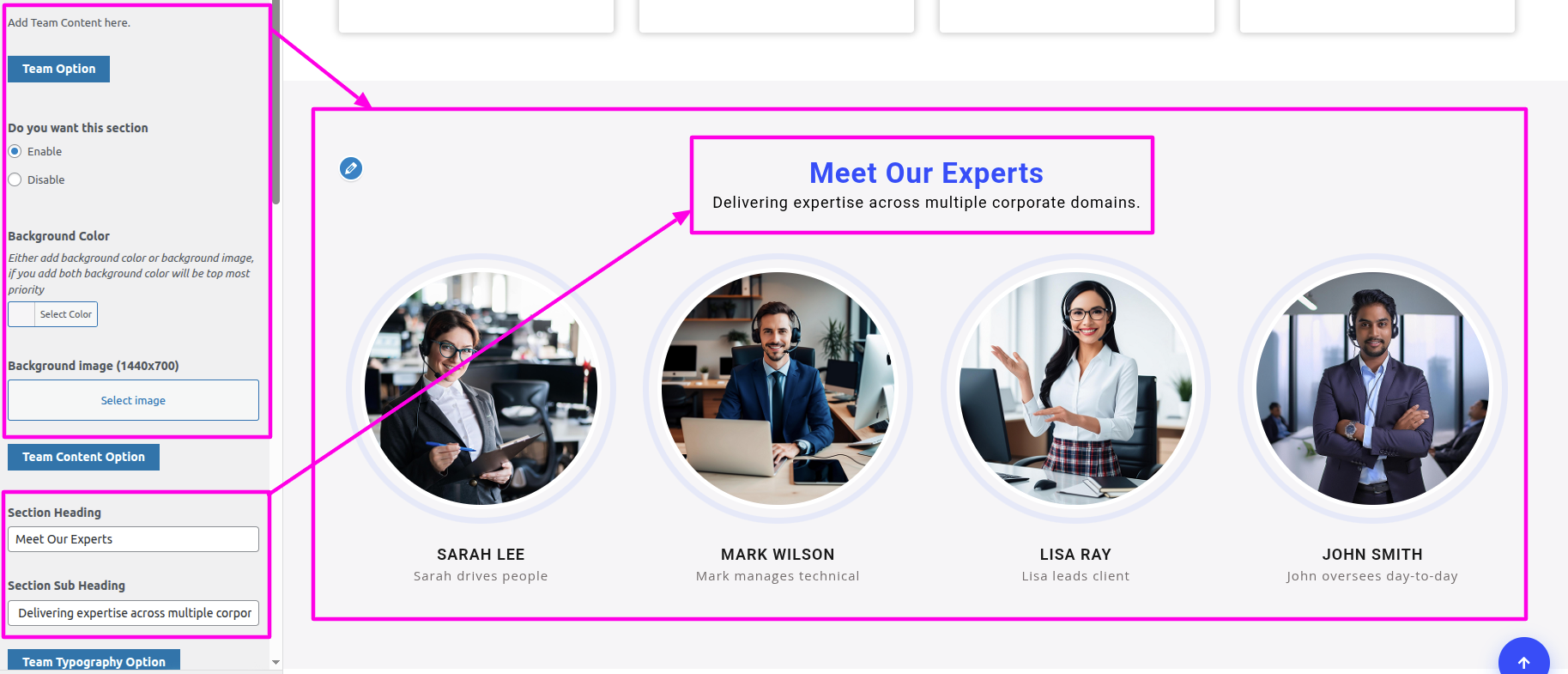
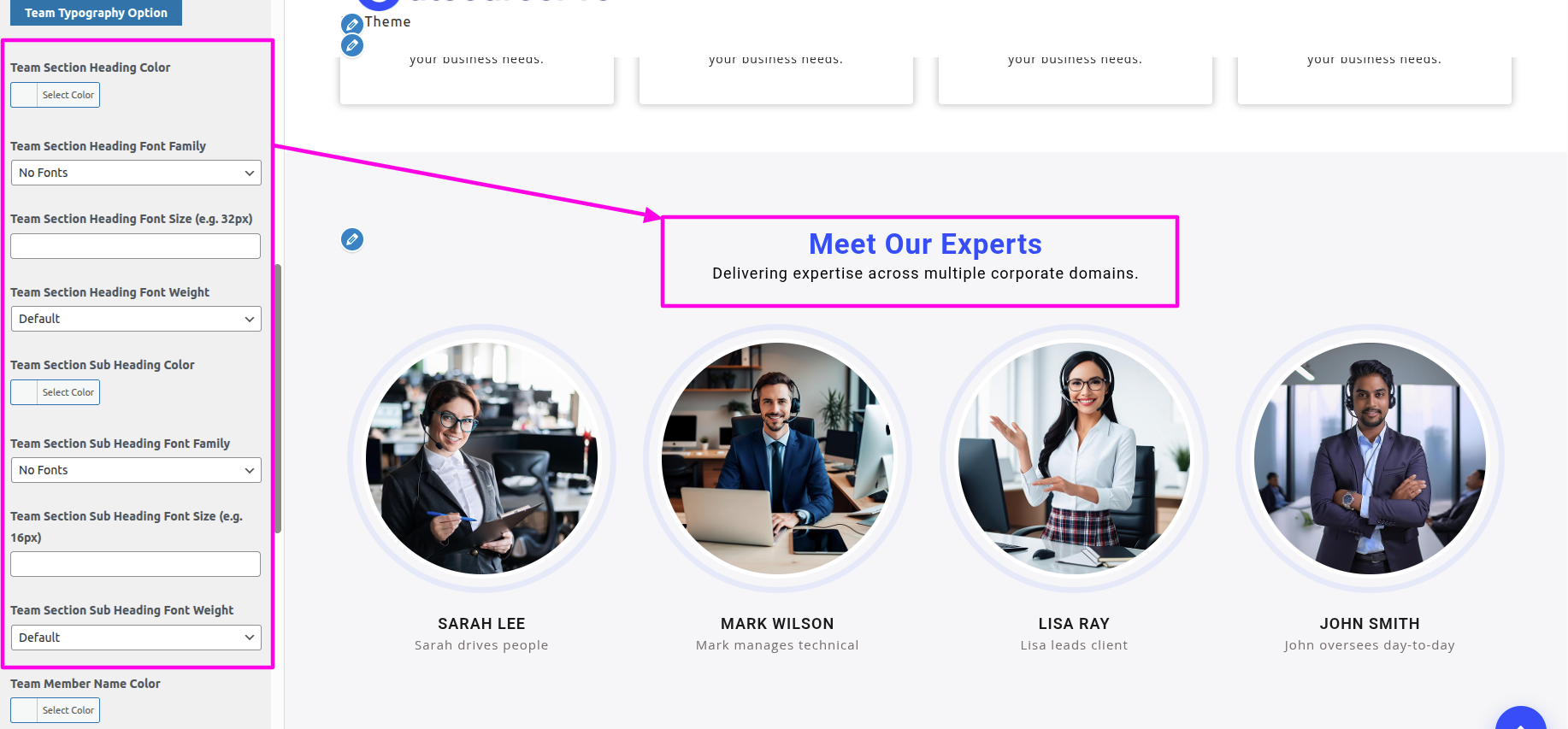
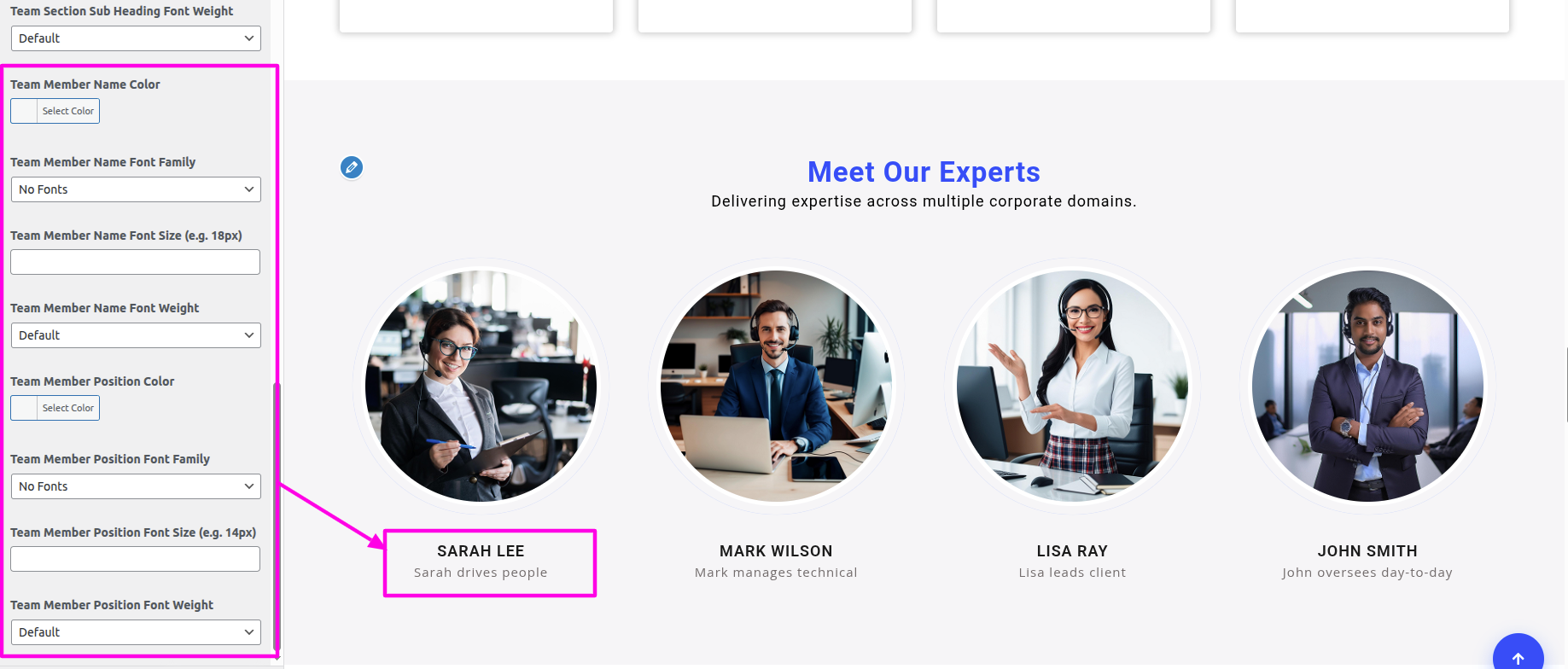
You can include the menu section in this manner.
This section is based on the Bpo Services Pro Posttype plugin, so first make sure the post type plugin is installed and activated.
Select Dashboard → Appearance → Install Plugins → Install and Activate Bpo Services Pro Posttype
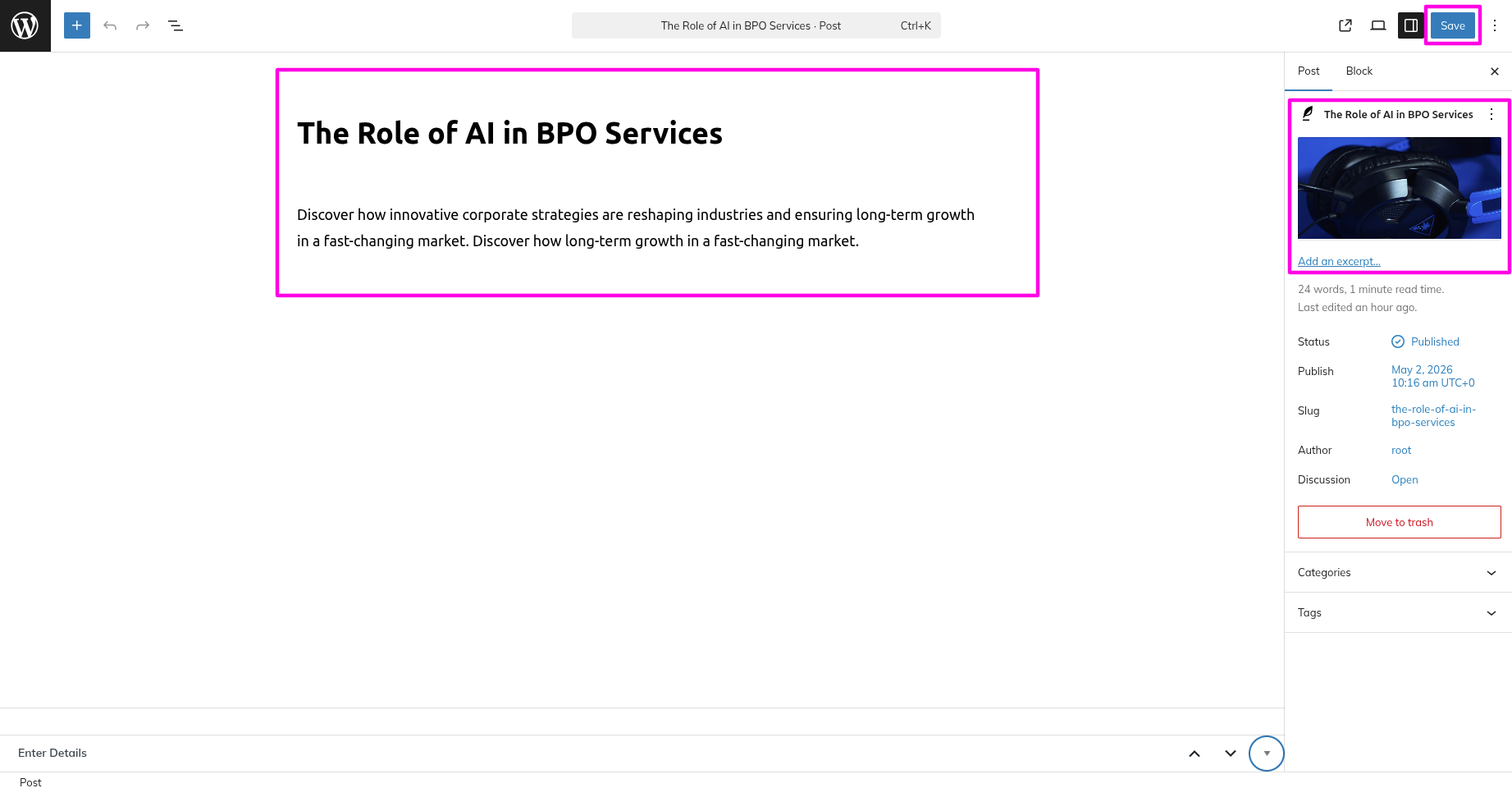
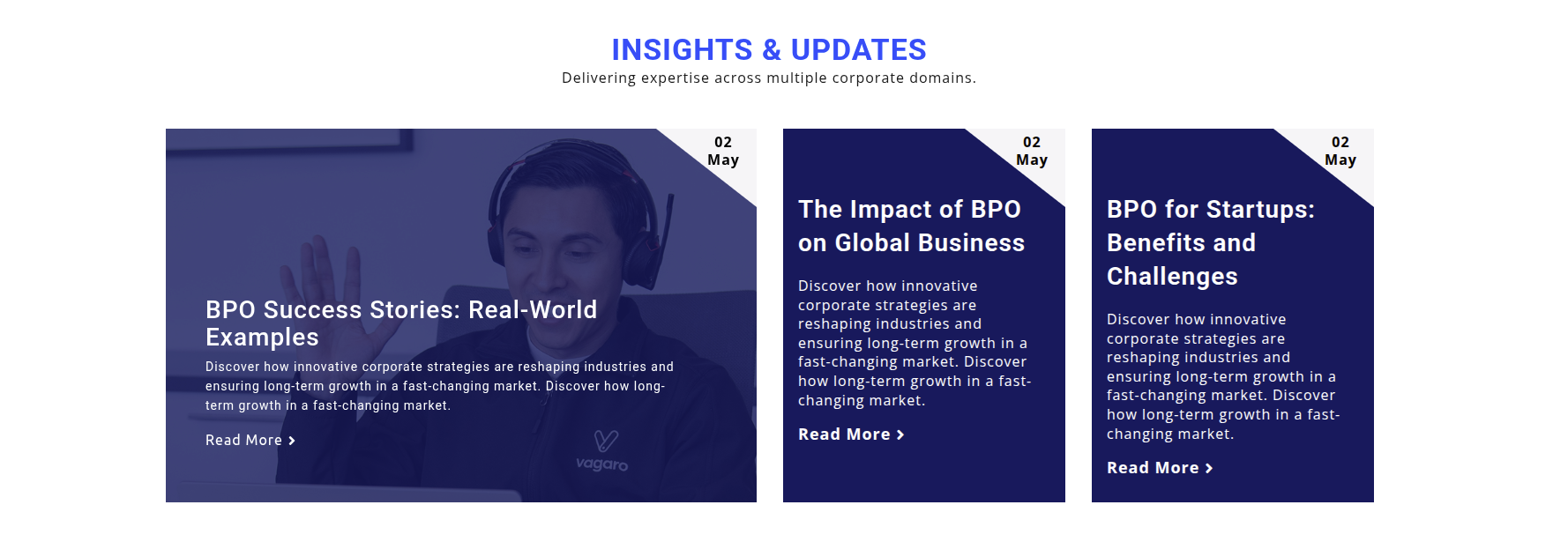
After activating the plugin, the Business Posts post type will appear in the dashboard.
Select The Appearance → Customize → Business Settings → Posts Settings
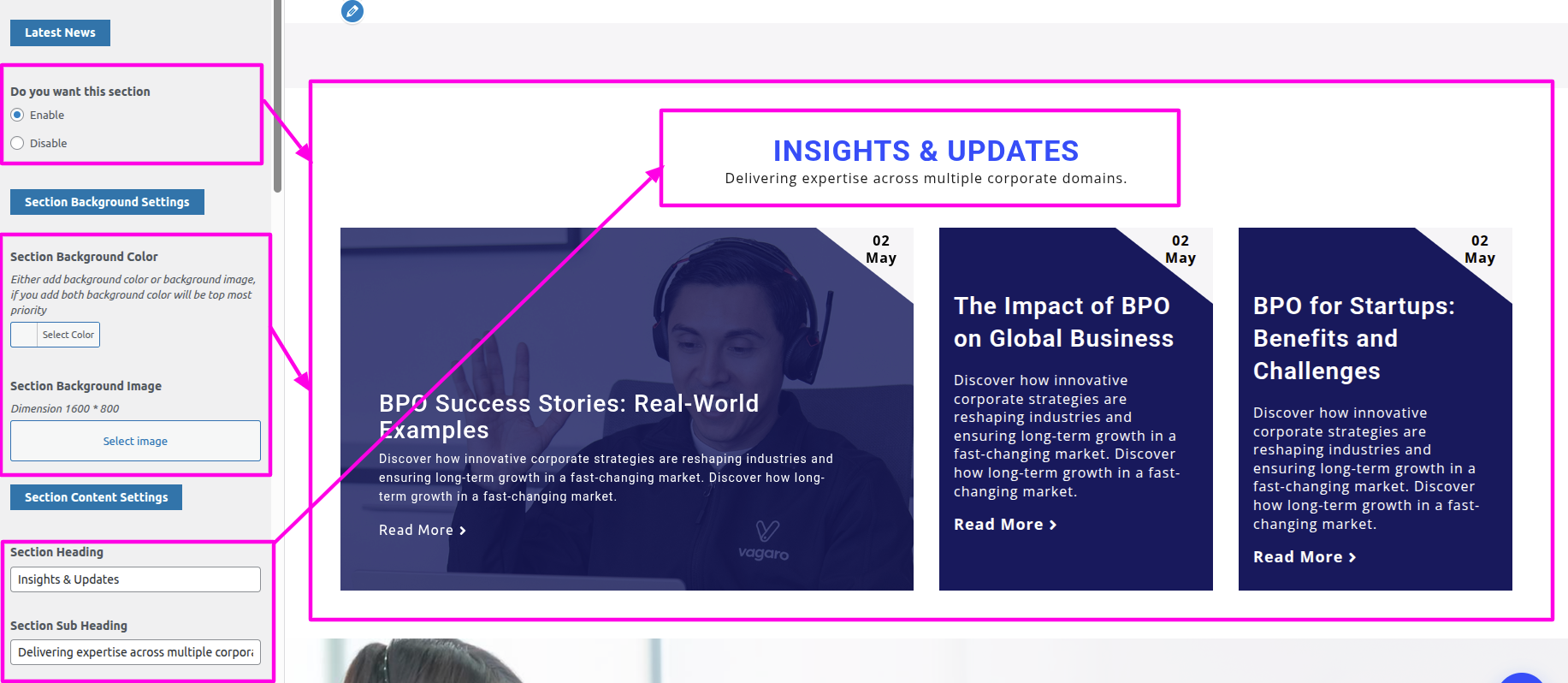
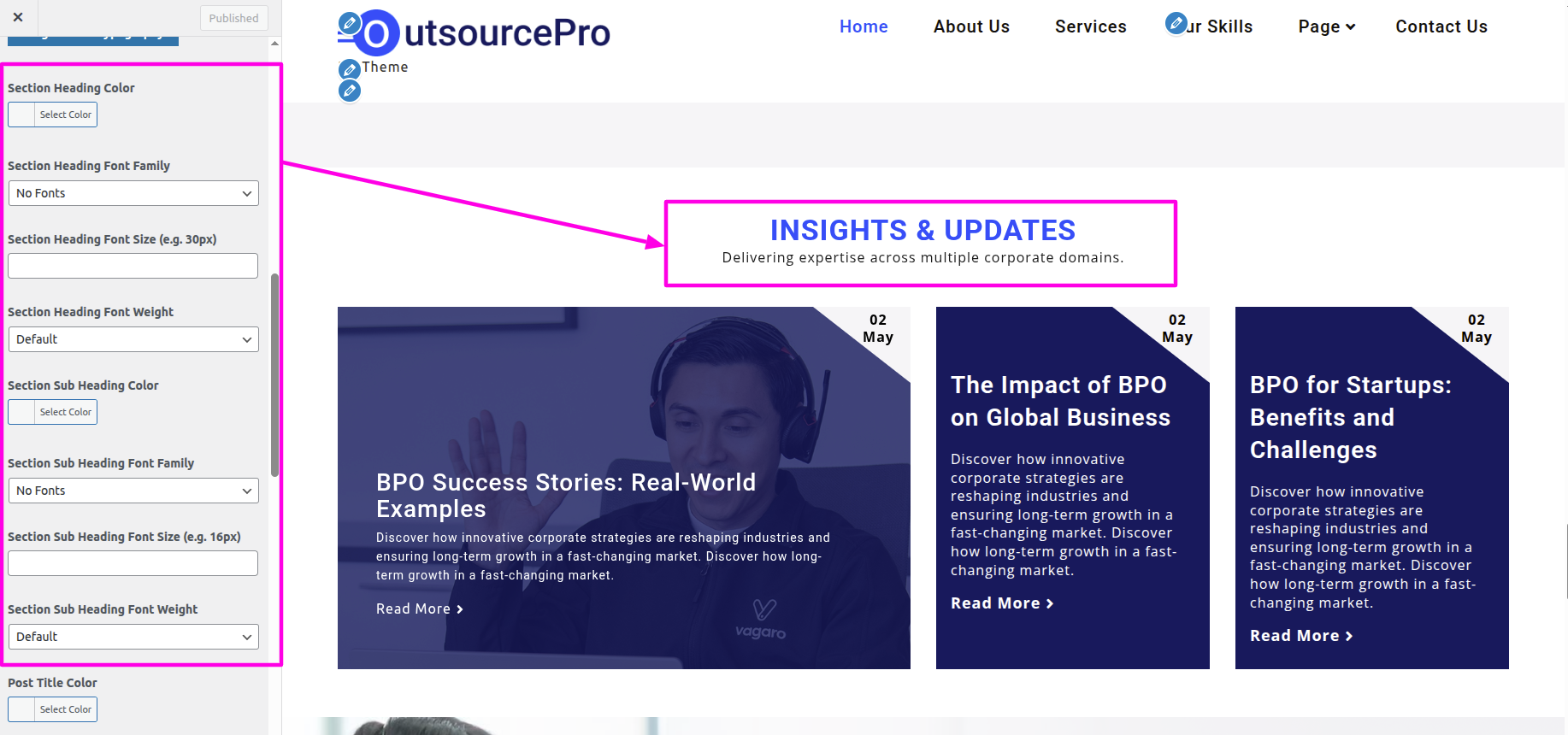
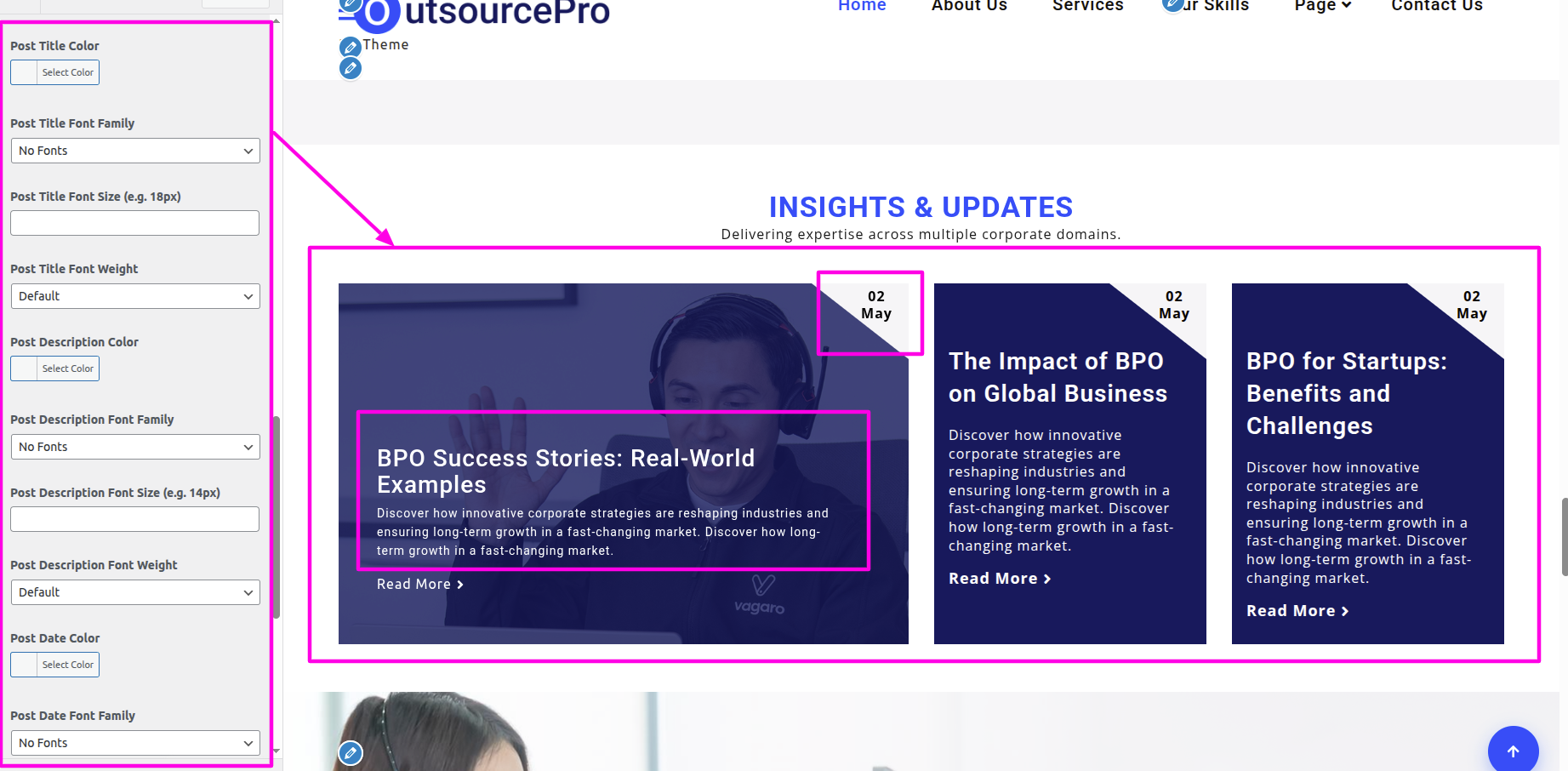
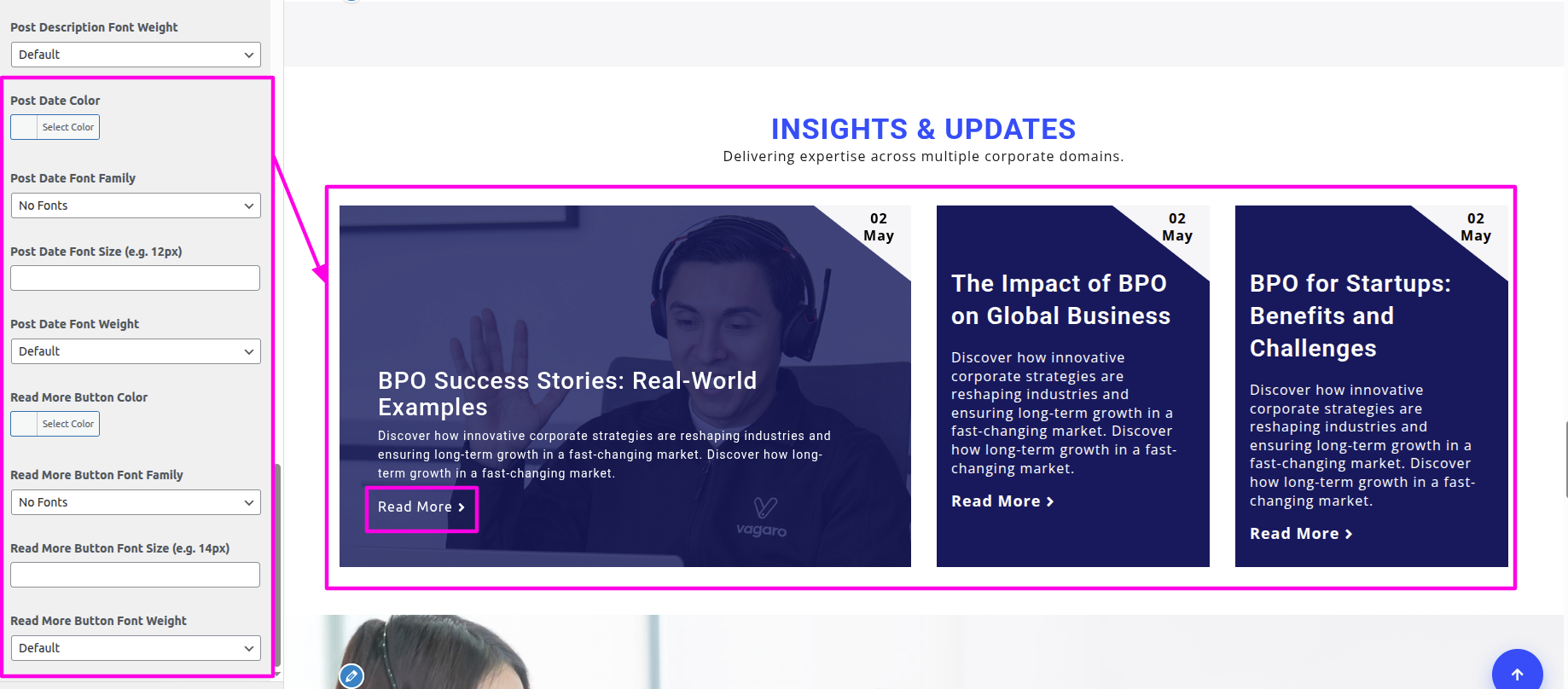
You can include the menu section in this manner.
To begin setting up the Featured section, go to the customizer settings for the Featured.
Select The Appearance → Customize → Business Settings → Featured Settings
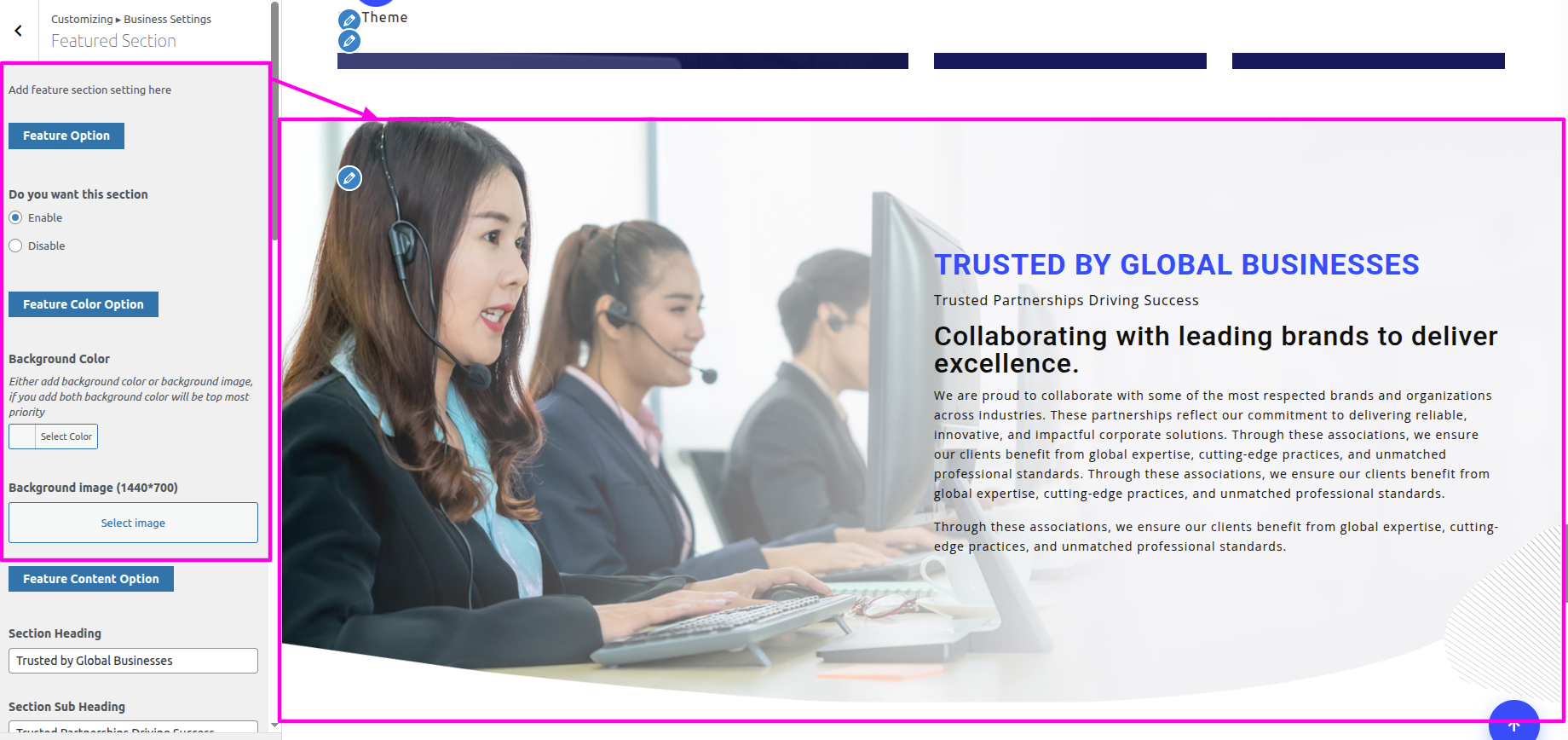
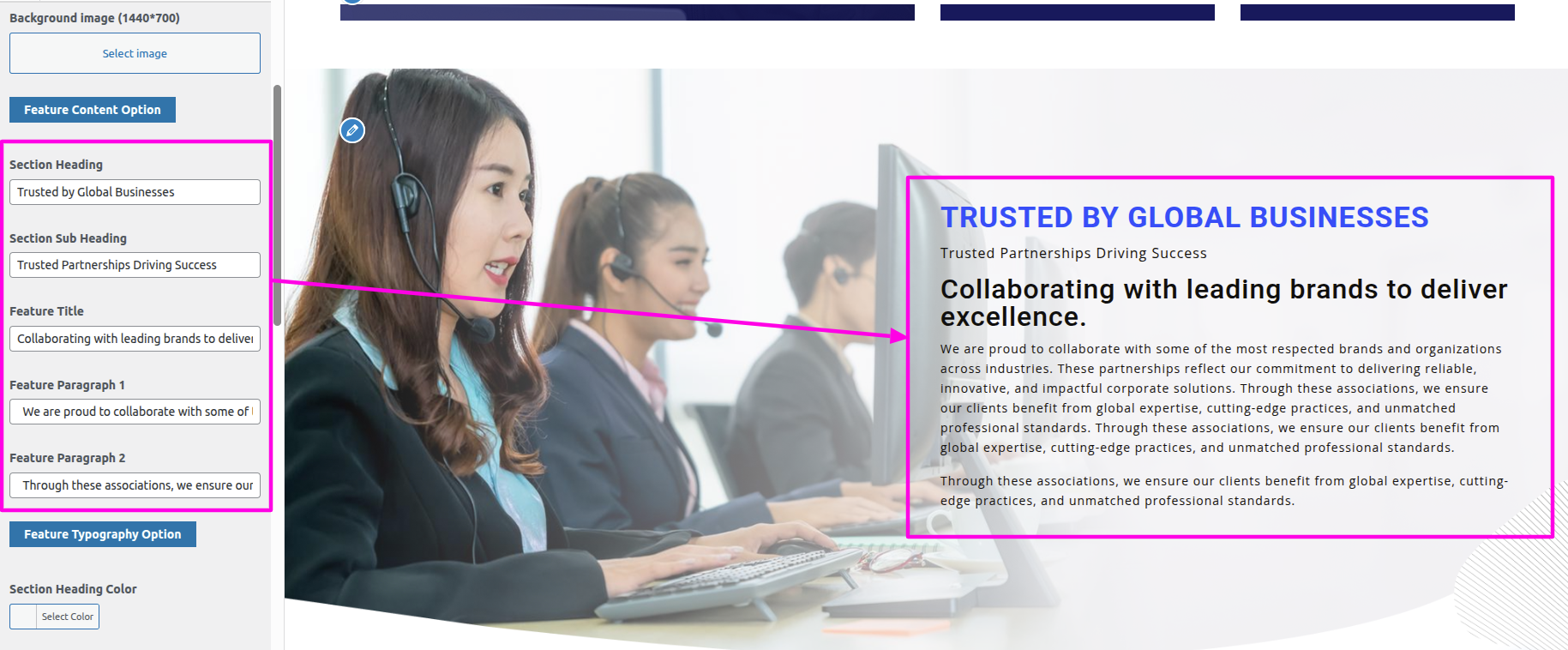
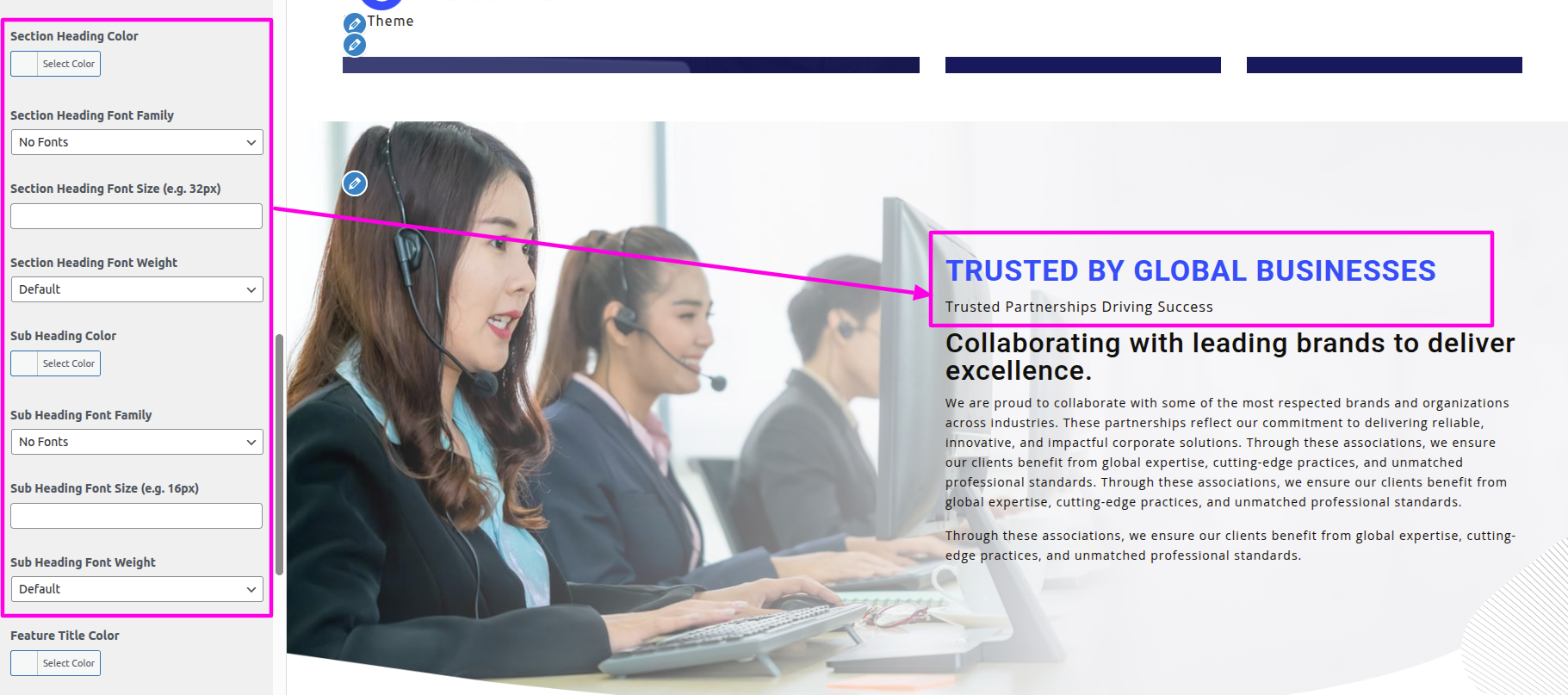
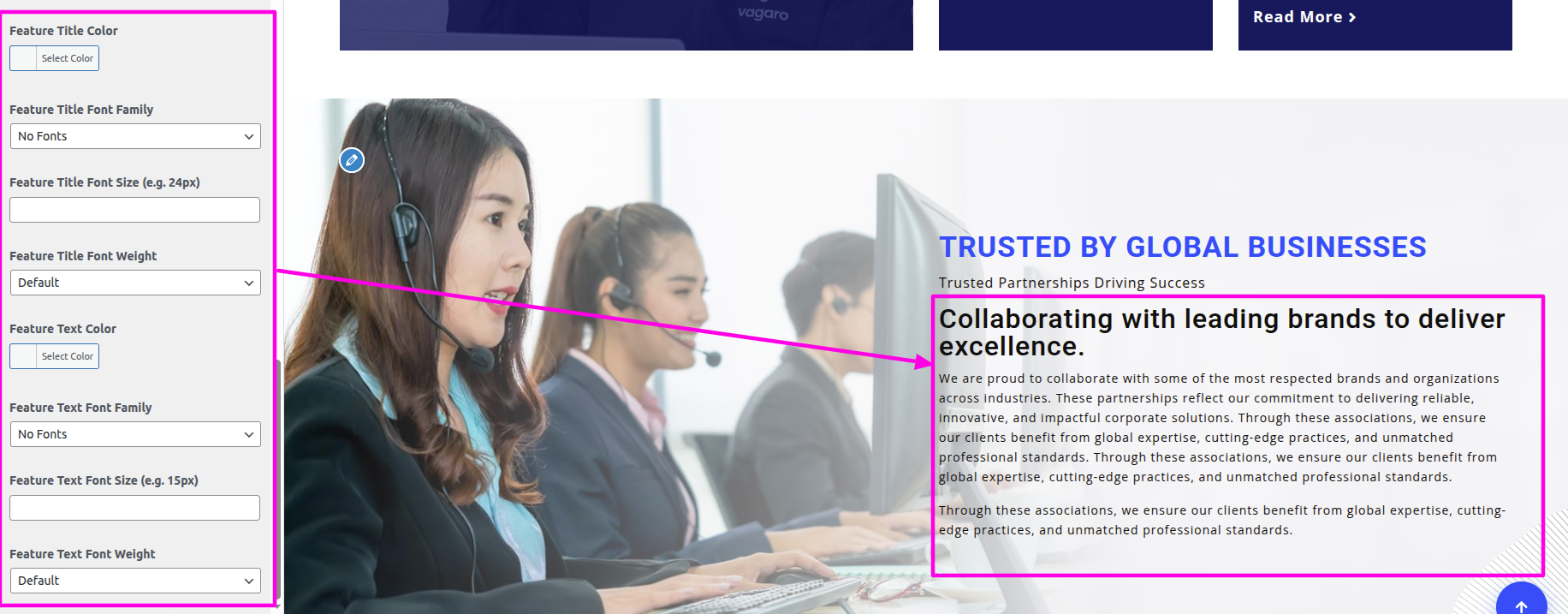
You can include the menu section in this manner.

To begin setting up the Sponser section, go to the customizer settings for the Sponser.
Select The Appearance → Customize → Business Settings → Sponser Settings
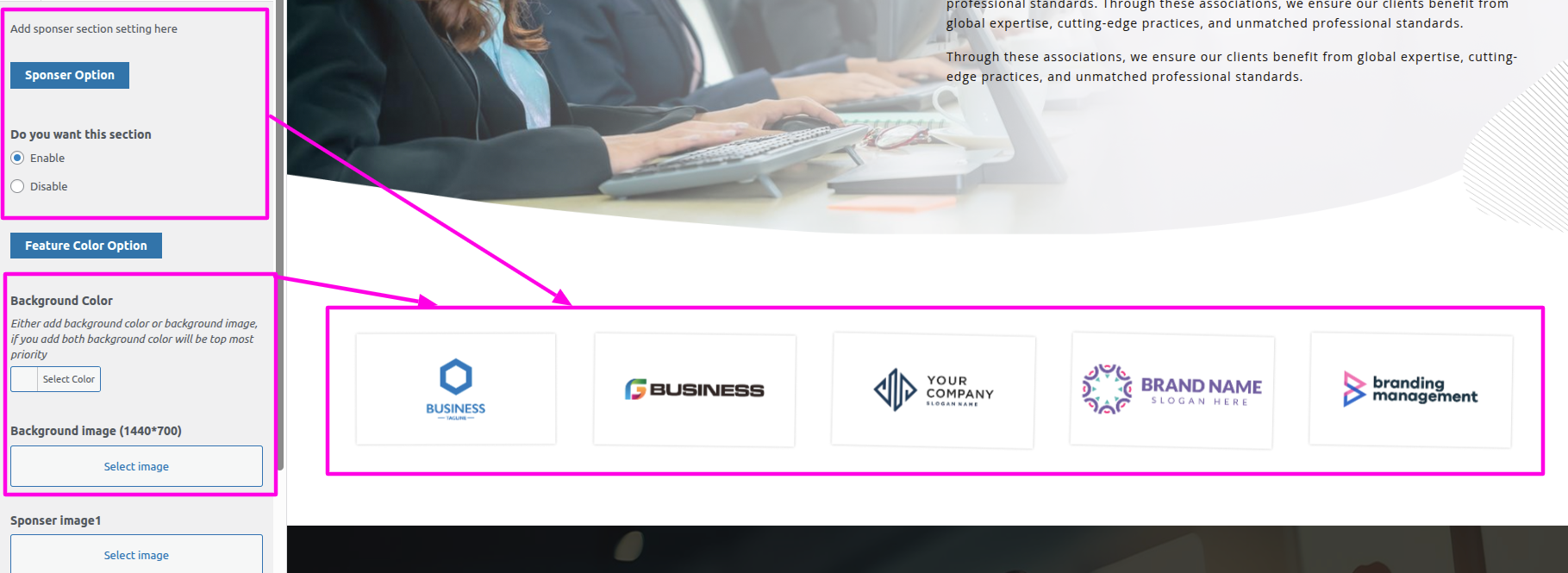
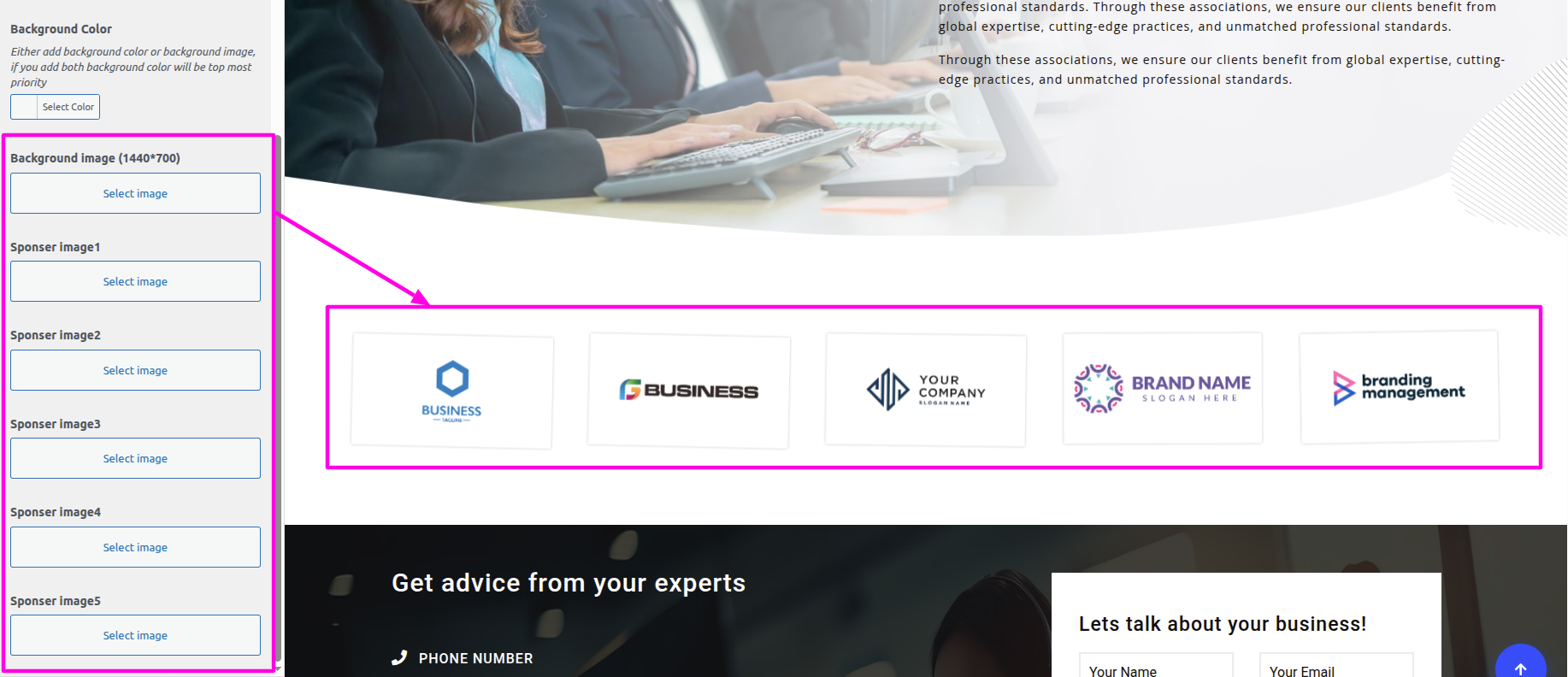
You can include the menu section in this manner.

To start Configuring the Contact Page on your WordPress site, we need to install contact forn 7 plugin. contact options will appear once you install the plugin
Navigate to Dashboard == Contact == Click On Add new
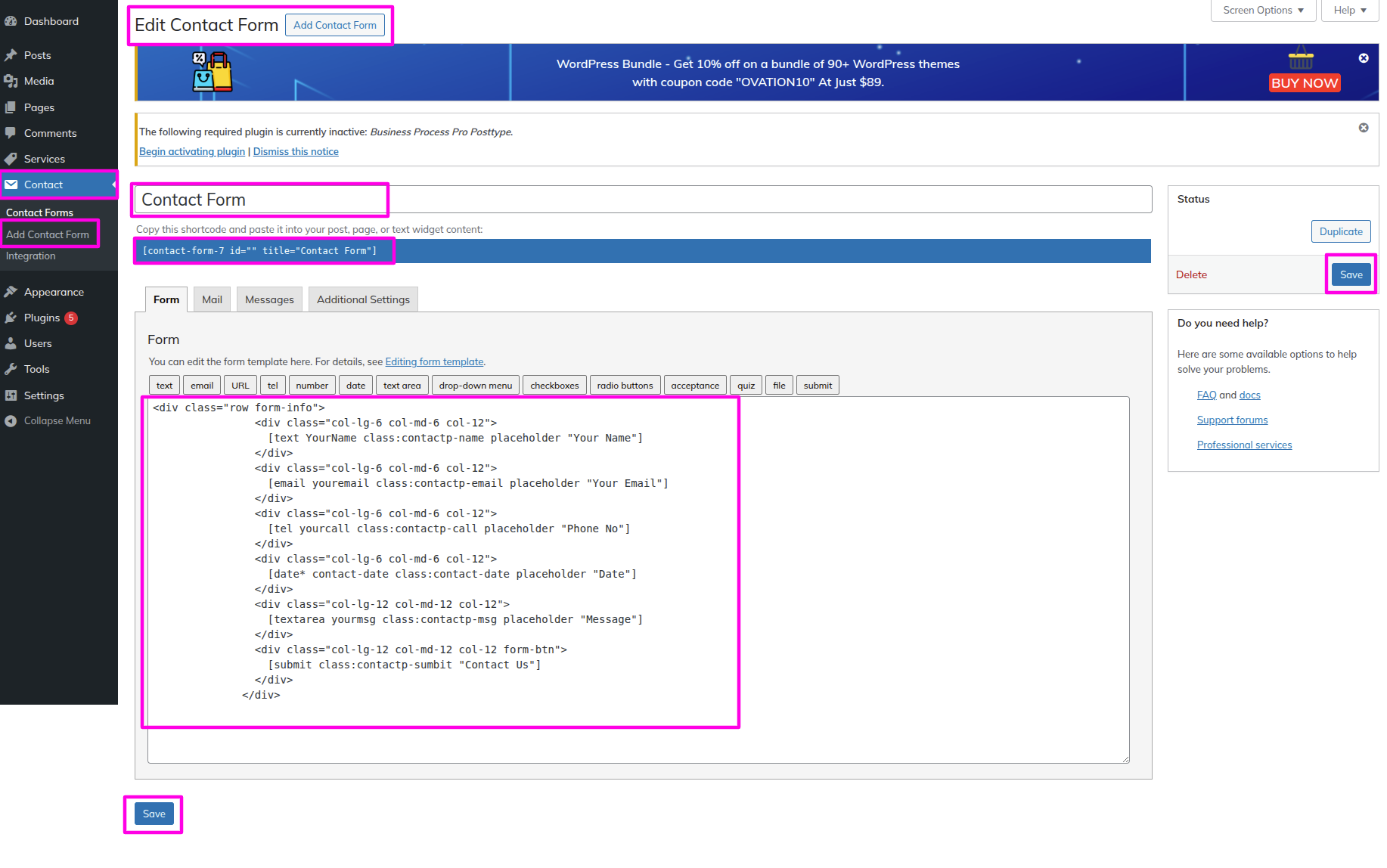
To be able to begin with Home Contact Section
SelectThe Appearance → Select The Customize → Business Settings → Home Contact Section
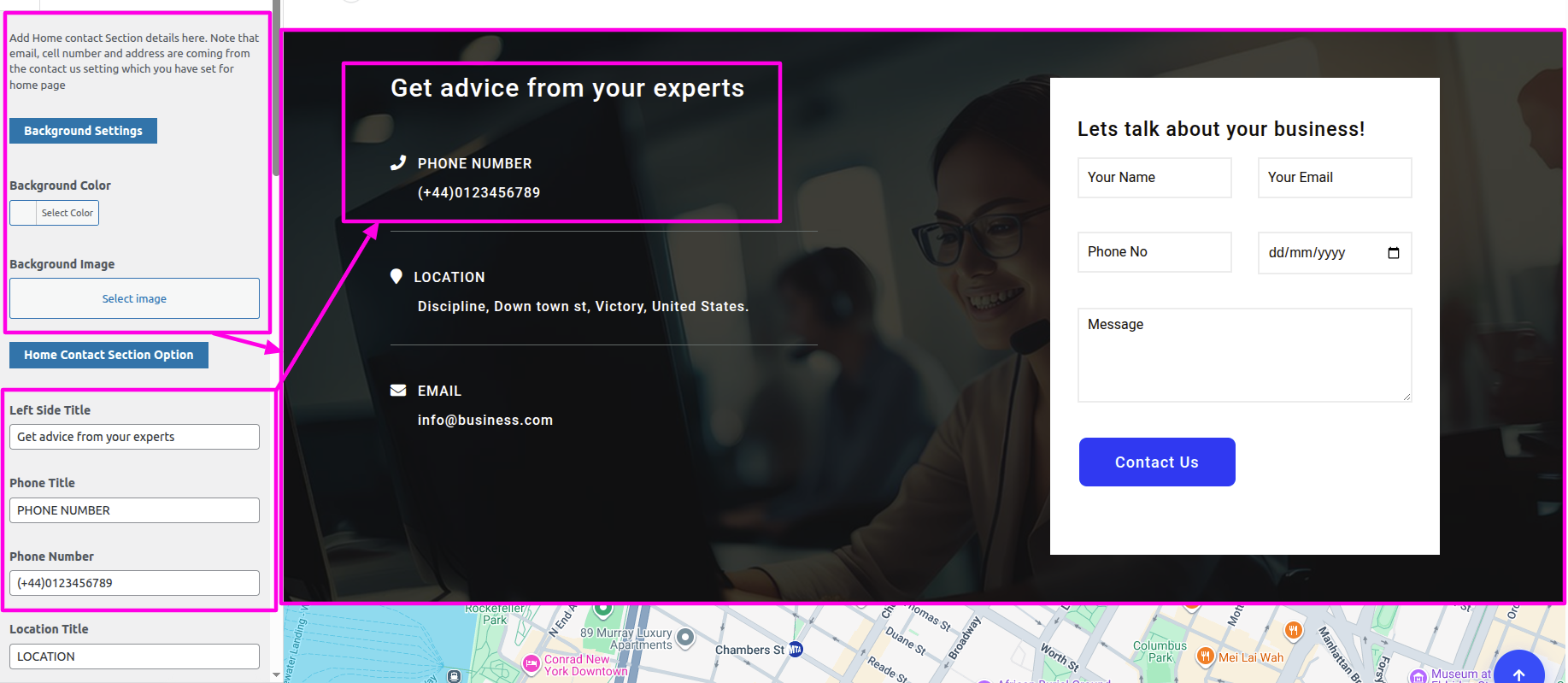
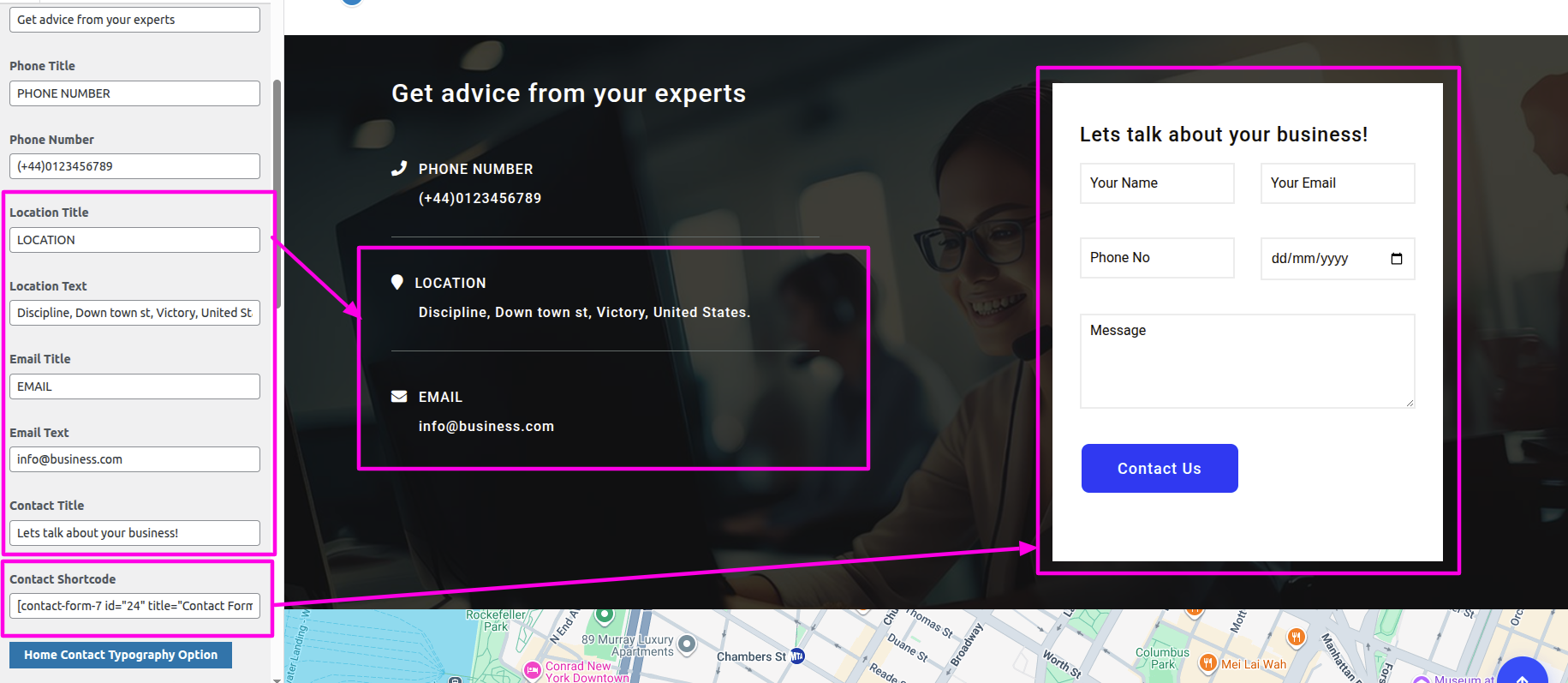
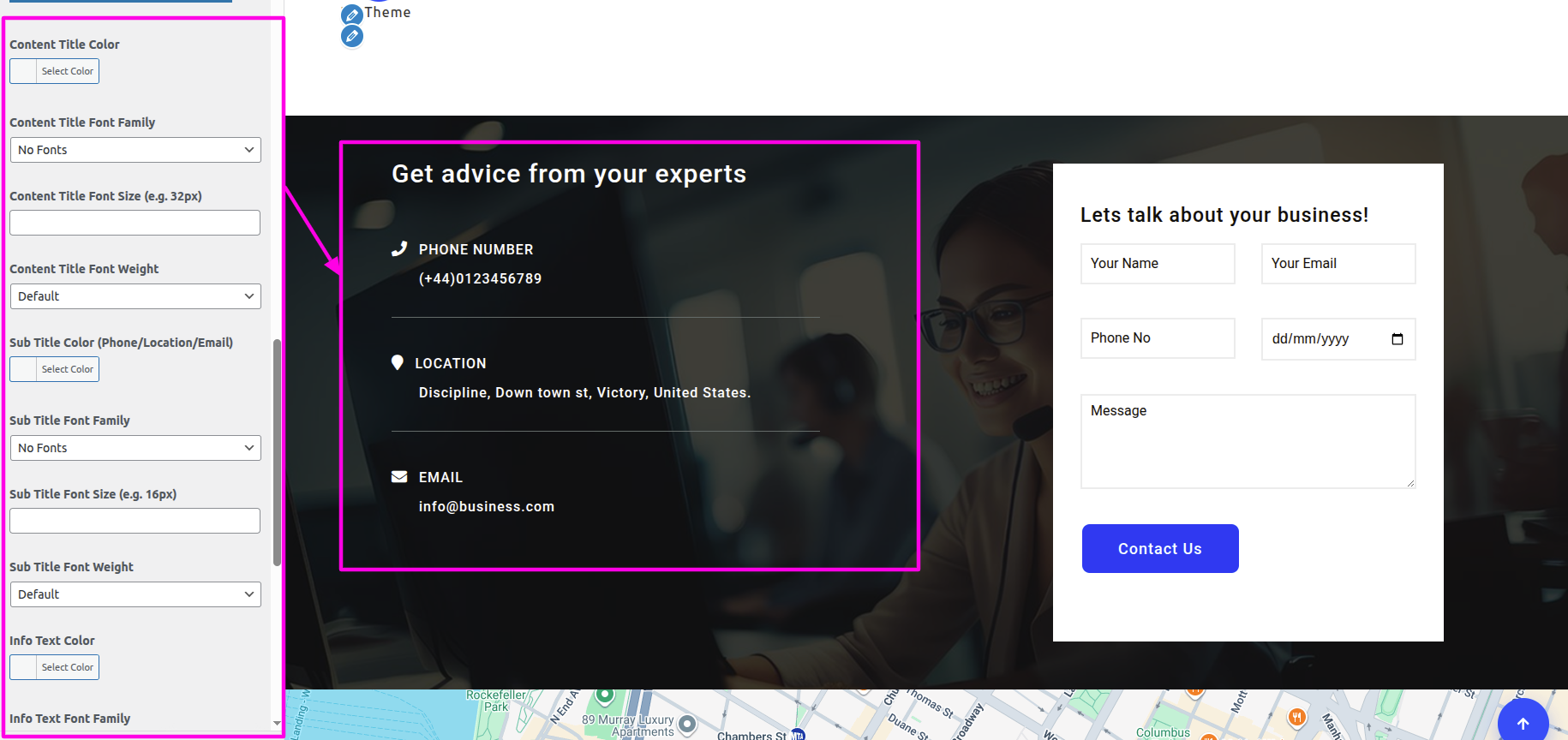
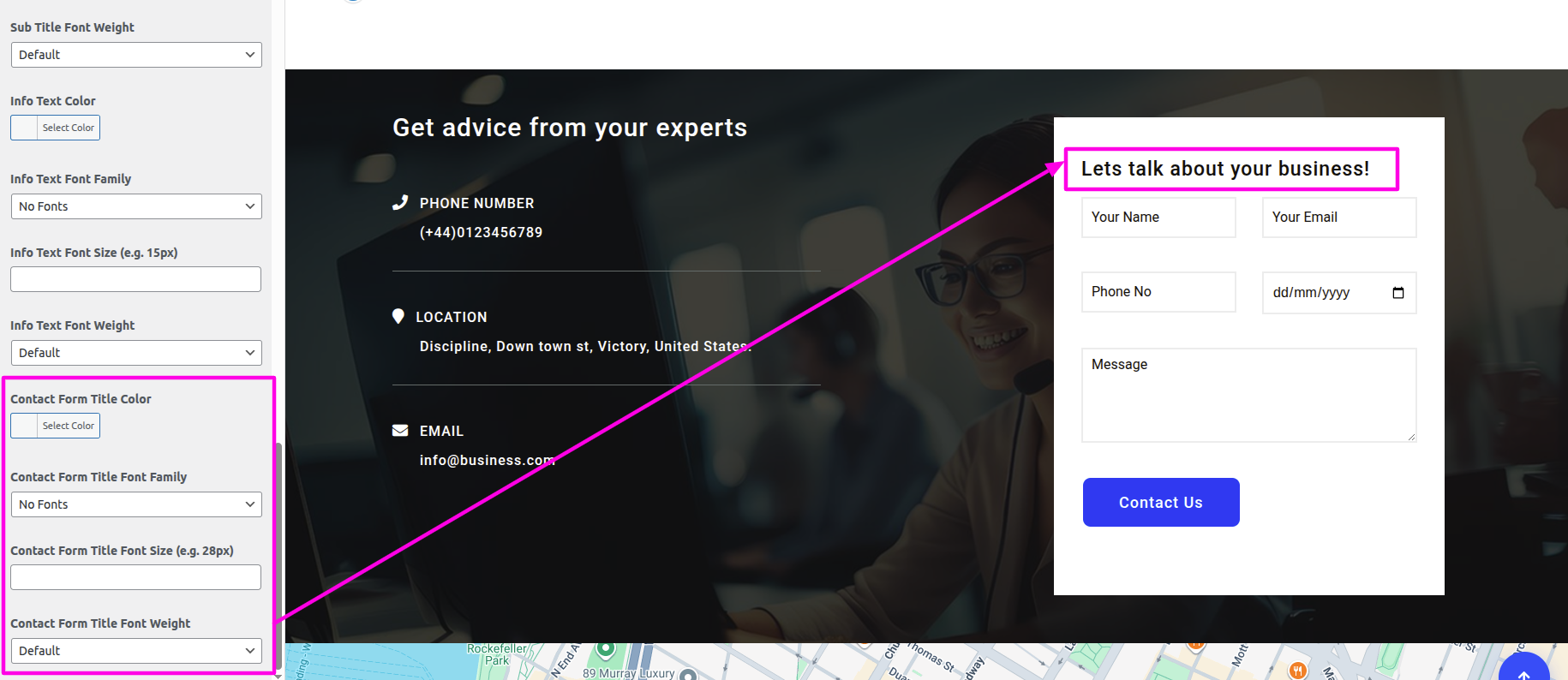


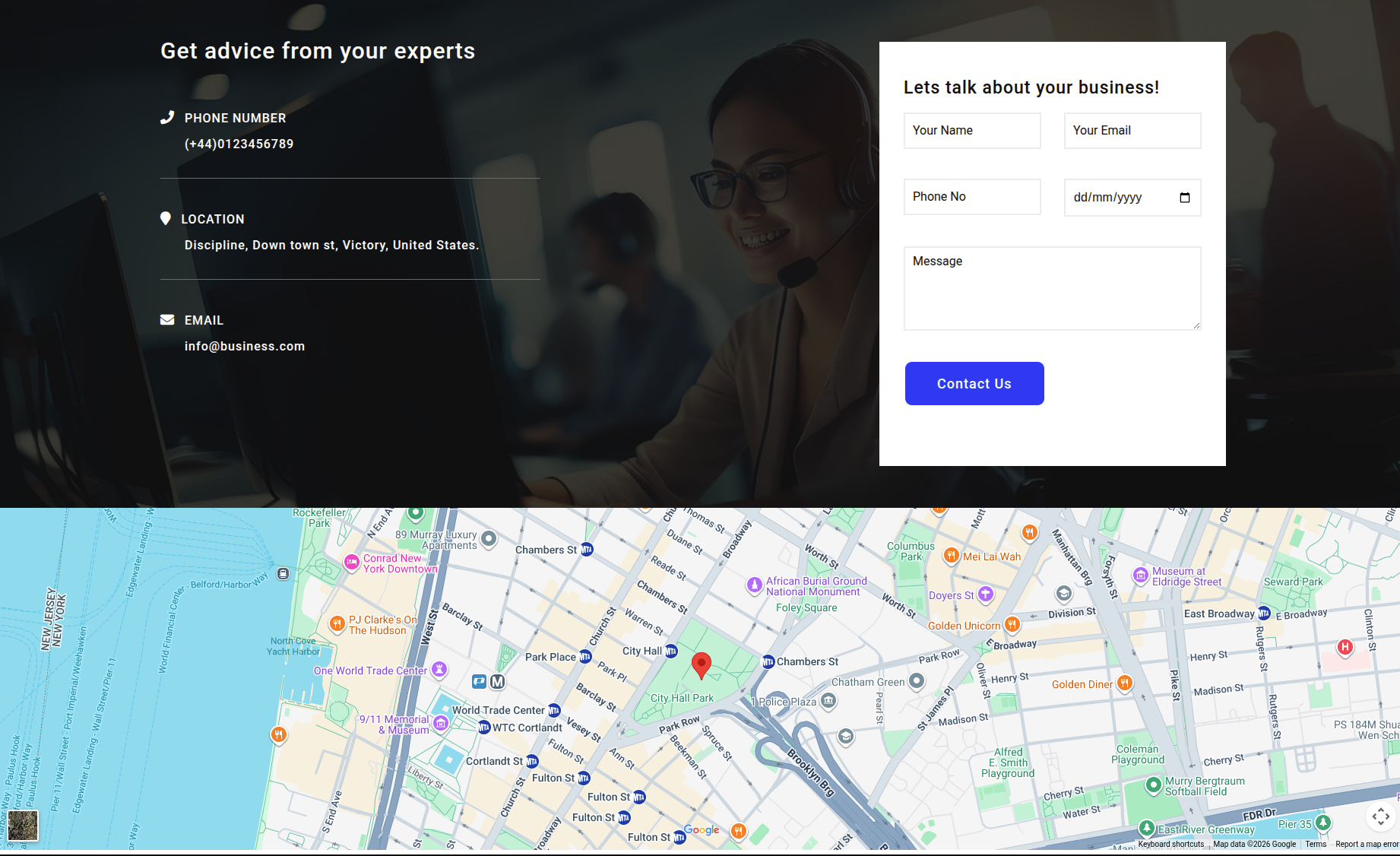
On the front end, it will appear as shown.
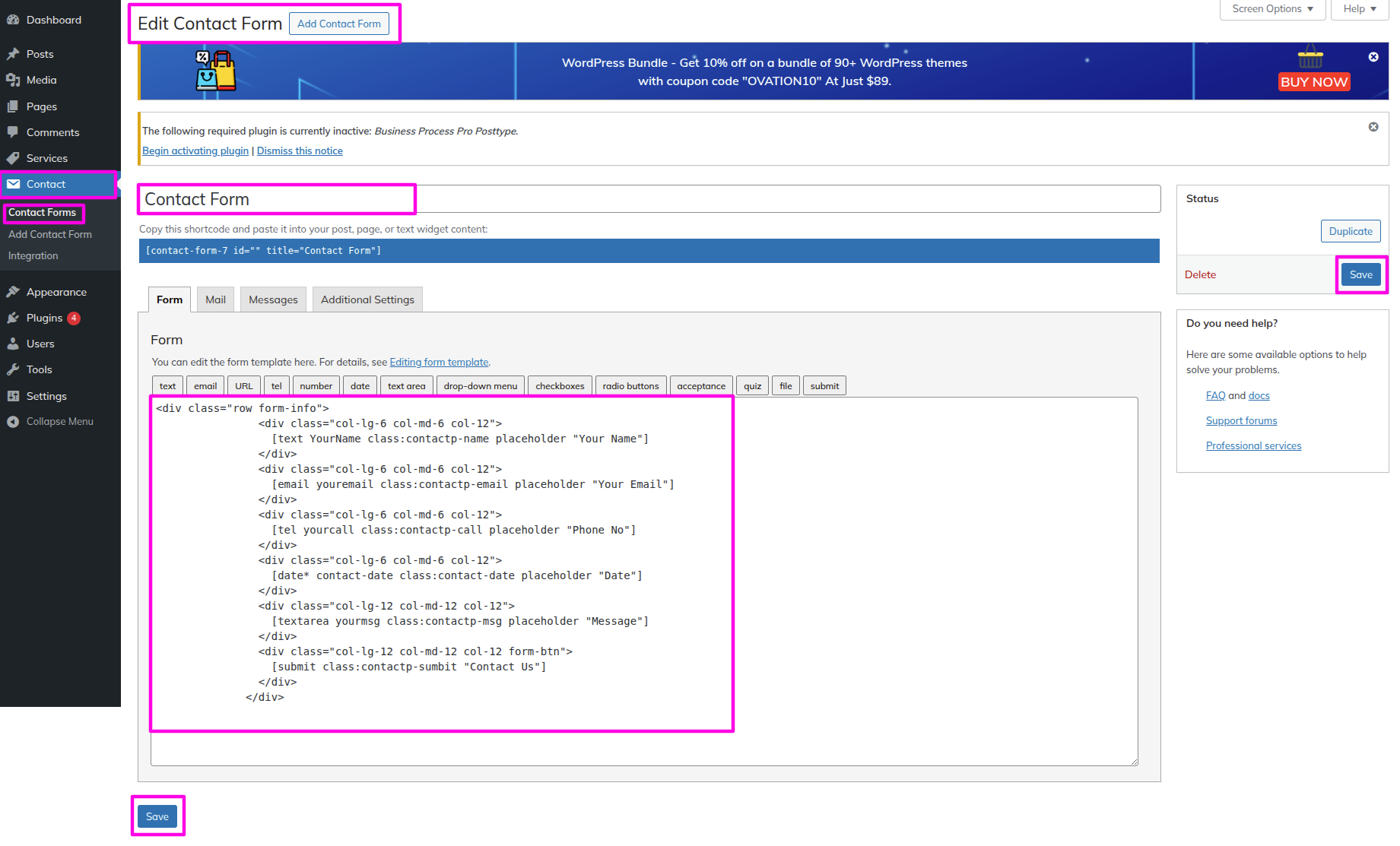
To start Configuring the Contact Page on your WordPress site, we need to install contact forn 7 plugin. contact options will appear once you install the plugin
Navigate to Dashboard == Contact == Click On Add new
To be able to begin with Contact-Us Page
SelectThe Appearance → Select The Customize → Business Settings → Contact Page
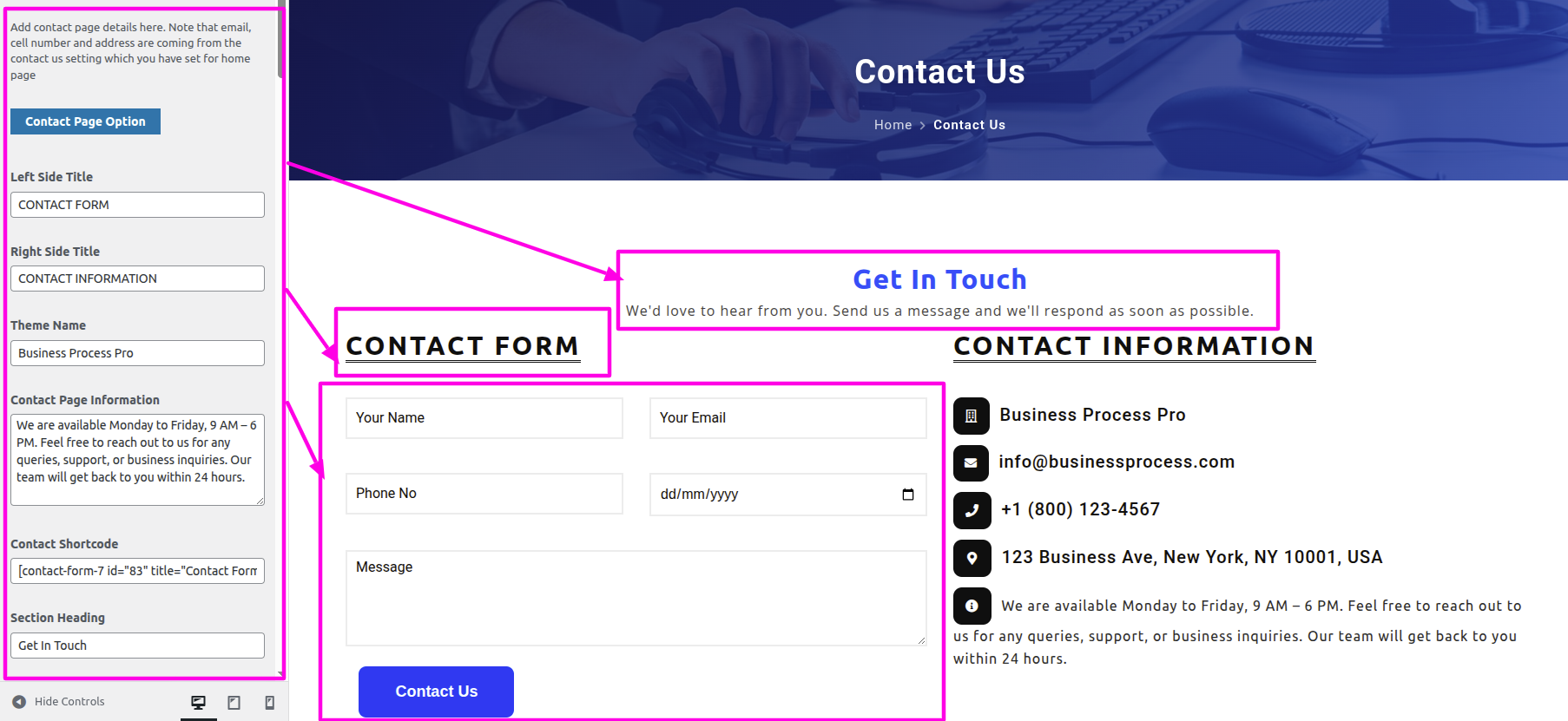
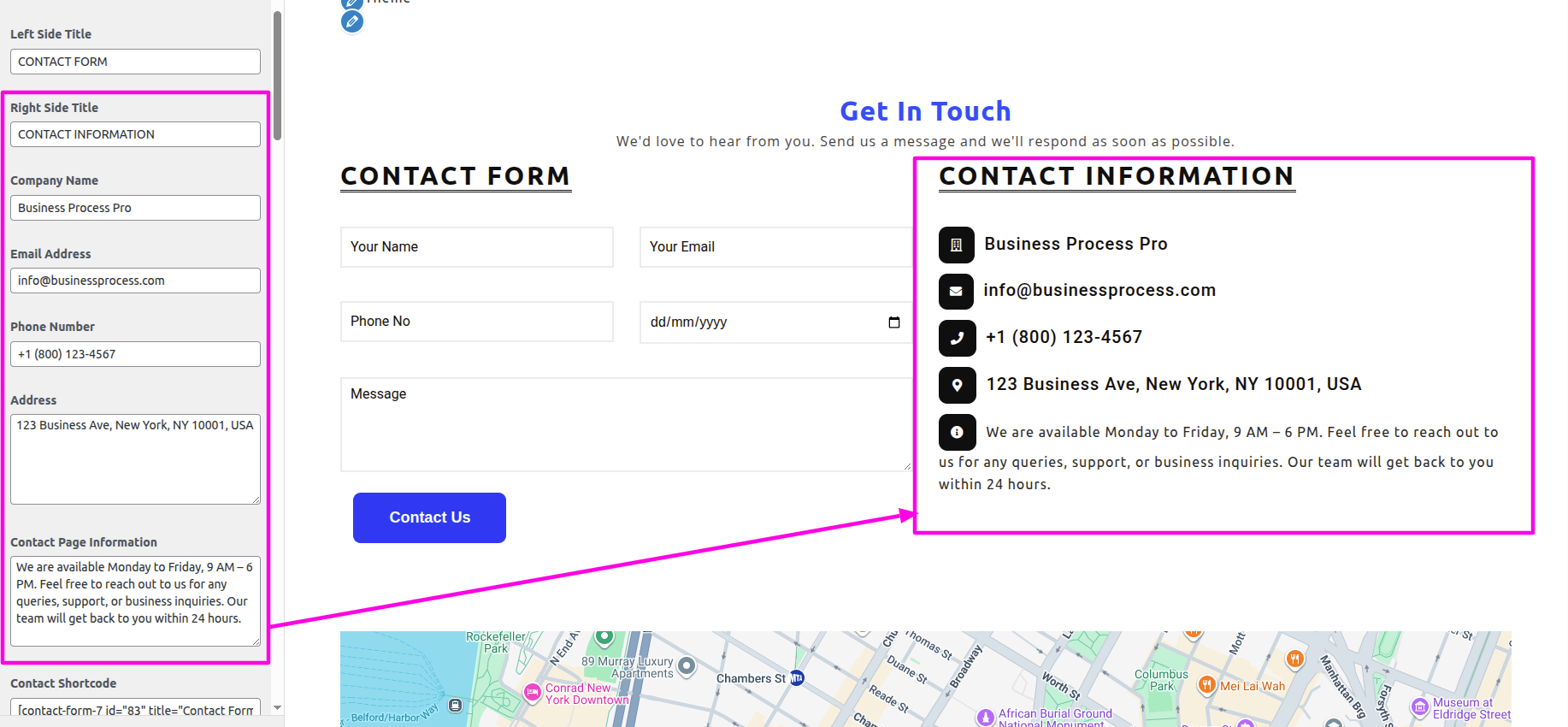
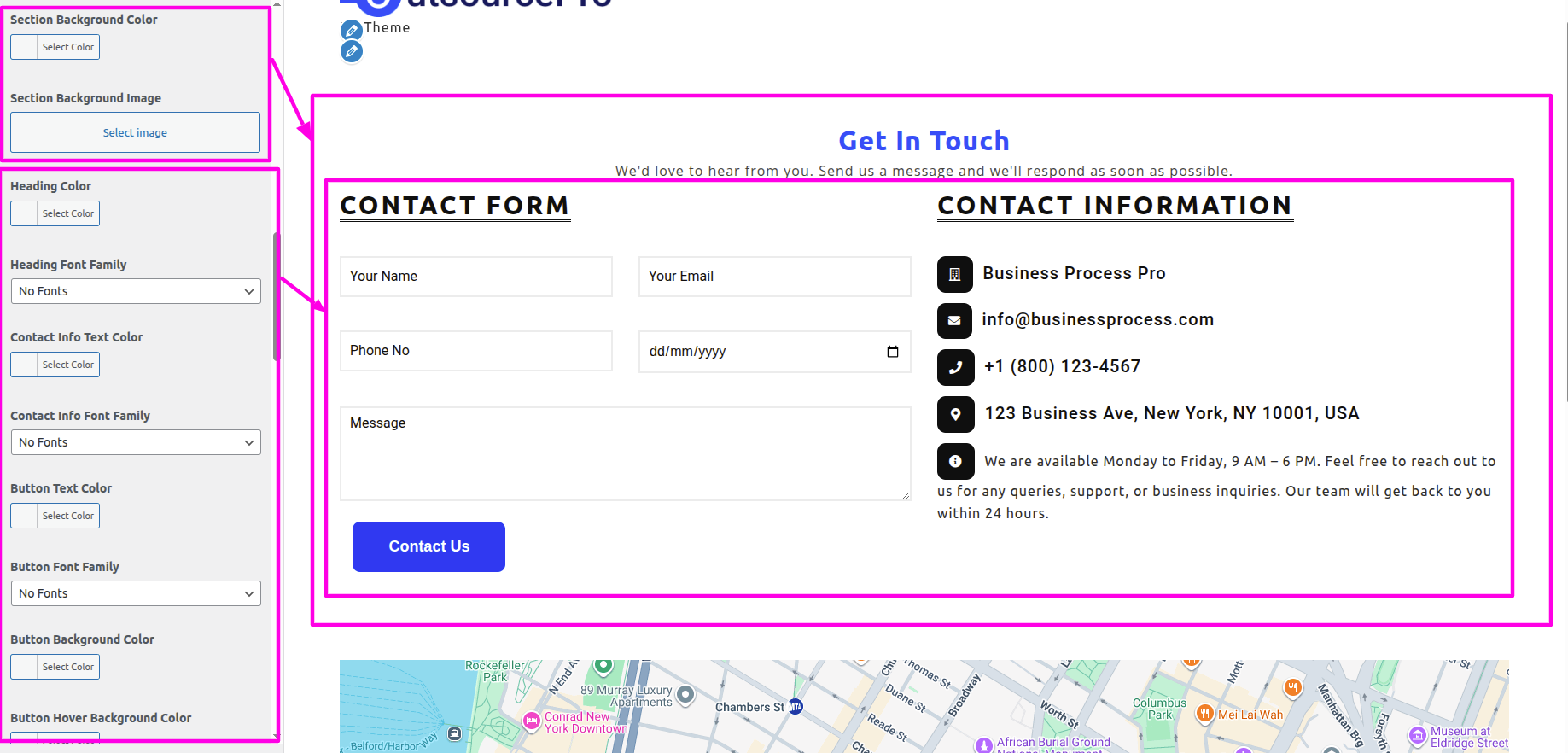
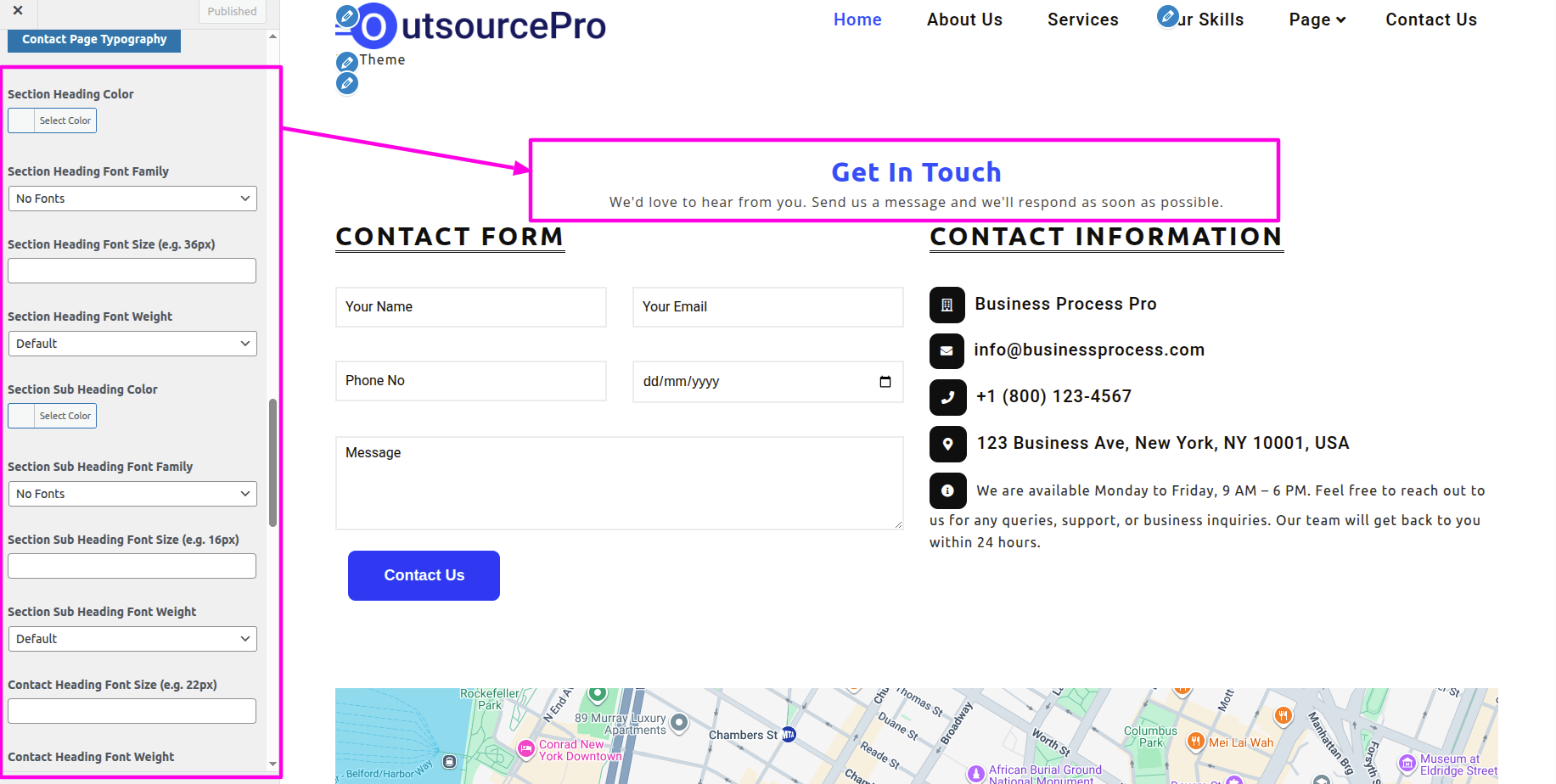
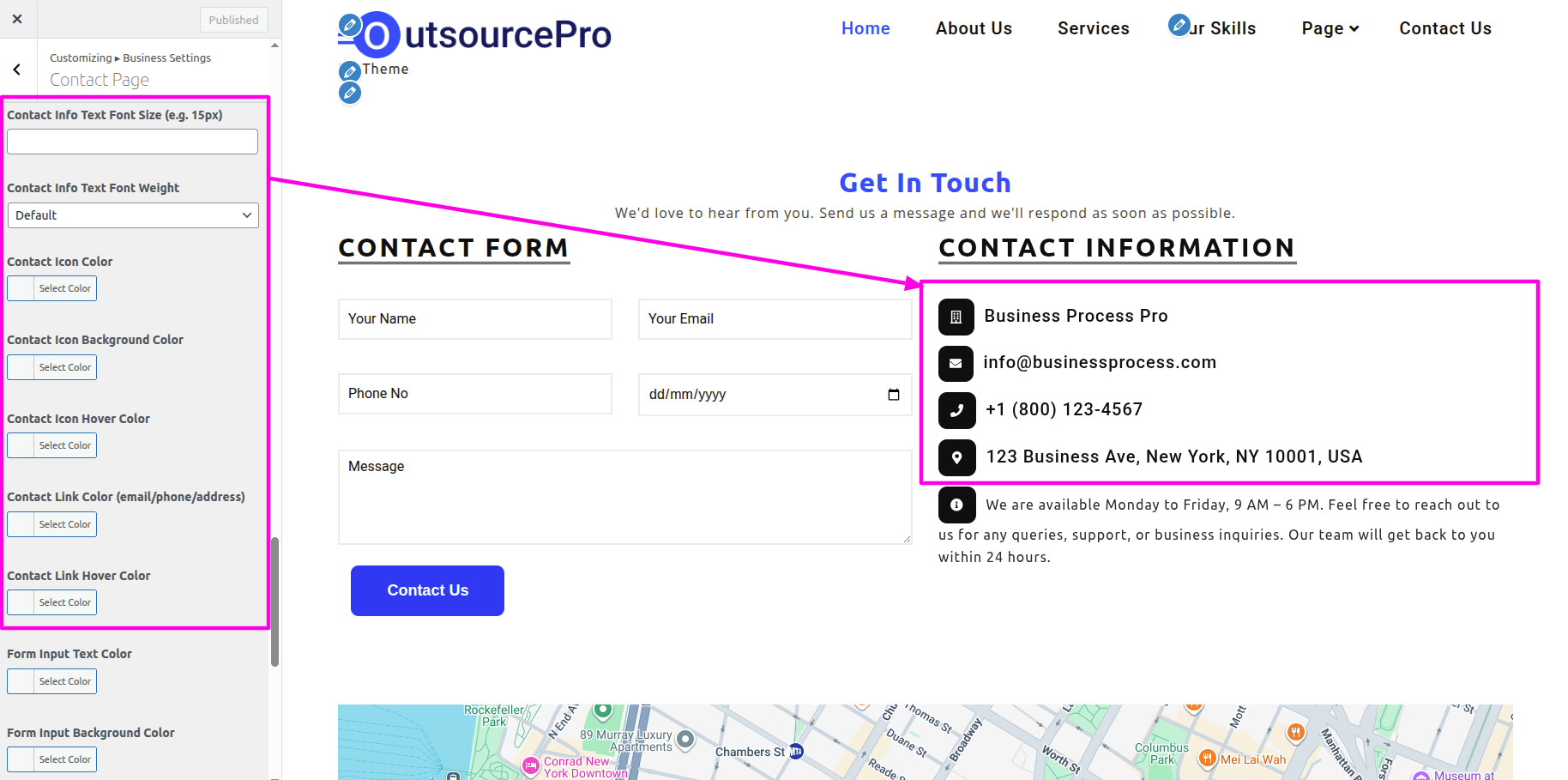
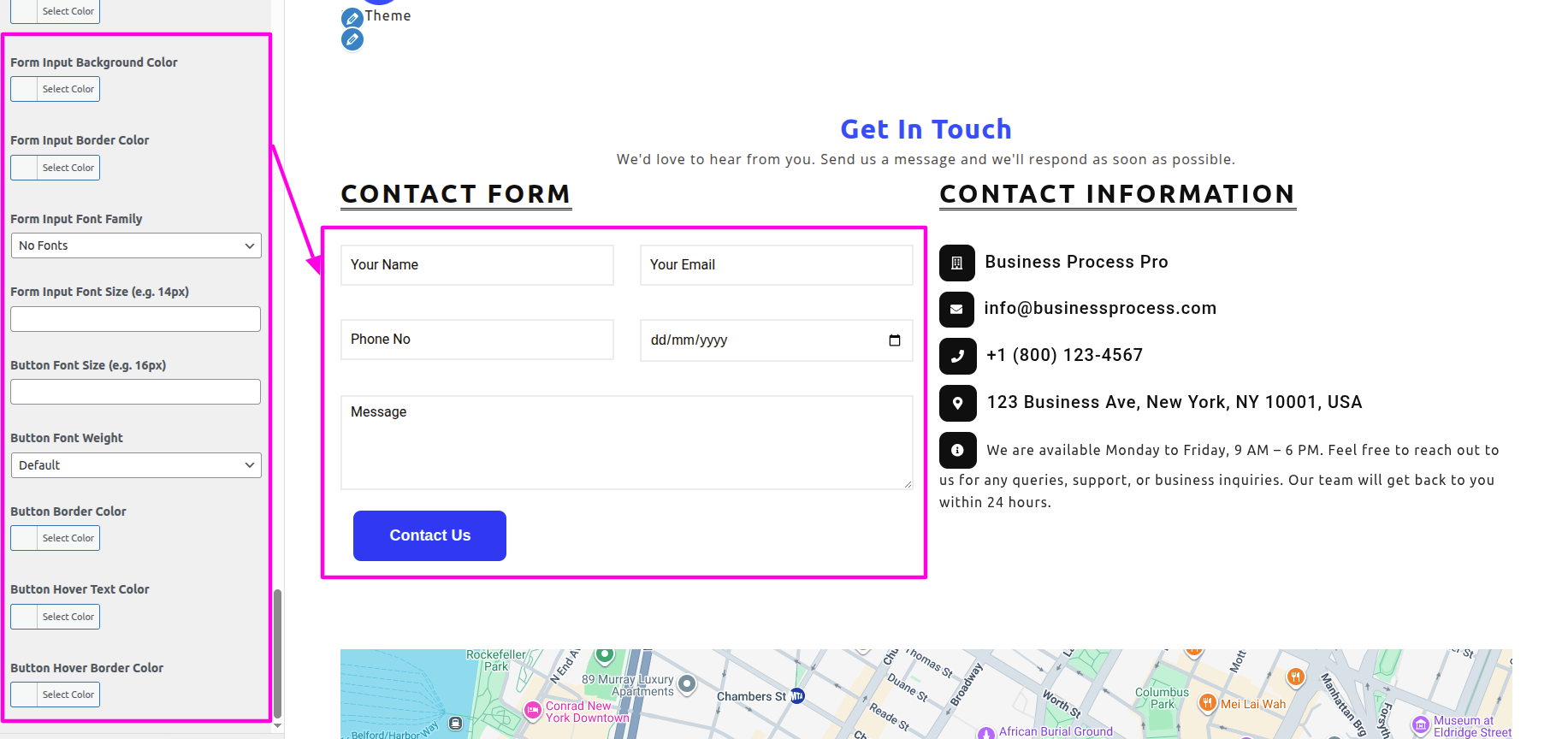
On the front end, it will appear as shown.
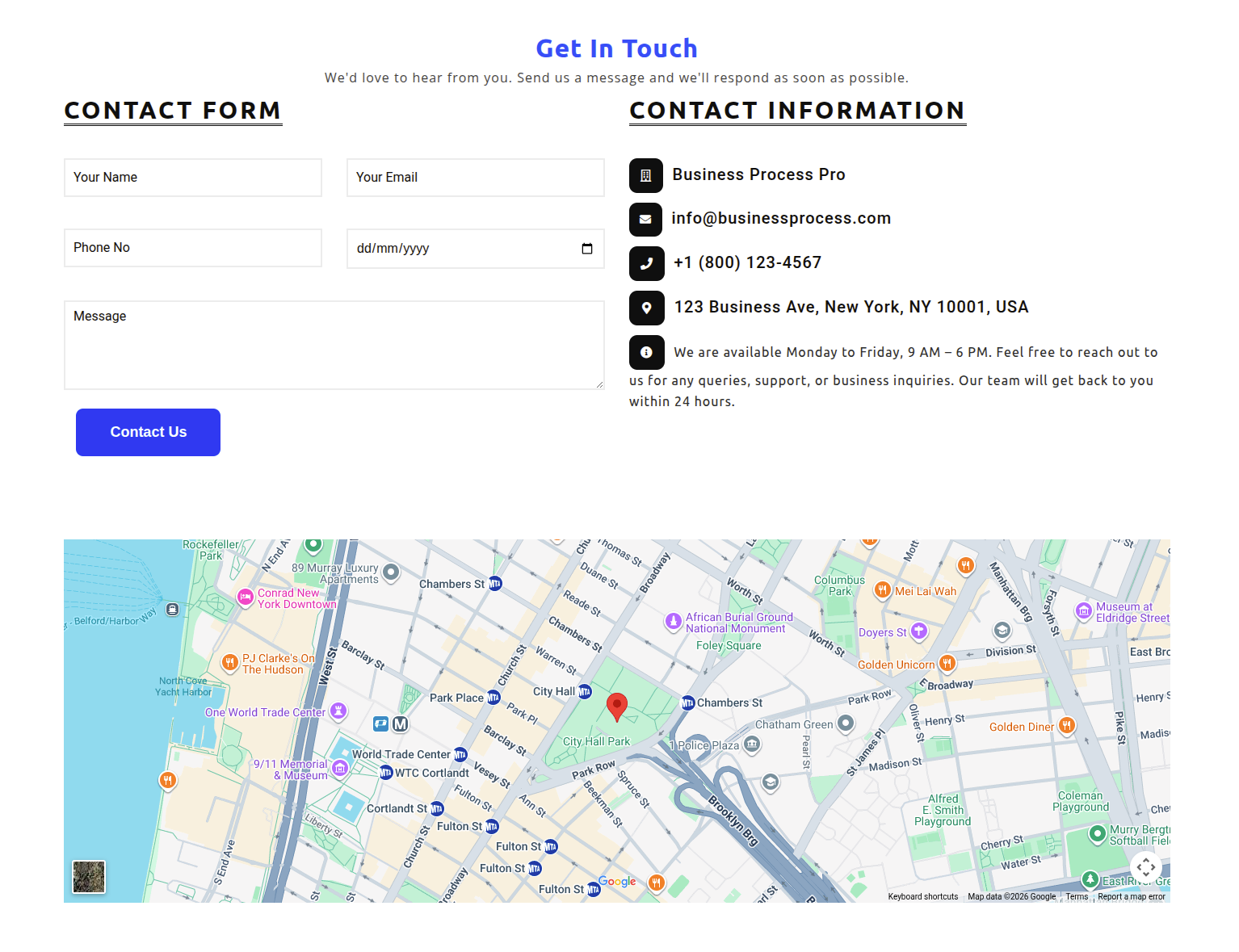
To be able to begin with Footer,
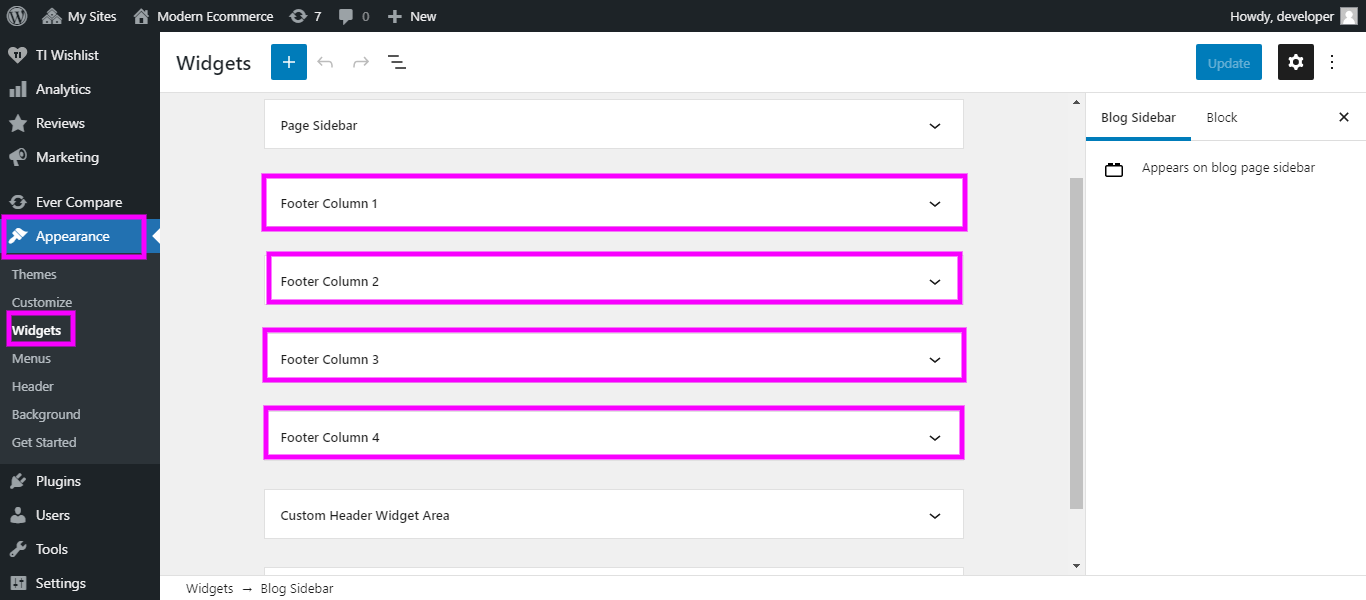
Step 1.SelectDashboard → The Appearance → Widgets
For designing this section, go to widgets of The Appearance section and select four footer columns for tags, gallery, contact and logo image respectively.
Below image throws light on the widgets section.
SelectDashboard → The Appearance → Widgets → Click On Add new
SelectThe Appearance → Select The Customize → Footer Options → Footer Widgets
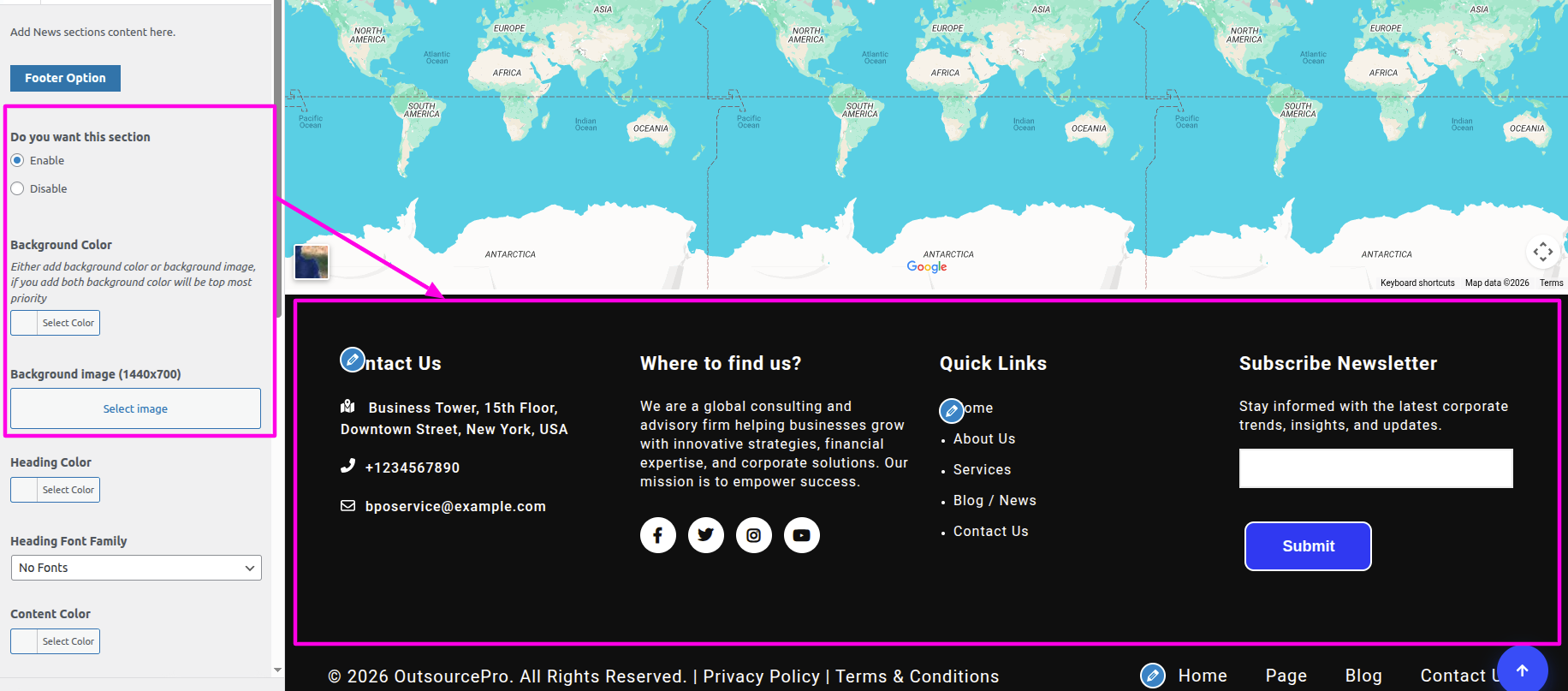
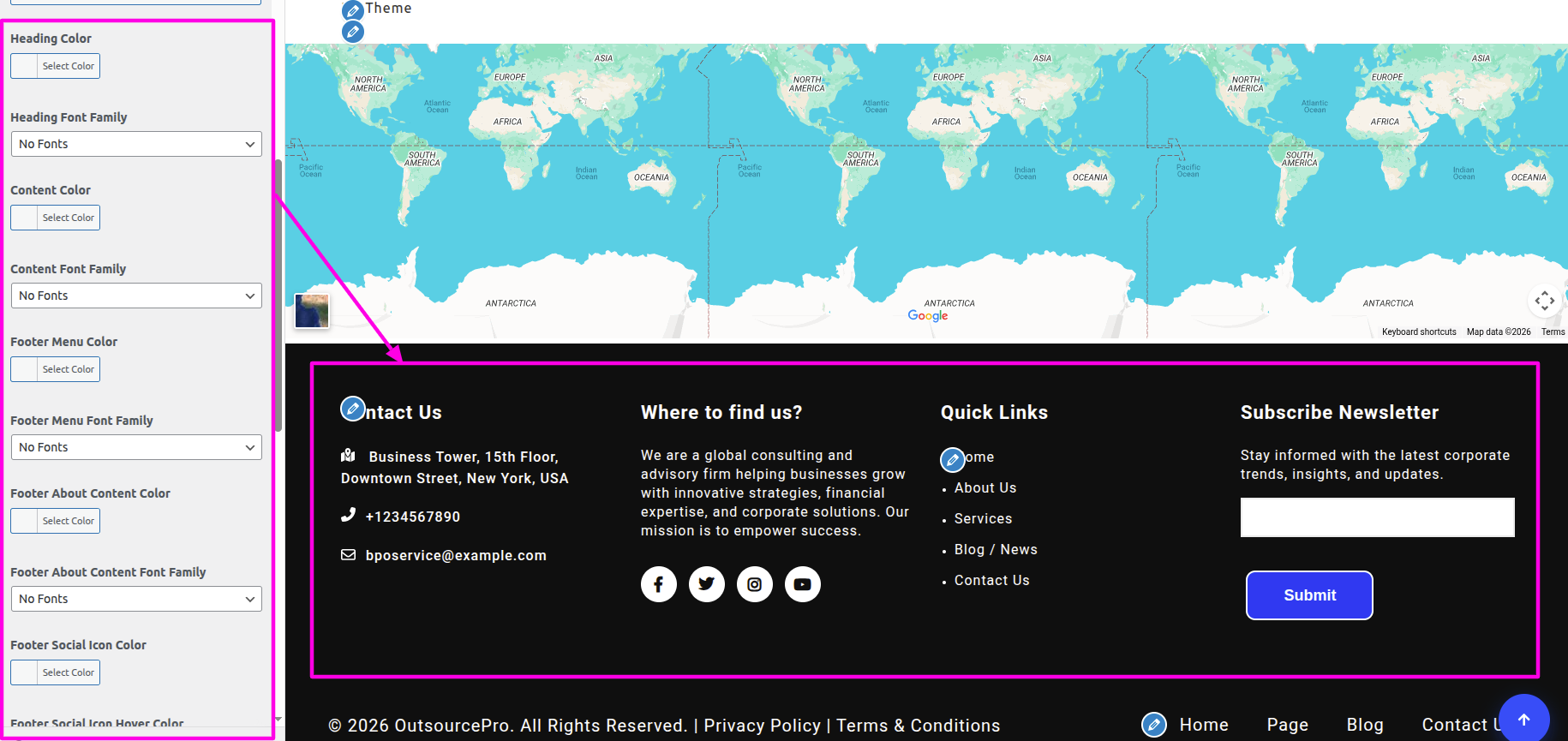
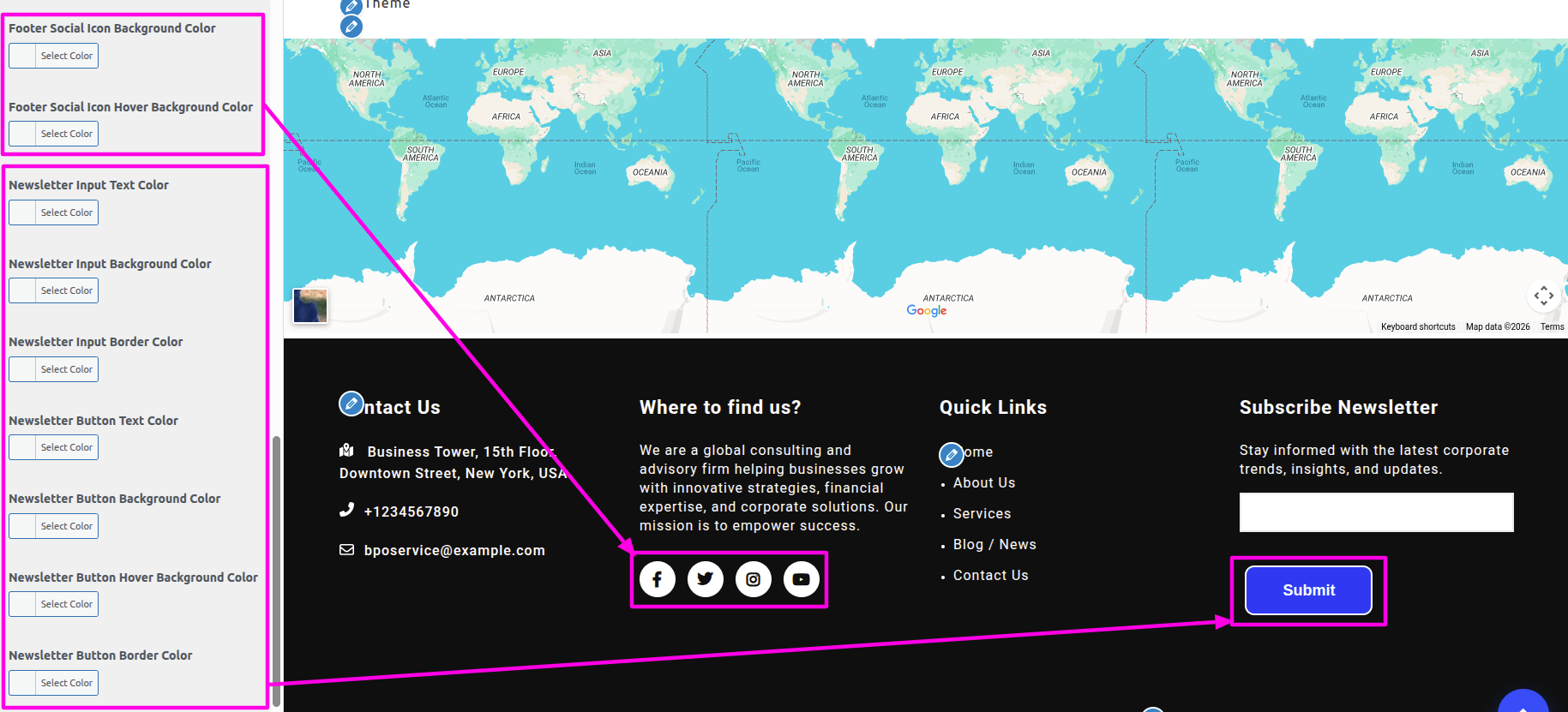
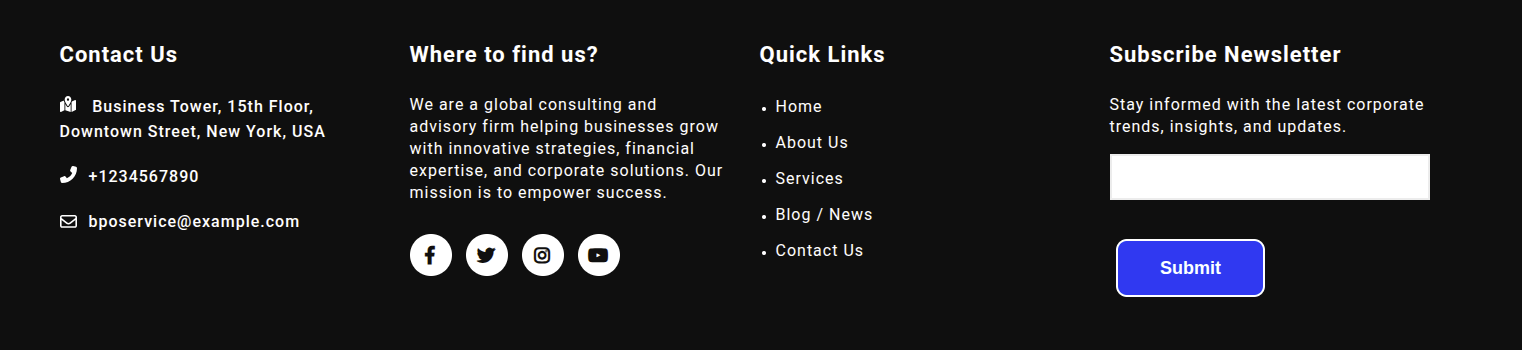
On the front end, it will appear as shown.
To be able to begin with Footer Text section,
SelectThe Appearance → Select The Customize → Footer Text.
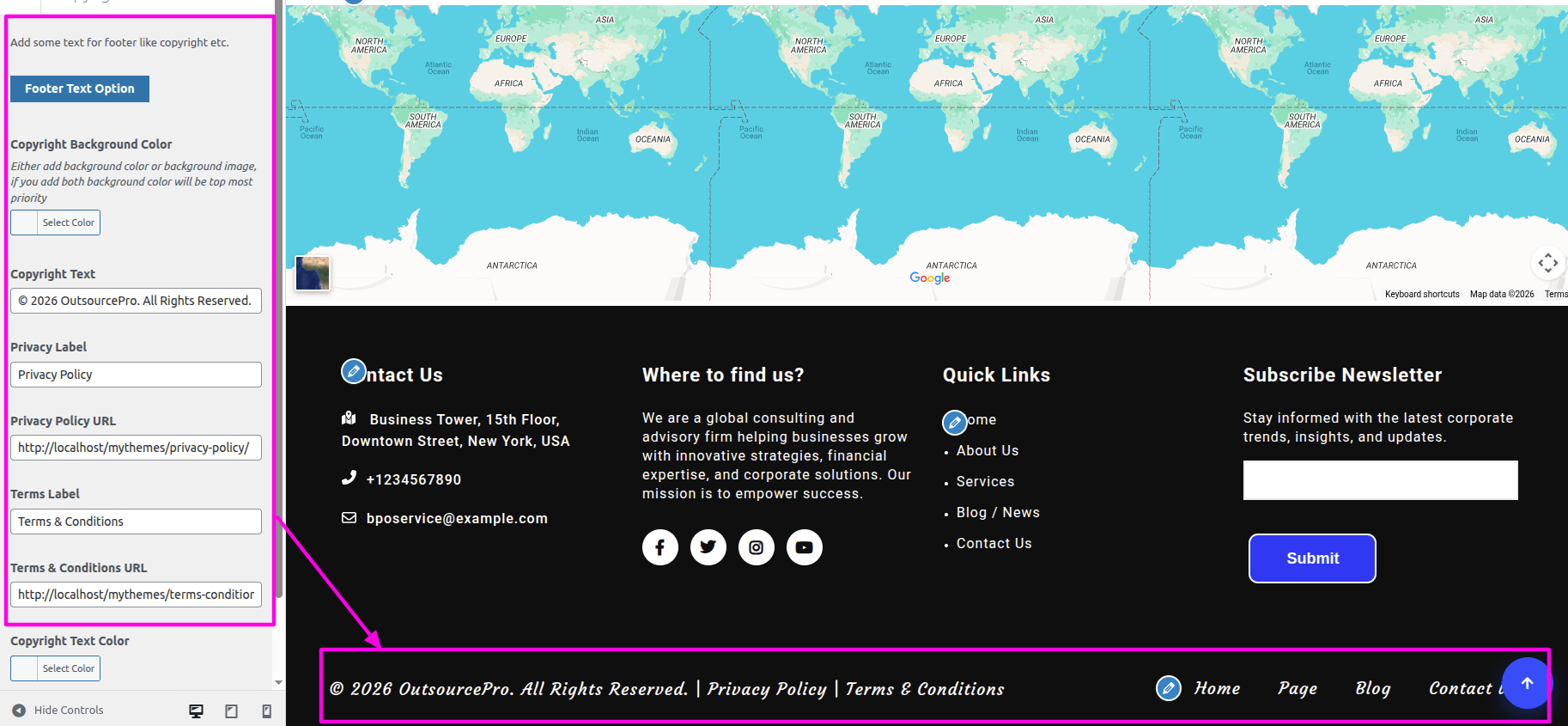
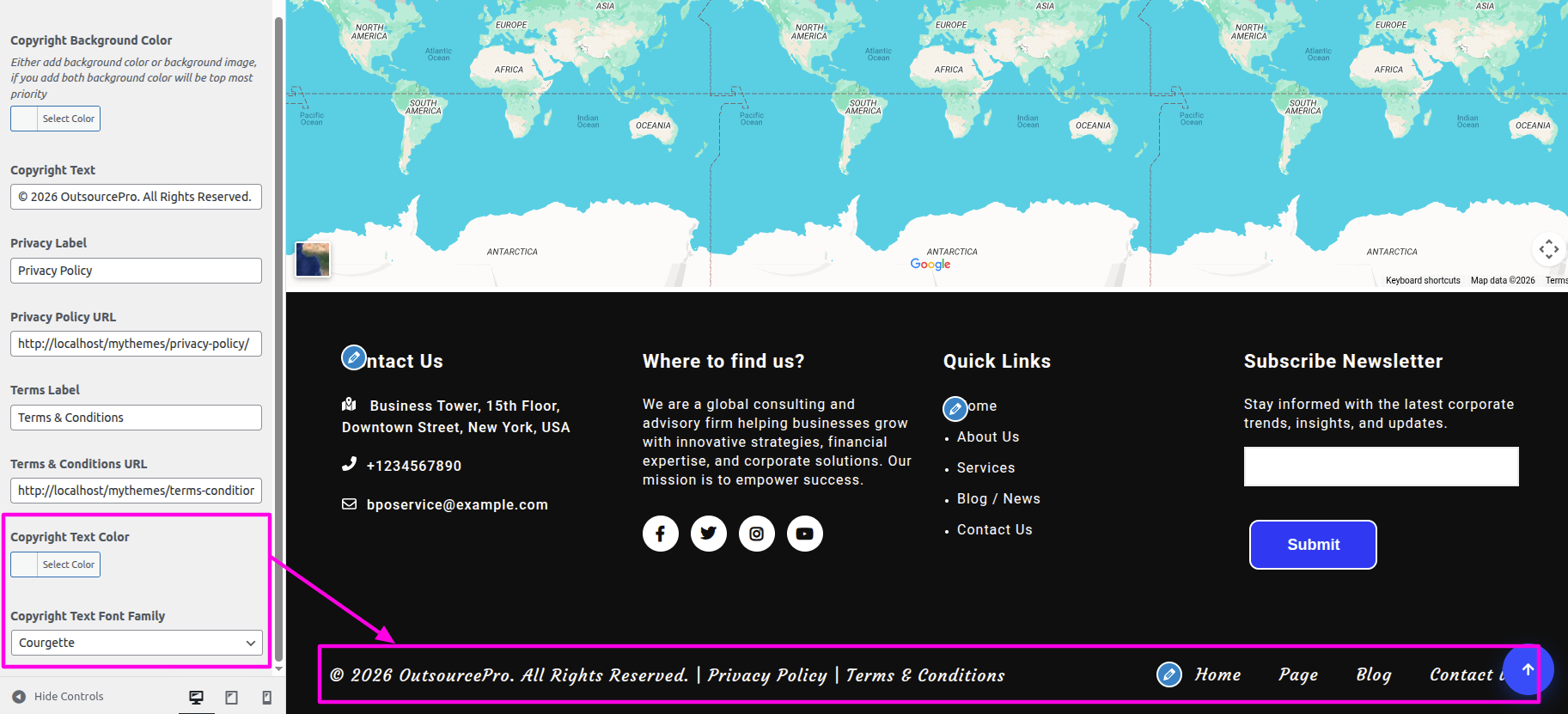
On the front end, it will appear as shown.

You can checkout the screenshots you will understand it better.
